問題: Why does the USB4 Virtual Power Coordination Device show a question mark?(10/29/2024) 回答: When expanding "Other devices" in device manager, entries for the "USB4 Virtual Power Coordination Device" may appear. These devices are native to Windows 11 and serve as virtual handlers for USB4/Thunderbolt 4 ports. This behavior is considered normal.
問題: 我的主機板與哪一種 CNVi WiFi 模組相容?(4/1/2022) 回答: First please determine which type of WiFi/Bluetooth(BT) module you can use on your motherboard. Second, if you want to use CNVi, you will need to check which generation of CNVi your motherboard supports.
Which type of WiFi/BT module is supported on your motherboard?
In general, there are 2 types of WiFi/BT modules that can be used via a Key E M.2 socket. One type uses a regular PCIe connection (for WiFi) and USB connection (for Bluetooth) via the M.2 socket. The other type uses CNVi, which is available on specific Intel platforms only: https://www.intel.in/content/www/in/en/support/articles/000026155/wireless.html
On the Asrock website, please check the specifications of your motherboard to determine which type is supported on your motherboard. Here are some examples.
If you would like to use CNVi, please note that there are different generations of CNVi. The table below shows which chipset supports which CVNi generation.
Intel Chipset
Supported CNVi System Interface Type
Intel 300 series
M.2: CNVio
Intel 400 series
M.2: CNVio and CNVio2* *CNVio2 support only for Model Intel AX101, AX201, AX203.
Intel 500 series
Intel 600 series
M.2: CNVio and CNVio2
Checking the specifications of WiFi/BT modules
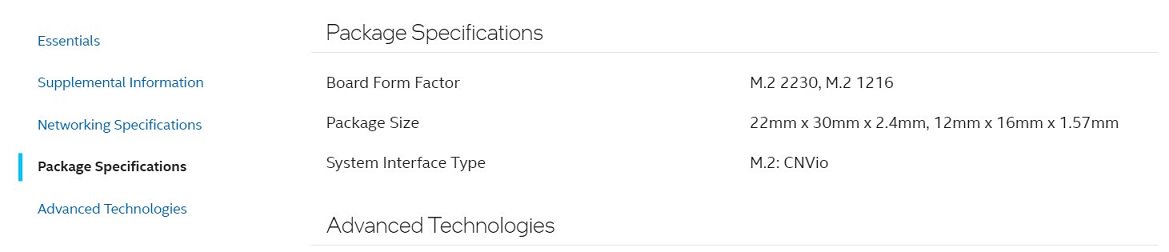
To check the "System Interface Type” of your WiFi module, please visit Intel® ARK for further information.
問題: How do I enable the Optane H10/H20 hybrid function on the Intel Z690/B660/H670 platform?(3/1/2022) 回答: If you want to make a fresh Windows installation with Optane H10/H20 hybrid function, please refer to the following steps:
Step 1. Make sure that H10/H20 Optane memory is installed in an M.2 socket which supports Optane. You can find the info by checking the storage section of the motherboard specifications page on ASRock's website.
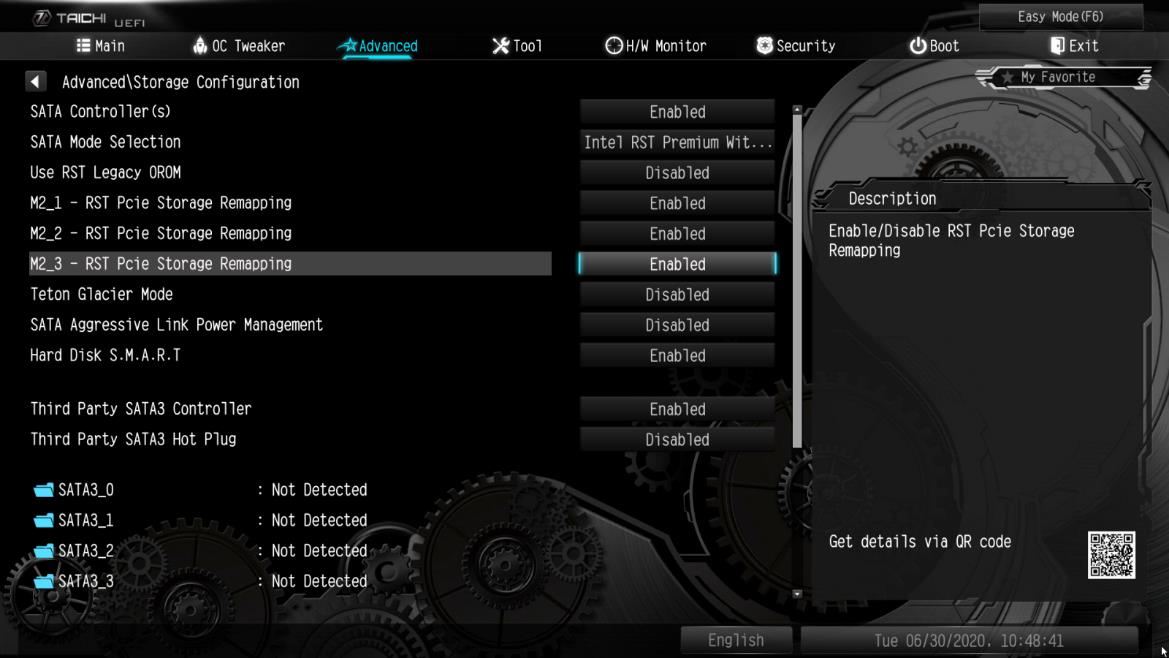
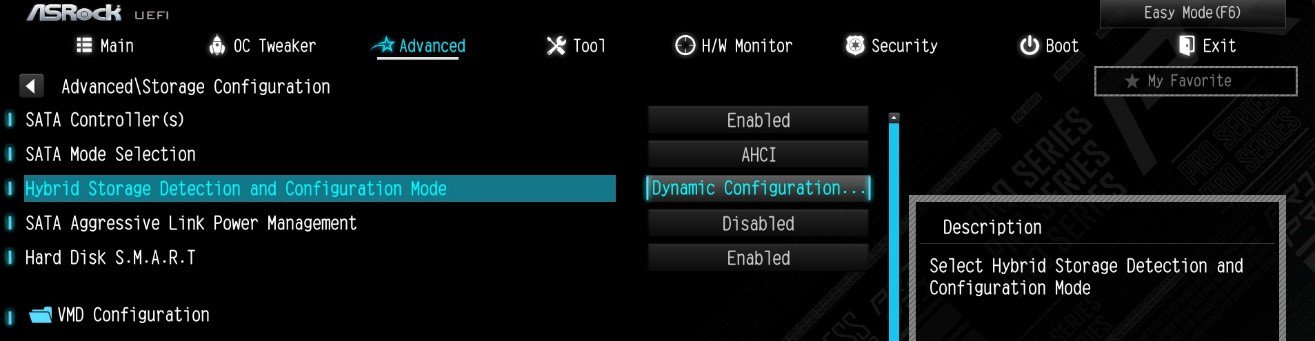
Step 2. Enable the Hybrid Storage Detection and Configuration Mode in BIOS and press "F10” to save the settings.
Advanced\Storage Configuration\Hybrid Storage Detection and Configuration Mode
Step 3. Go to Advanced\Storage Configuration\VMD Configuration and set Enable VMD controller to [Enabled]. Then set Enable VMD Global Mapping to [Enabled]. Press F10 to save the changes and exit setup.
Installing Windows® on a VMD platform After the BIOS setup, please follow the steps below.
Step 1. Please download the "SATA Floppy Image” driver from ASRock's website (https://www.asrock.com/index.asp). Unzip the file to a USB flash drive or copy the files from ASRock's motherboard support CD.
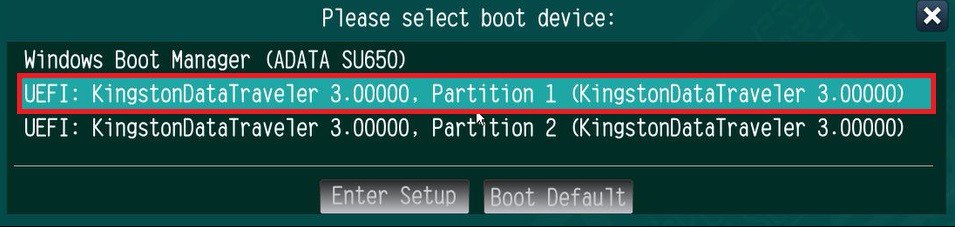
Step 2. Press at system POST to launch the boot menu and choose the item "UEFI: installation media>” to install Windows® 10 64-bit / 11 64-bit OS
” to install Windows® 10 64-bit / 11 64-bit OS">
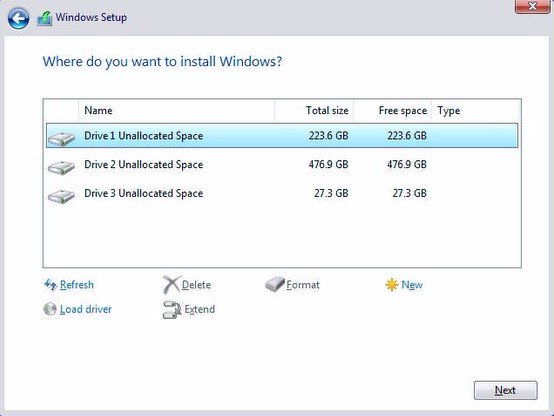
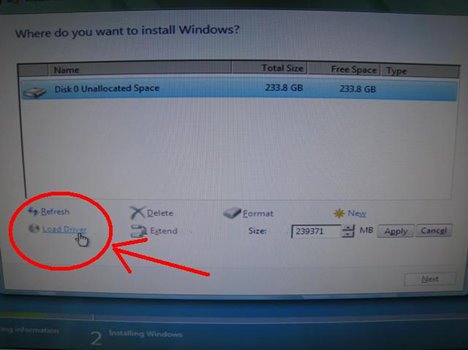
Step 3. If during the Windows installation process the target drive is not available, please click .
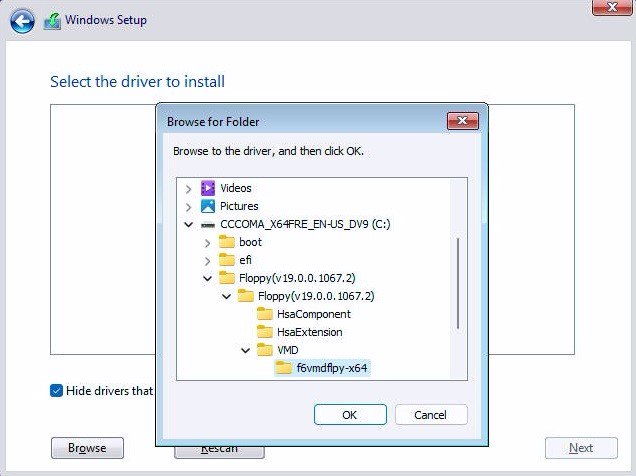
Step 4. Click and locate the driver on your USB flash drive.
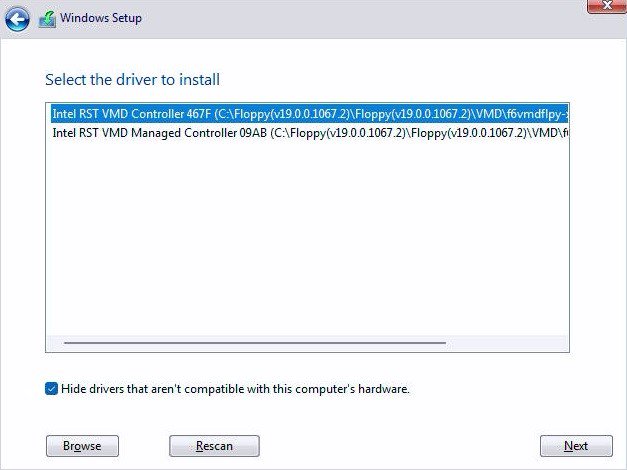
Step 5. Select "Intel RST VMD Controller” and then click .
.">
Step 6. Select unallocated space and then click .
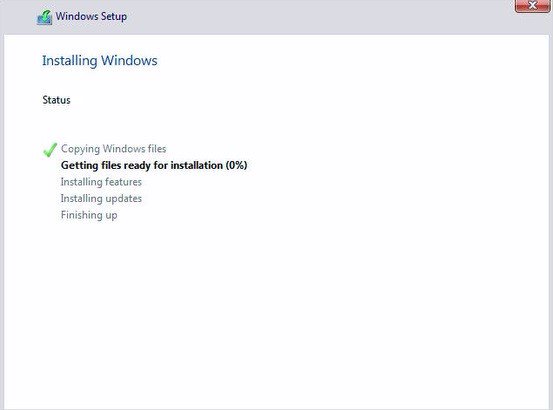
Step 7. Please follow Windows' installation instructions to finish the process.
Step 8. After the Windows installation is finished, please install the "Intel Rapid Storage Technology driver and utility” from ASRock's website. https://www.asrock.com/index.asp
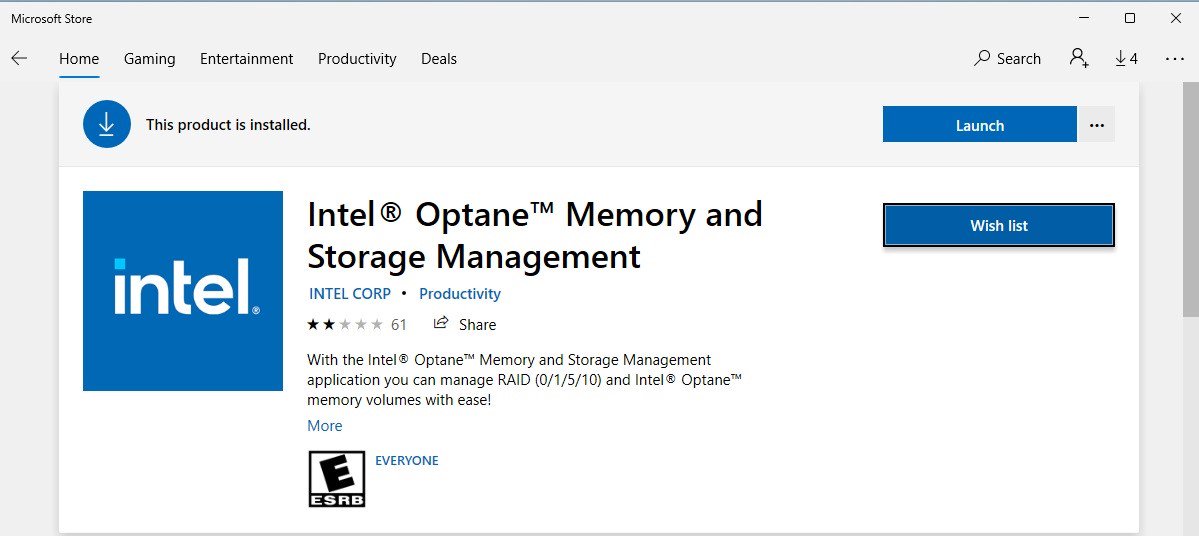
Step 9. Launch the Intel® Optane™ Memory and Storage Management tool from the Microsoft store.
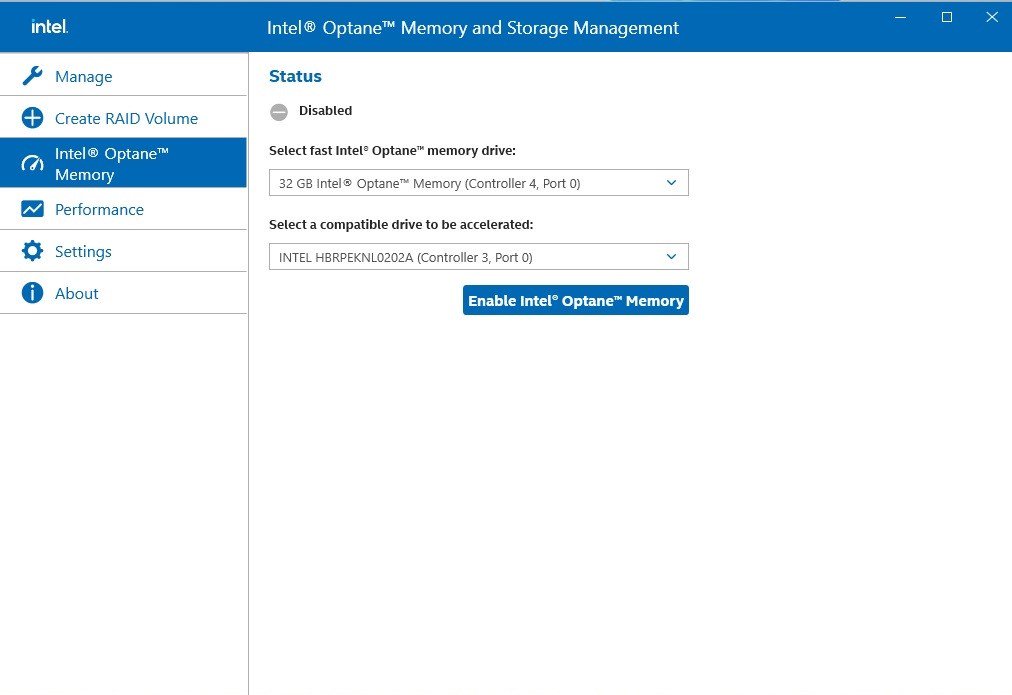
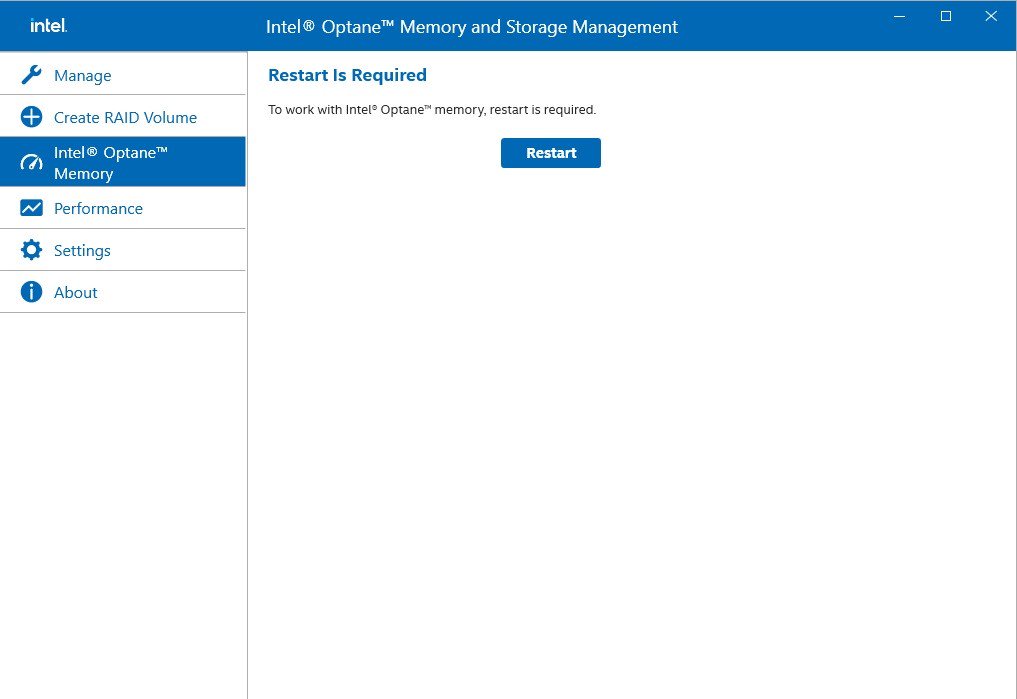
Step 10. Select the drive which you want to accelerate. Enable Intel® Optane™ Memory. (One restart is required)
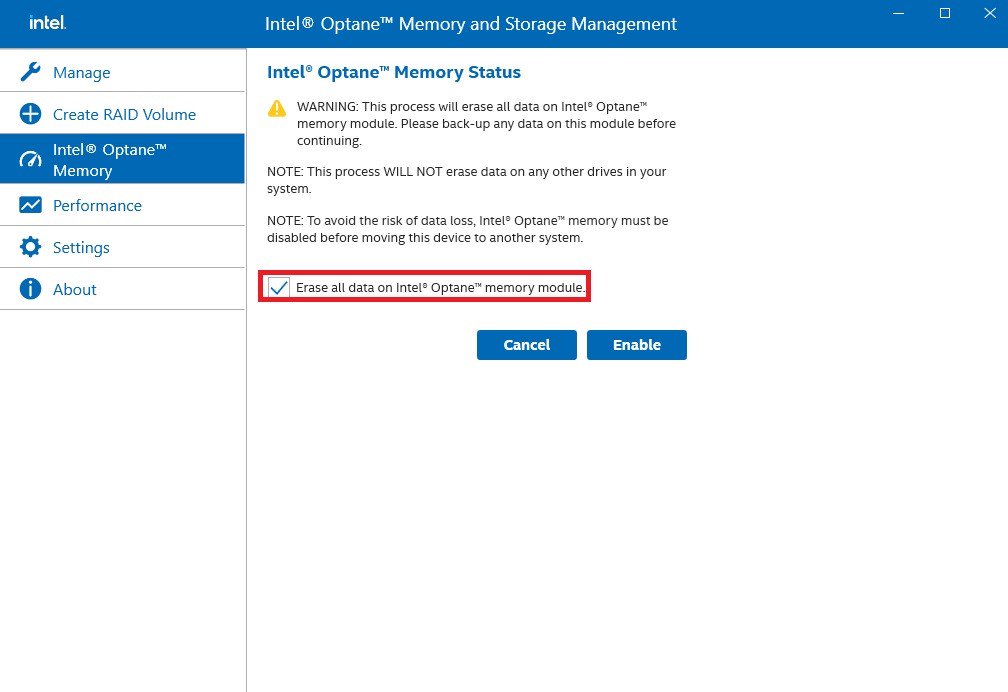
Step 11. Erase all data on the Intel® Optane™ memory module and click
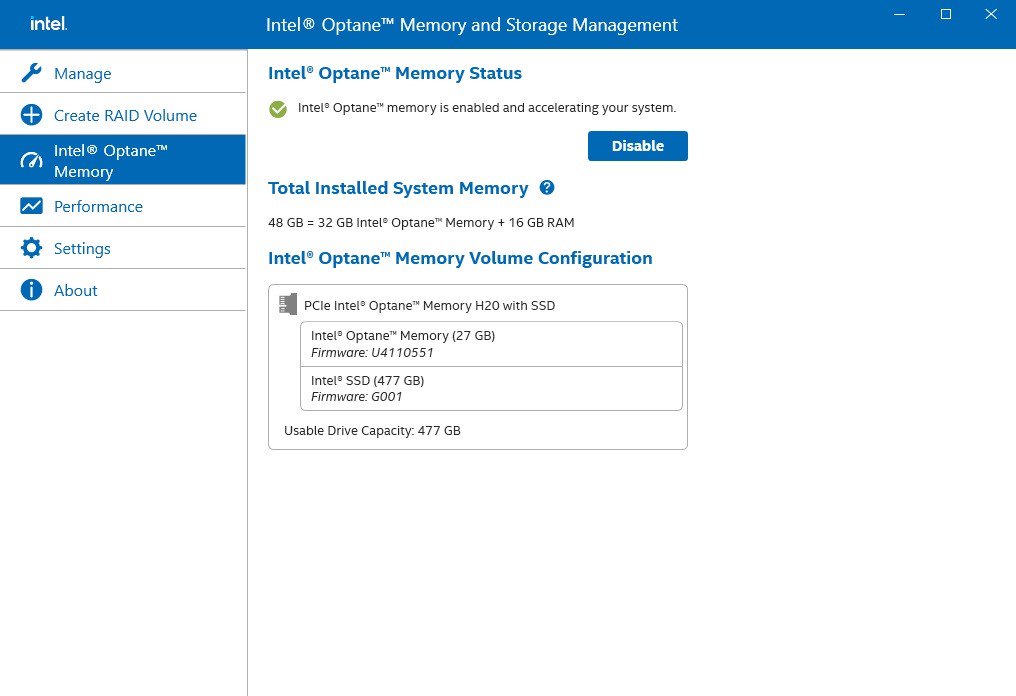
Step 12. After the system has restarted, the Optane Management tool will show that Optane memory is enabled.
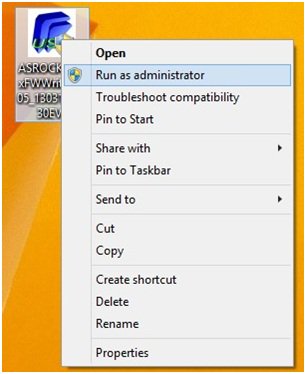
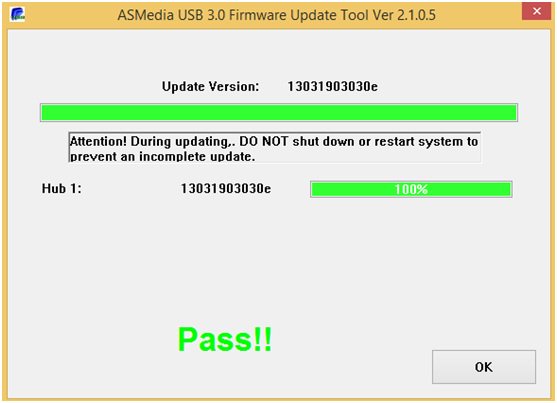
問題: 在 Windows 8 作業系統下使用 XFast USB 時,無法通過 ASMedia USB 3.0 接口複制檔案。如何解決該問題?(3/1/2013) 回答: 若要在 ASMedia USB 3.0 接口上使用 XFast USB,請安裝 ASMedia USB 3.0 驅動程式,並使用 Windows 8 inbox驅動。
問題: 安裝Windows® XP x64 Edition之後,在設備管理器中看到"Unsupported Standard Game Port"(不支援標準遊戲接口)。並且沒有驚嘆號"!"或錯誤提示訊息。爲什麽?(1/16/2006) 回答: Microsoft® Windows® XP x64 Edition不支援遊戲接口。如果您想要在Windows® XP x64 Edition中使用遊戲手柄或者操縱杆,請使用帶USB接口的。
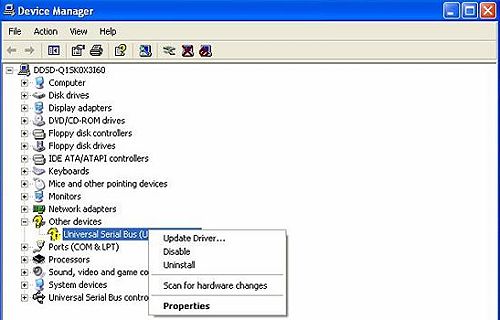
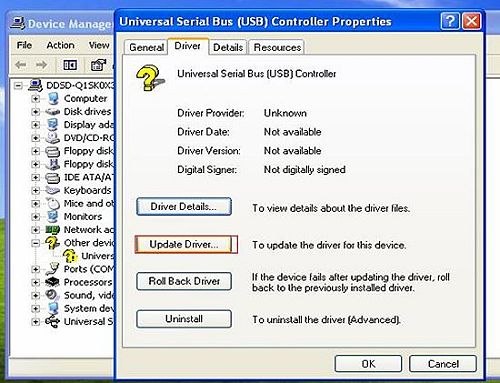
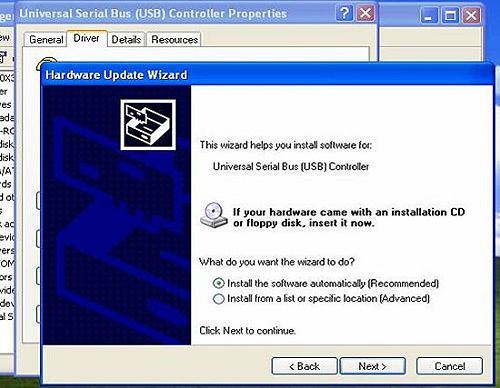
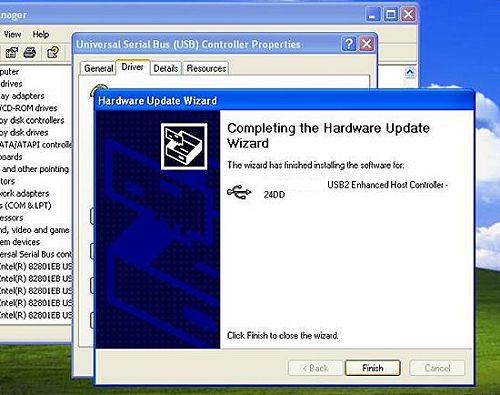
問題: 我的作業系統是Windows XP(或者Windows 2000),並且我已經安裝了XP Service Pack 1(Windows 2000 Service Pack 4)。但當我使用USB 2.0設備時,會顯示"High-Speed devices is attached to a non-Hi-Speed port"(高速設備配備了非高速接口)。我怎麽樣才可以使用USB 2.0設備呢?(10/15/2004) 回答: 請進入"device manager" (設備管理器)檢查設備是否已正確安裝。如果沒有,請按下面的步驟操作。 1.右鍵點擊有驚嘆號標誌的設備並選擇"properties"(屬性)。
 Menu
Menu

















![Set Enable VMD Global Mapping to [Enabled]. Press F10 to save the changes and exit setup.](/support/faq/167-4.jpg)
 ” to install Windows® 10 64-bit / 11 64-bit OS">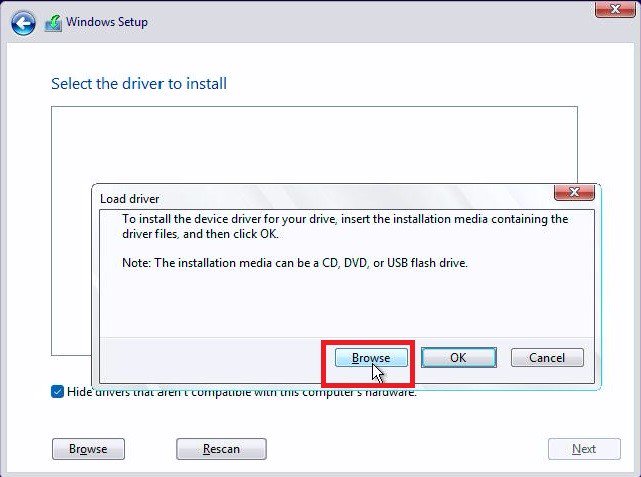
 .">
.">