We use cookies to offer you a more personalized and smoother experience. By visiting this website, you agree to our use of cookies. If you prefer not to accept cookies or require more information, please visit our Privacy Policy.

Necessary cookies These cookies are essential for the proper functioning of the website and cannot be turned off.
Analytics cookies These cookies help us understand how visitors use our website.
Marketing cookies These cookies are used to track visitors and display relevant advertisements.
Social media cookies These cookies allow you to share pages and content on social media.
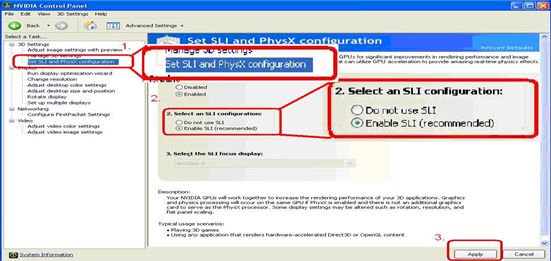
Question: I have plug two NVIDIA® VGA cards on my motherboard but, I cannot find the Enable SLI option in NVIDIA® Control panel?(9/3/2009) Answer: Following steps as below may help you to solve this issue.
1. If your motherboard has the SLI/XFire switch card, please put the SLI/XFire Switch card to 8x/8x, if there is no switch card on your motherboard, please skip this step.
2. Remove the graphics card from the PCI-E 1 slot.
3. Restart Windows.
4. Install the driver for the graphics card (again).
5. Put the VGA card back into the PCI-E 1 slot, and put the SLI bridge on.
6. Activate SLI function by NVIDIA® control panel.
7. Or please download the latest VGA driver from NVIDIA® Web Site and try the new driver. http://www.nvidia.com/Download/index.aspx?lang=en-us