Motherboards button
Serie Placas Base
Graphics Card button
Serie Placas de video
Monitors button
Monitor De Juego
Power Supply button
Power Supply
Mini PC button
Serie Mini PC
Industrial PC button
Serie PC Industrial
Server/WS button
Serie Servidor / Estación de trabajo
Loading

Usamos cookies para ofrecerle una experiencia más personalizada y fluida.
Al visitar este sitio web, acepta nuestro uso de cookies. Si prefiere no aceptar cookies o necesita más información, visite nuestra Política de privacidad.

FAQ - Preguntas más frecuentes

Si está completamente seguro de la categoría de su pregunta, puede elegir más abajo una de las categorías para preguntas más frecuentes. Catálogo de Preguntas más frecuentes:

Resultados:
P (10): If I want to use 4/6 speakers, how do I setup 4/6-Channel audio ?(11/26/2002)
R:STEP 1:
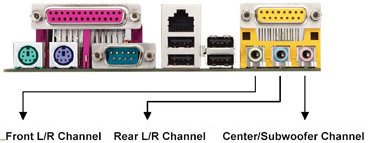
4 CH: Connect the front L/R channel to "Line Out", the rear L/R channel to "Line In".

6 CH: Connect the front L/R channel to "Line Out", the rear L/R channel to "Line In", and the Center/Subwoofer channel to "Mic In".


STEP 2:
After installation of C-Media Audio driver, you will find an icon "C-Media Audio configuration" on the taskbar.

STEP 3:
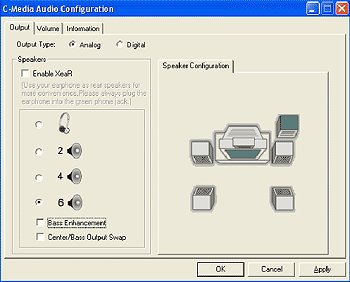
Click the icon, and the screen will show the current audio configuration.

Select "Output" to change your audio configuration. Select "Analog" for Output Type and choose "4 channels" / "6 channels" for your speaker configuration.

Then press "Apply" and press "Ok".