Motherboards button
Serie schede madri
Graphics Card button
Serie Scheda grafica
Monitors button
Monitor Gamer
Power Supply button
Power Supply
Mini PC button
Serie Mini PC
AIO Liquid Coolers button
AIO Liquid Coolers
Industrial PC button
Serie PC industriali
Server/WS button
Serie server/workstation
Loading

Utilizziamo i cookie per offrirti un'esperienza più personalizzata e fluida.
Visitando questo sito web, acconsenti all’utilizzo dei cookie da parte nostra. Se preferisci non accettare i cookie o hai bisogno di maggiori informazioni, consulta la nostra Informativa sulla privacy.

FAQ

Se siete pienamente consapevoli della categoria della vostra domanda, si può scegliere una delle categorie qui sotto per le domande più frequenti. Catalogo:

Risultati:
Q (519): How to enable HDR function under Windows?(8/9/2022)
A:First check if your monitor supports HDR function. (High Dynamic Range)
You may check the product specifications on the ASRock website:
https://www.asrock.com/index.asp

E.g. ASRock Gaming Monitor PG27FF1A supports HDR function.
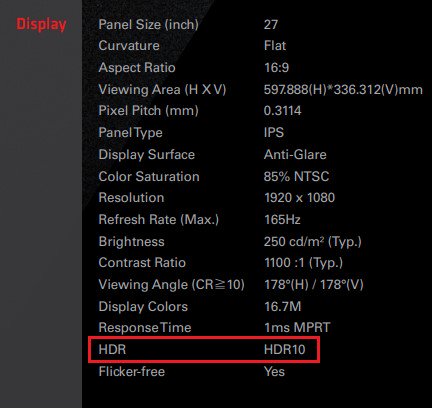
How to enable HDR function under Windows?

Settings under Windows 11:
1) Go to Settings> System> Display.
2) If your monitor supports HDR function, you may enable it.
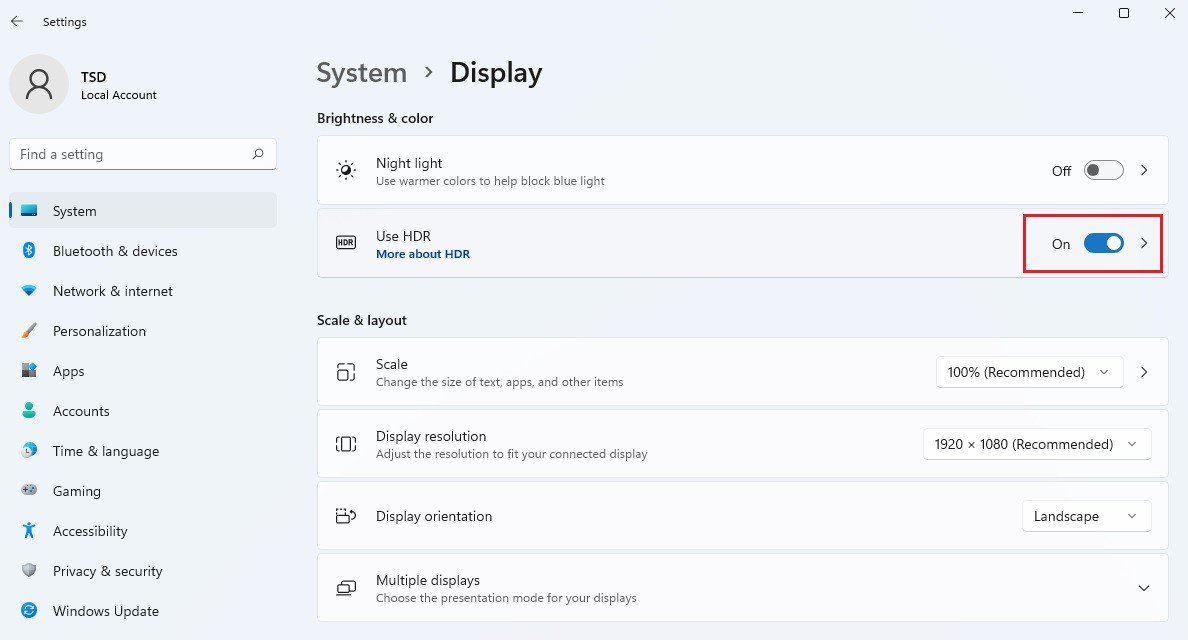
How to enable HDR function under Windows? Win11

Settings under Windows 10:
1) Go to Settings> System> Display.
2) If your monitor supports HDR function, you may enable it.
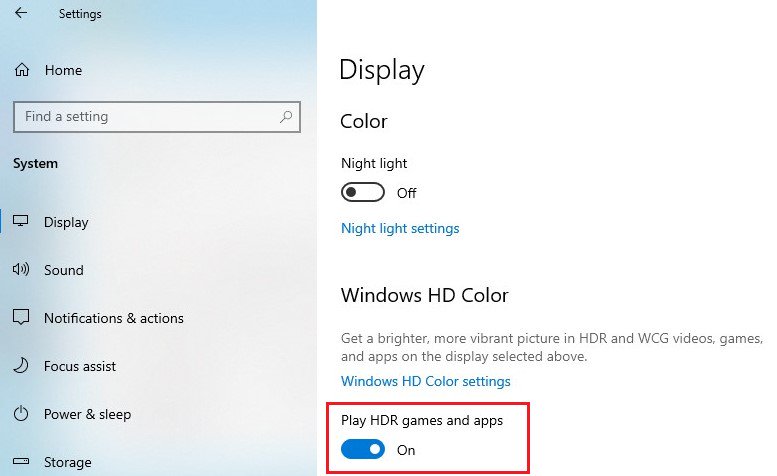
How to enable HDR function under Windows? Win10
Hardware requirements
- Processor: Intel 7th gen. processor or later
- Graphics card: NVidia GTX 10 Series or later/AMD RX500 Series or later

Software requirements
- OS: Windows 10 (ver:1709 or later)
- Software: Movies & TV with HEVC Codec installed
- Microsoft Edge Browser, PowerDVD 17 or later and VLC v3.0 (64bit) or later







