A:ION330 can support Dolby Digital 5.1, DTS 5.1 and LPCM 7.1 only under Windows
® Vista™ or later version.
Please refer to below steps to setting your system.
1. Please update the HOTFIX: KB959458 or update your Vista Service Package to SP2.
Hotfix download link: http://support.microsoft.com/kb/959458
2. Install the drivers in the order listed as below
a. VIA
® HD Audio Driver 7100d
b. NVIDIA
® HD Audio driver 1.0.0.51
c. NVIDIA
® nForce All in 1 v20.14
3. Install a proper AP, we used PowerDVD 9.0 for tests here.
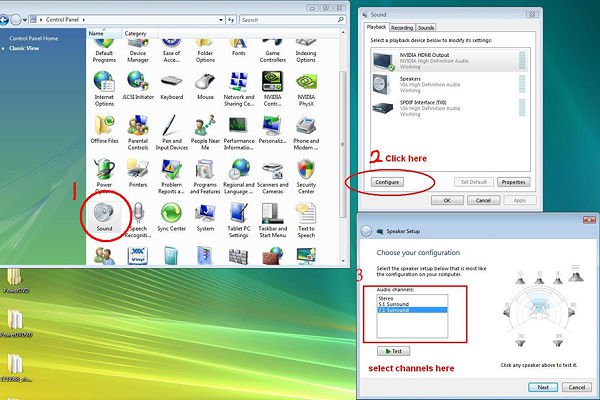
4. Enter Control Panel -> Sound -> Configure to choose Stereo, 5.1.
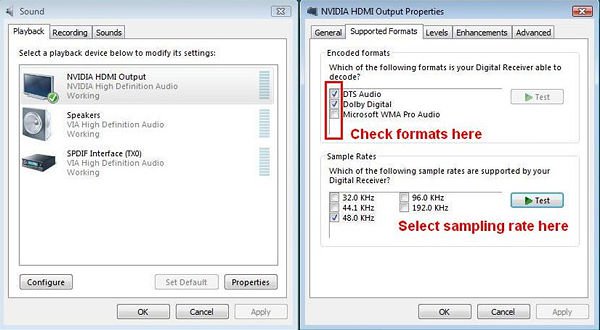
5. Enter Control Panel -> Sound -> Properties to set the sampling rate, Max Fs. for Dolby-Digital DTS is 48 KHz.
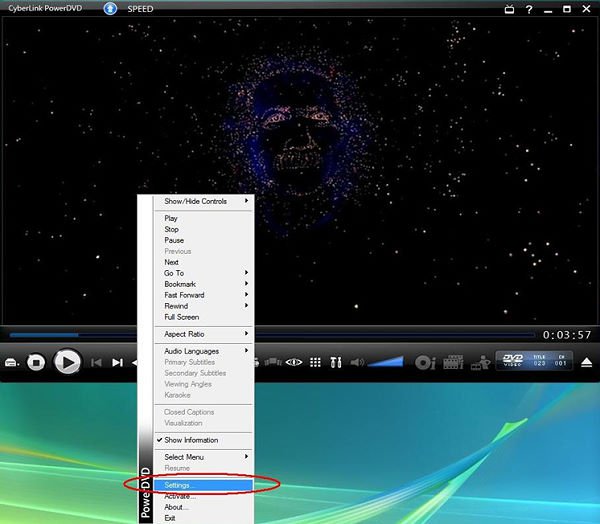
6. RIGHT CLICK in PowerDVD -> Settings -> Audio
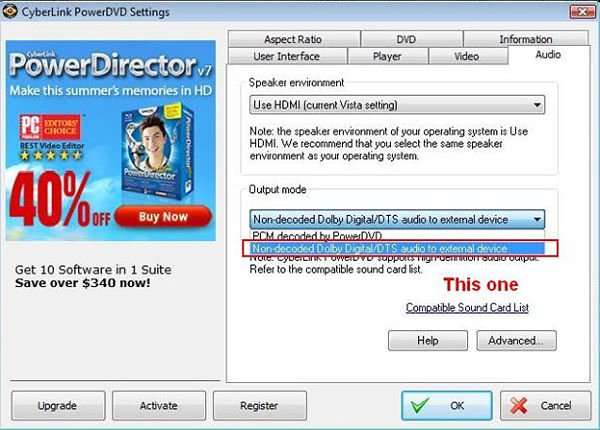
a. Speaker Environment -> Use HDMI (Current Vista Setting)
b. Output Mode -> Non-Decoded DD/DTS to external device.
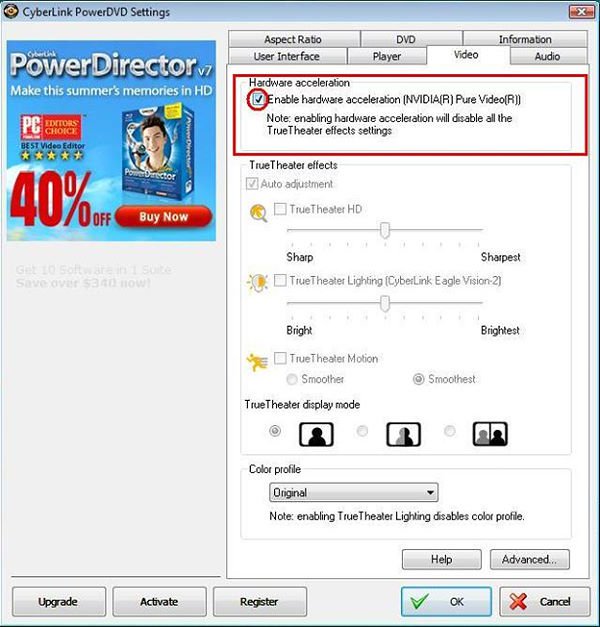
7. RIGHT CLICK in PowerDVD -> Settings -> Video. Enable Hardware Acceleration
8. As you can see in the picture below, the audio output is Dolby Digital 5.1.
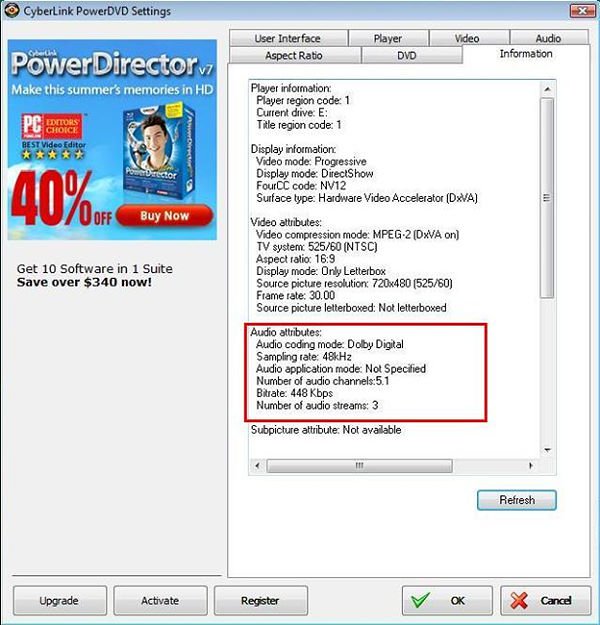
*If you want to output DTS 5.1, please select it in audio menu of DVD.
*For your information, the source of the test is a DVD which supports both DD5.1 and DTS 5.1.
 Menu
Menu







