We use cookies to offer you a more personalized and smoother experience. By visiting this website, you agree to our use of cookies. If you prefer not to accept cookies or require more information, please visit our Privacy Policy.
Necessary cookies These cookies are essential for the proper functioning of the website and cannot be turned off.
Analytics cookies These cookies help us understand how visitors use our website.
Marketing cookies These cookies are used to track visitors and display relevant advertisements.
Social media cookies These cookies allow you to share pages and content on social media.
Question: How to set up Teaming with Intel Ethernet Adapter under Windows10 1809 or later version?(10/1/2019) Answer: How to set up Teaming with Intel Ethernet Adapter under Windows10 1809 or later version?
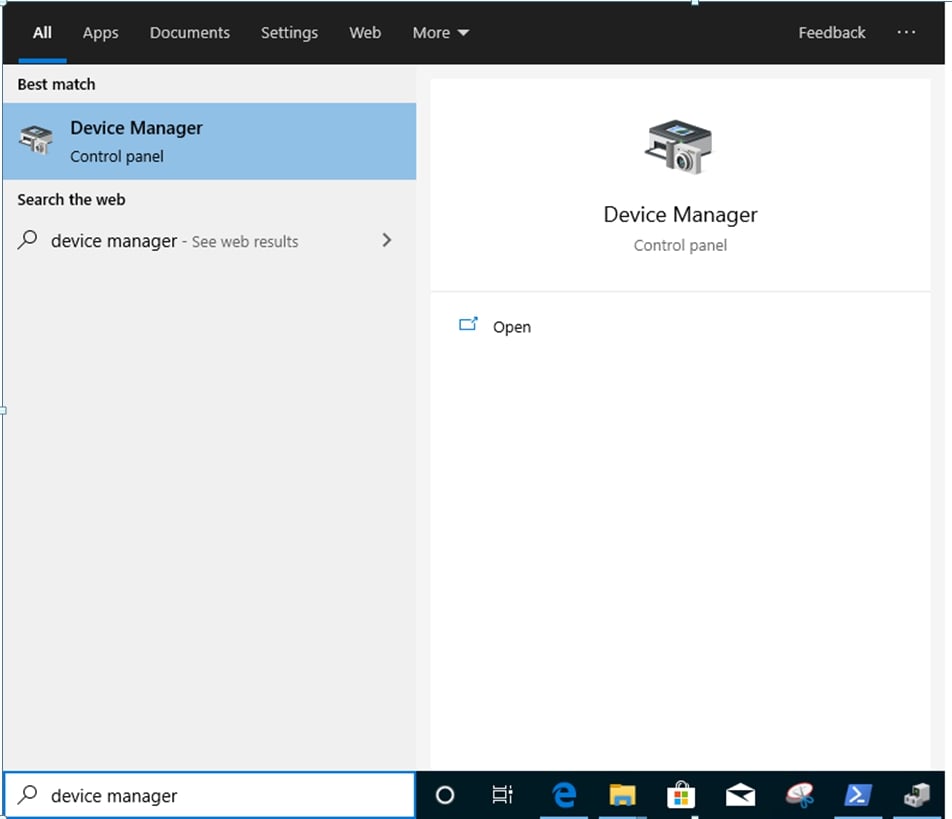
Step1: Access "Device Manager” by searching "Device Manager” at search bar.
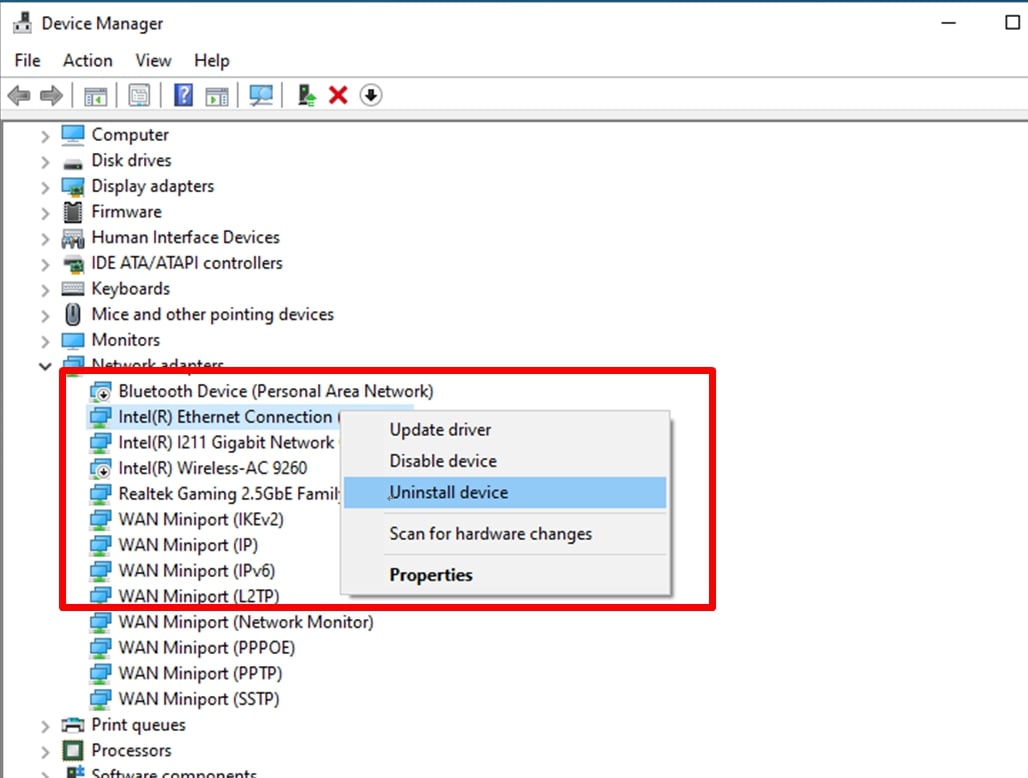
Expand "Network Adapters” and right click the Ethernet device to uninstall it.
After uninstalling the Ethernet device, please cold boot the system (power off and then back on completely).
Step2: Download the latest driver (later than v23.5) from Intel or ASRock official website for your Intel® Ethernet Adapter.
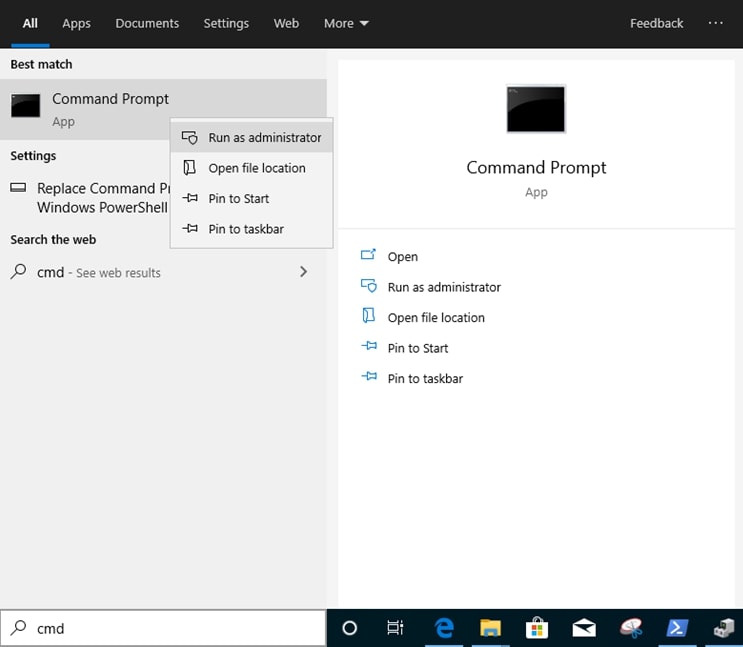
Step3: Search "CMD” at search bar and run Command Prompt as administrator.
Unzip the driver package and go to APPS > PROSETDX > Winx64. Copy the root.
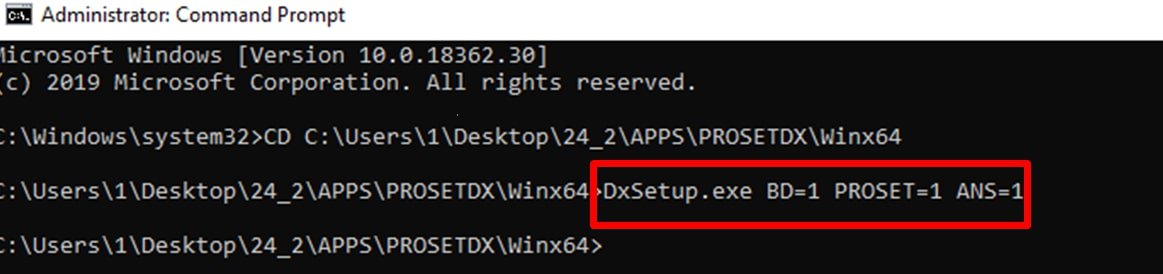
Within the Command prompt, please change the root to APPS > PROSETDX > Winx64 folder by following command:
CD C:\Users\1\Desktop\24_2\APPS\PROSETDX\Winx64.
Step4: Install the driver by entering command:
DxSetup.exe BD=1 PROSET=1 ANS=1
After the driver installation, please reboot the system.
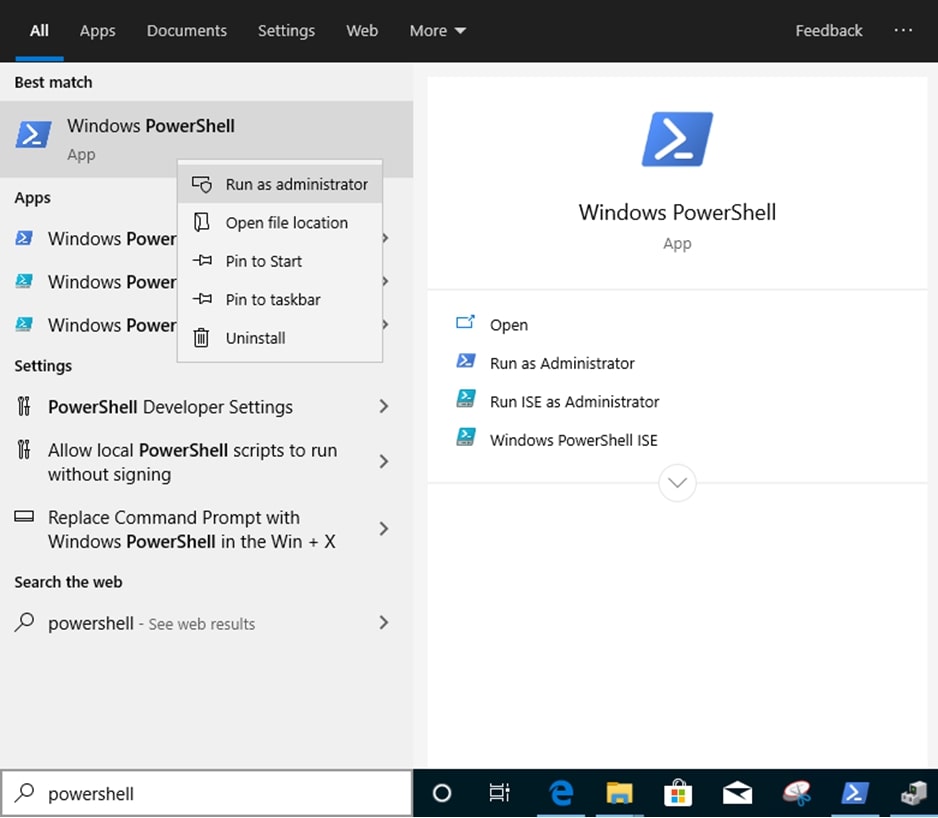
Step5: Search "PowerShell” at search bar and run the Windows PowerShell as administrator
Enter the command:
Import-Module –Name "C:\Program Files\Intel\Wired Networking\IntelNetCmdlets\IntelNetCmdlets.dll"
It would not show any conformation. Please enter another command then:
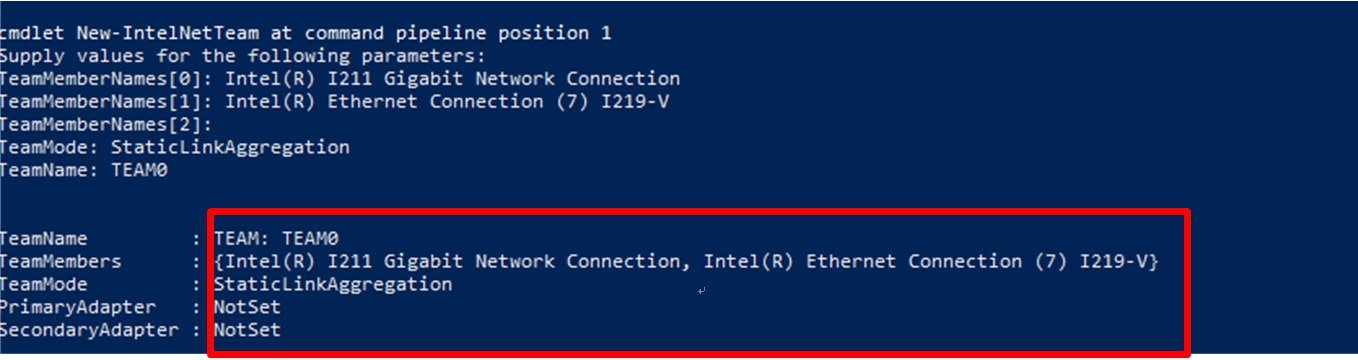
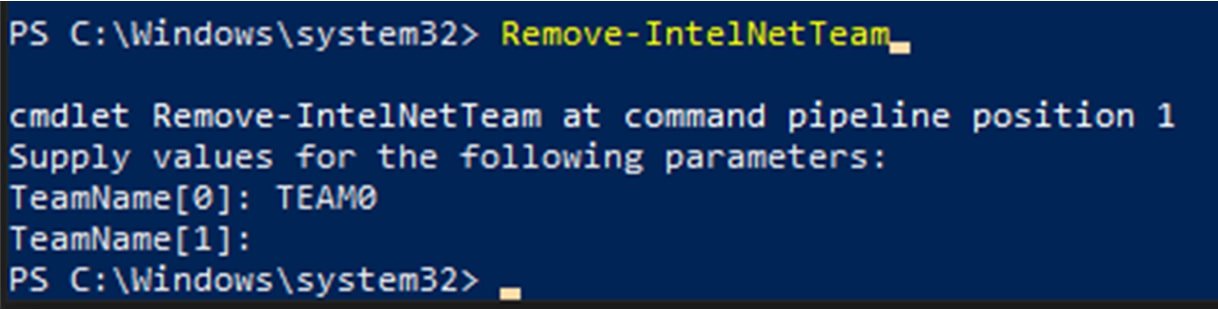
New-IntelNetTeam
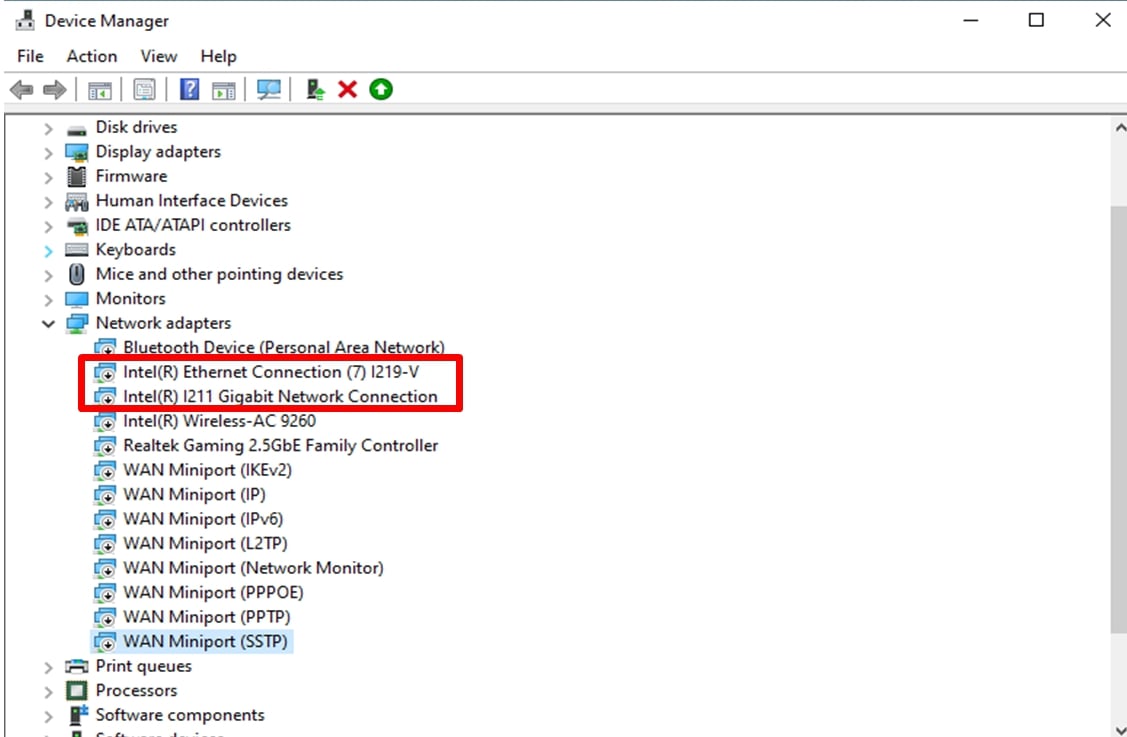
Step6: The system will ask for your Team Member Names. Please go to "Device Manager" > "Network Adapters" to confirm the names of the Ethernet Adapters.
Enter the command:
Inte(R) Ethernet Connection (7) I219-V
Inte(R) I211 Gigabit Network Connection
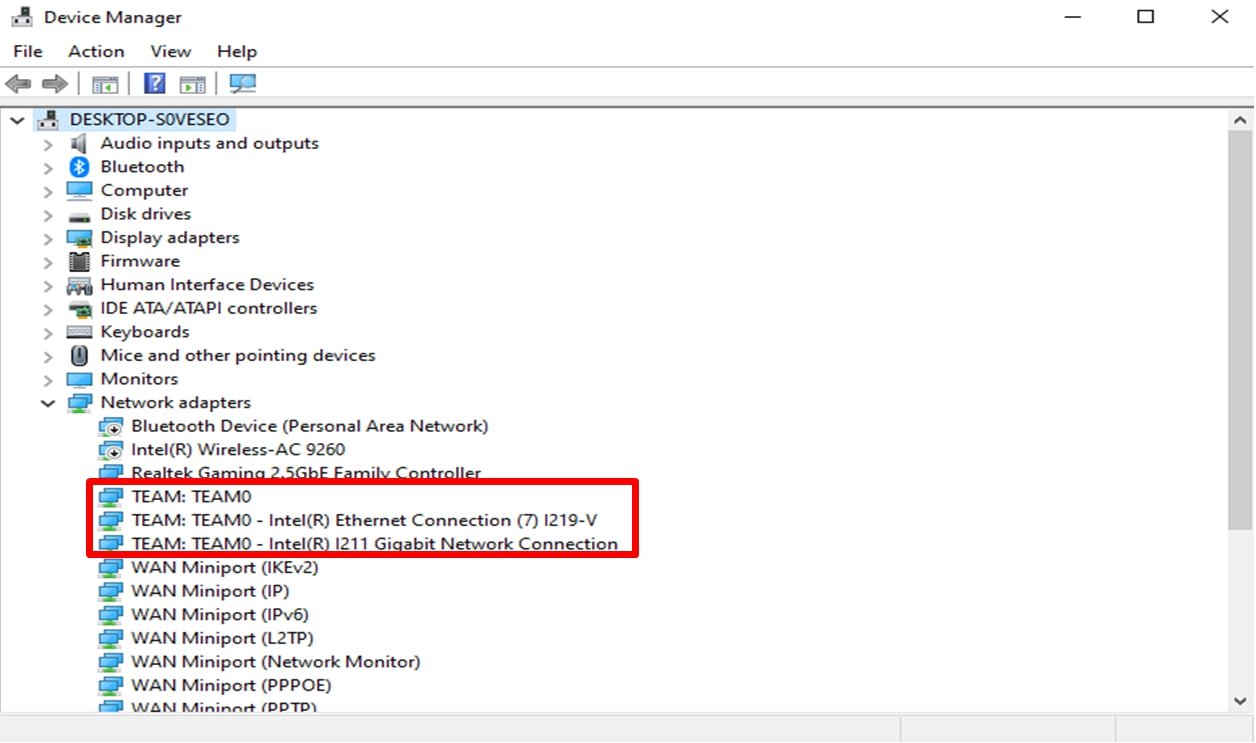
If you just want to set up a Team by using two Ethernet adapters, please type "Enter” at "TeamMemberName[2]”.
Question: I cannot install the VGA driver in the support CD for the integrated graphics of CPU E3-1265L v3. Which VGA driver should I install for CPU E3-1265L v3?(9/1/2013) Answer: The integrated GPU of E3-1265L v3 is GT1 which is different from other Haswell CPUs, please download VGA driver v15.31.18.0.3272 from the link below and then install it for this CPU. Windows 7/ Windows 8 32bit download link Windows 7/ Windows 8 64bit download link
Question: When I play music or movies with Media Player under Win8 32/64bit, Media Player stops and shows an error message whenever I plug a headphone into the front audio panel. How do I fix this?(9/1/2013) Answer: Please re-open Media Player and play the file again to have sound come out from the front headphone.
Question: What are the basic requirements for Intel Smart Response Technology?(5/1/2012) Answer: According the Intel document, for a system to support Intel Smart Response Technology it must have the following:
• Intel® Z68/Z77 Express Chipset-based desktop board
• Intel® Core™ i3/i5/i7 Processor in the LGA 1155 package
• System BIOS with SATA mode set to RAID
• Intel Rapid Storage Technology software 10.5 version release or later
• Single Hard Disk Drive (HDD) or multiple HDD's in a single RAID volume
• Solid State Drive (SSD) with a minimum capacity of 18.6GB
• Operating system: Microsoft Windows Vista 32-bit Edition and 64-bit Edition, Microsoft Windows 7 32-bit and 64-bit Edition.
For more information, please refer to the user guide of Intel Smart Response Technology: http://download.intel.com/support/chipsets/sb/intel_smart_response_technology_user_guide.pdf
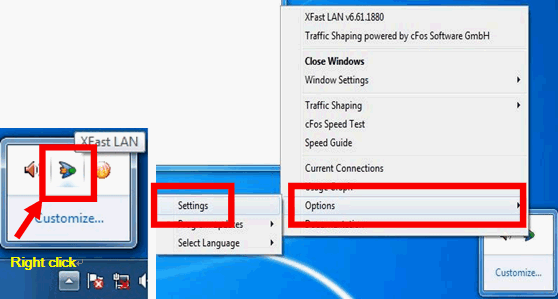
Question: How do I set ASRock XFast LAN works with Teaming function?(1/1/2012) Answer: Please follow the setup steps as below:
Step 1. Please remove all LAN cable from your system.
Step 2. After finish the procedure of OS installation, please insert the support CD and install all system drivers and XFast LAN
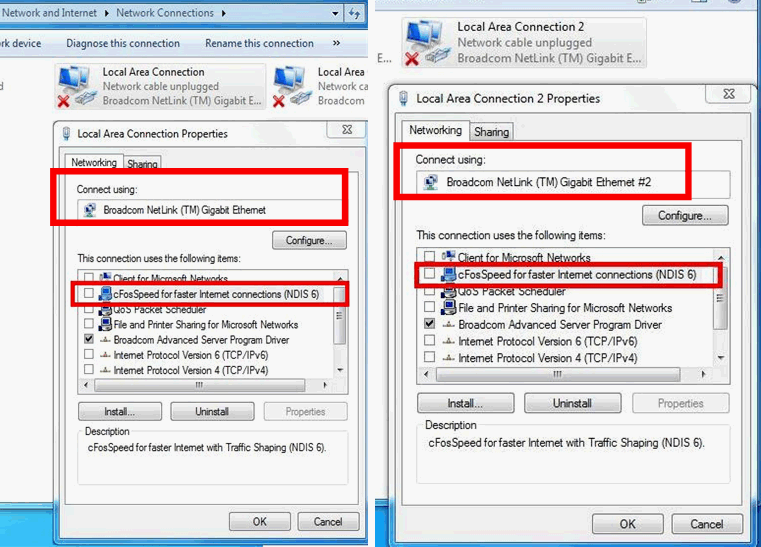
Step 7. Please enter Network Connections and cancel the selection of [cFos Speed for faster Internet connections (NDIS 6)] for Local Area Connection and Local Area Connection 2.
Step 8. Restart system once and connect both LAN cables back to system.
Step2:
Please unzip the SATA RAID driver which downloaded in Step1 and put the SATA RAID driver in USB flash drive.
Step3:
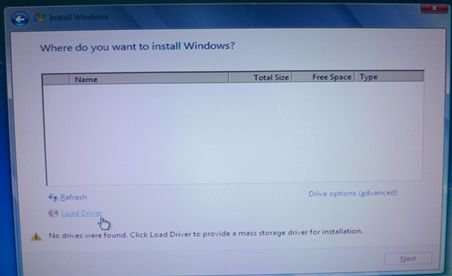
Please click "Load Driver" when selecting hard drive in Windows installation.
Step4:
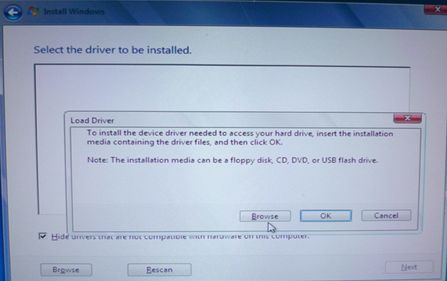
Click "Browse"
Step5:
Choose the folder downloaded in Step1.
RSTe_f6_iaStorA_2008R2_32 is used for 32-bit operating system.
RSTe_f6_iaStorA_2008R2_64 is used for 64-bit operating system
Step6:
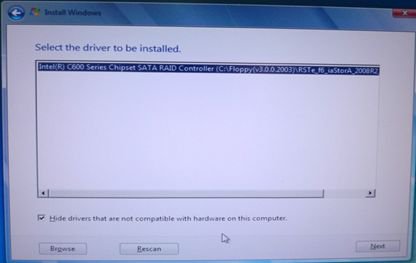
Select the SATA RAID driver for "Intel(R) C600 Series …." as below picture and click next to install the OS.
Question: If I use a Phenom CPU on ALiveNF7G-HD720p, I am not able to change resolutions of onboard VGA over 1088x612(32bit color) under Windows® XP. How do I solve this?(12/19/2007) Answer: Please update VGA driver to version 163.86. The driver 163.86 is available from ASRock Web Site.
https://www.asrock.com/mb/download.asp?Model=ALiveNF7G-HD720p%20R3.0
Question: Does onboard VGA of ALiveNF7G-HDReady / ALiveNF7G-HD720p support resolution 1600x1200 through DVI output?(10/2/2007) Answer: Yes, please update onboard VGA driver to 162.22 for Windows® Vista™ 32-bit / Vista™ 64-bit and 163.51 for Windows® XP / 2000. The drivers are available from following link.
https://www.asrock.com/mb/download.asp?Model=ALiveNF7G-HDready
https://www.asrock.com/mb/download.asp?Model=ALiveNF7G-HD720p%20R3.0
Question: I want to install Windows® Vista™ 32-bit / Vista™ 64-bit OS on AM2NF3-VSTA / ALiveDual-eSATA2. Is there any point for attention?(10/2/2007) Answer: If you plan to install Windows® Vista™ 32-bit / Vista™ 64-bit OS on this motherboard, please read below instructions and limitation carefully. For Windows® 2000 / XP / XP 64-bit OS, there is no such limitation.
https://www.asrock.com/mb/note/AM2NF3-VSTA.html
Question: How do I enable Windows® Aero feature in my Windows® Vista™ Premium system?(2/15/2007) Answer: First, your hardware must meet the requirements of the Windows® Vista™ Premium system. If not, you may not enable Windows® Aero.
Windows® Vista™ Premium system - Hardware Minimum Requirements
Item
Requirements
CPU
x86-compatible 32-bit CPU or x64-compatible 64-bit CPU
Memory
512MB Single Channel (Premium, Discrete models) 512MB x 2 Dual Channel (Premium, embedded models)
VGA
DirectX9.0 (with WDDM Driver) with 128bit VGA memory (Premium)
Audio
UAA Audio (HD Audio, USB Audio and IEEE1394 Audio) (Premium or Basic depends on Codec Vista logo level)
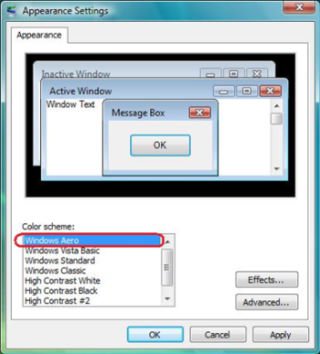
Second, please kindly refer to below steps to enable Windows® Aero feature:
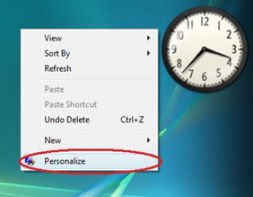
1.Press right button of mouse at Desktop and click "Personalize".
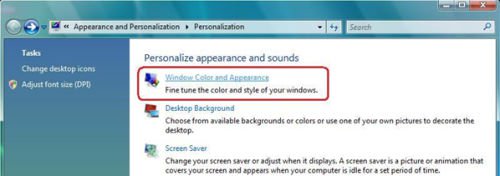
2.Enter into "Windows® Color and Appearance" setting
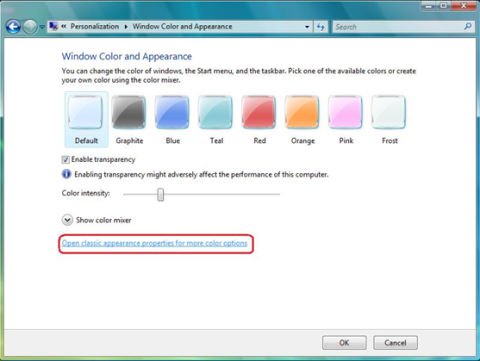
3.Refer to below image to enter "Open classic appearance properties for more color options" setting.
Question: I have installed total 4GB memory on my motherboard. However, it can only recognize around 3GB or less. How should I do to recognize 4GB totally?(2/17/2006) Answer: Please refer the description Q4 of Q&A-20.
https://www.asrock.com/support/QA/TSDQA-20.pdf
This limitation applies to most chipsets & Windows® XP 32-bit version operating system.
If you want to get 4GB memory for your system, below two conditions must be required:
1. The memory controller which supports memory hole(memory remap) functionality is used. The latest chipsets like Intel® new chipset, or other chipsets and AMD® K8 CPU architecture can support the memory hole(memory remap) function.
2. Windows® XP Pro X64 Ed. (64-bit) or other OS which can address more than 4GB memory.
http://www.intel.com/support/motherboards/server/sb/cs-016594.htm
Question: Why is my 4GB of memory reported as about 3.5GB by the system if the chipset of the motherboard support to 4GB Memory size?(6/11/2004) Answer: Under the current PC memory addressing, there is a memory area just below 4.0 GB which is reserved permanently. The maximum DDR memory support is actually about 3.5GB rather than 4GB. This limitation is caused by the current PC architecture in which the missing 0.5GB of memory addresses are reserved for PCI I/O space, AGP aperture mapping space, and other onboard device I/O space. Thus although the chipset datasheet may claim memory support for up to 4GB, the system actually only offers about 3.5GB with four 1GB DDR DIMMs installed. 32 bit processors only support 4GB of address space.