Motherboards button
Материнские платы
Graphics Card button
Видеокарта
Monitors button
Monitor Gamer
Power Supply button
Power Supply
Mini PC button
Мини-ПК
Industrial PC button
Коммерческие ПК
Server/WS button
Серверы и рабочие станции
Loading

Мы используем «cookies» только для улучшения просмотра сайта.
Просматривая этот сайт, вы соглашаетесь на использование наших «cookies». Если вы не хотите использовать «cookies» или хотите узнать об этом подробнее, ознакомьтесь с нашей Политикой приватности.
Вопросы-Ответы

Выберете одну из следующих категорий, если вы знаете, к какой из них относится ваш вопрос:

Результаты:
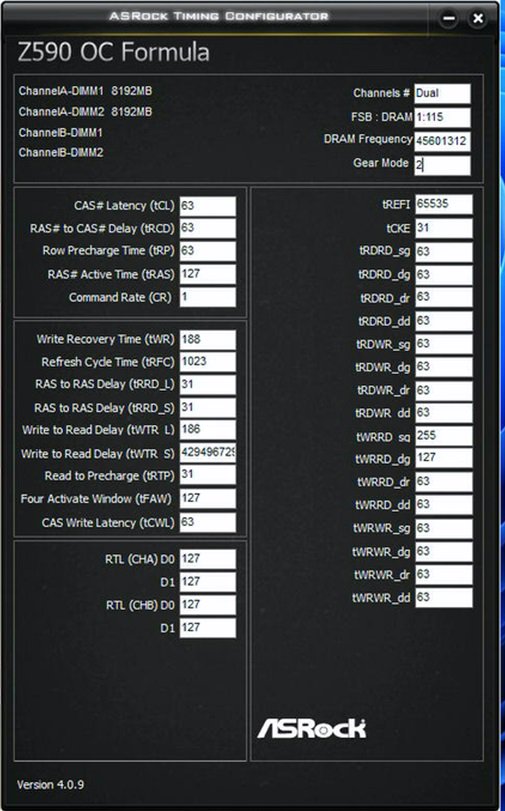
B (Q&A-164|505): Why does the ASRock Timing Configurator show strange values, and how can I use this OC software under Windows 11?
Why does the ASRock Timing Configurator show strange values, and how can I use this OC software under Windows 11?(10/1/2021)
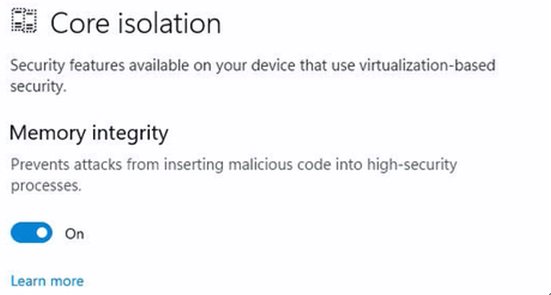
O:Microsoft® Windows 11® has a security function called "Memory integrity”. This function can prevent attacks from inserting malicious code into high-security processes, but it will interfere with the ability to read sensor values and affect the function of OC software.

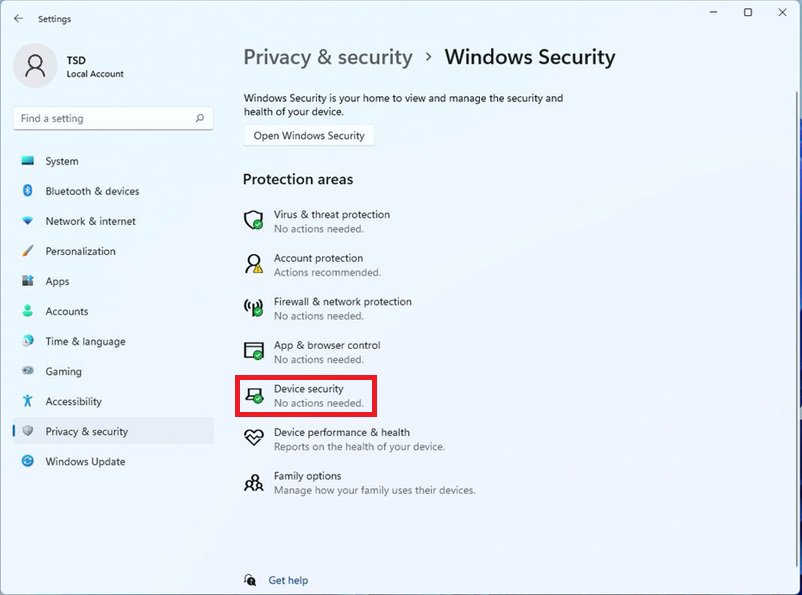
Why does the ASRock Timing Configurator show strange values, and how can I use this OC software under Windows 11? step1

We recommend temporarily disabling this function when you would like to use OC software. Please refer to the following steps to deactivate it.

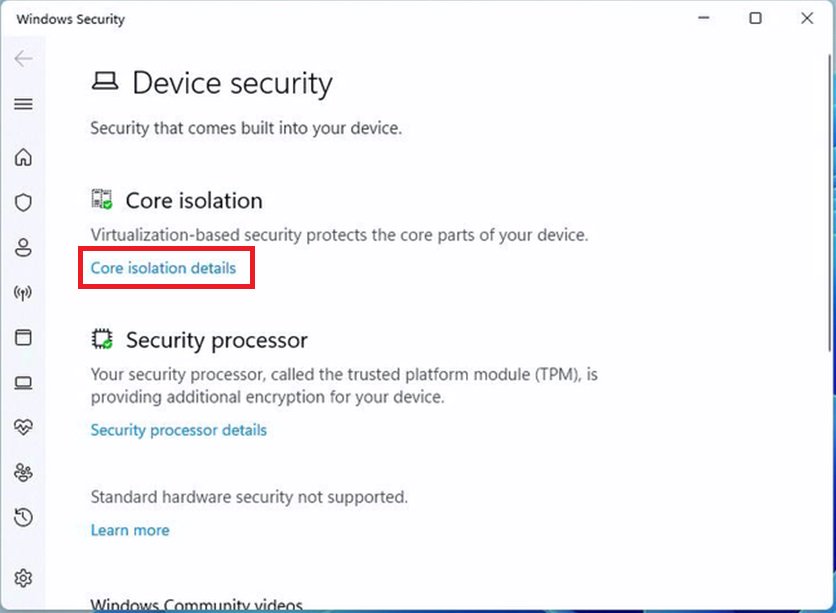
Why does the ASRock Timing Configurator show strange values, and how can I use this OC software under Windows 11? step2

Step.2 Press "Core isolation details”.

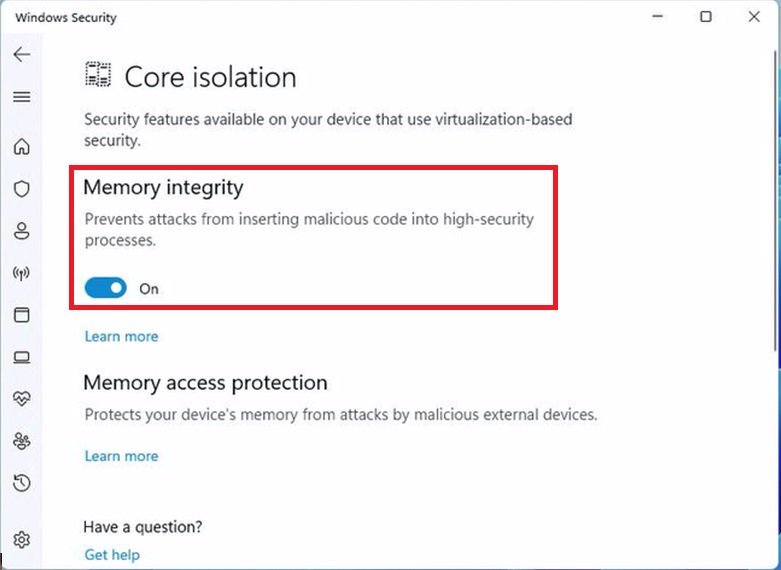
Why does the ASRock Timing Configurator show strange values, and how can I use this OC software under Windows 11? step3

Step.3 Disable "Memory integrity” and restart the system to apply the setting.

Why does the ASRock Timing Configurator show strange values, and how can I use this OC software under Windows 11? step4