Răspuns:Before proceeding, please verify that Secure Boot is enabled.
For AMD 800 Series and AMD 600 Series platforms, TPM 2.0 is enabled by default. However, Secure Boot should still be verified in the BIOS settings.
For AM4 platforms, please verify that both Secure Boot and TPM 2.0 are enabled. Some systems may also require a TPM firmware update.
Before enabling Secure Boot, ensure that your system disk uses the GPT partition style. Failure to meet these requirements may result in update or boot issues. Please follow the update instructions carefully before proceeding.
Secure Boot System Requirements
1. Partition Style: GPT (GUID Partition Table). If the disk is MBR (Master Boot Record), please convert it to GPT.
2. BIOS Mode: UEFI only. Legacy or CSM mode doesn't support secure boot.
How to check if the current partition type supports Secure Boot
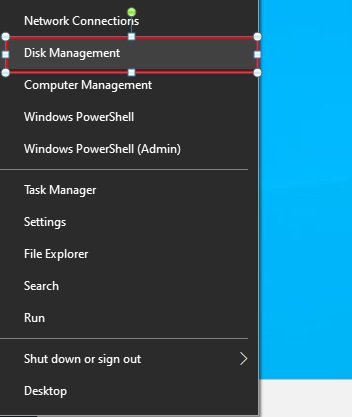
1. Right-click the Windows button on the desktop and select "Disk Management”.
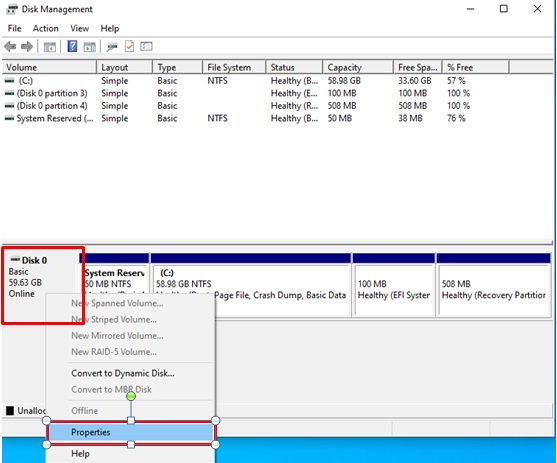
2. Right-click the disk where Windows is installed and select the ""Properties"".
3. Click the "Volumes” tab and check if the partition style is "GPT”.
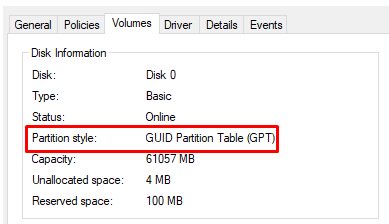
GPT partition style can support Secure Boot. You can skip below steps 4-7.
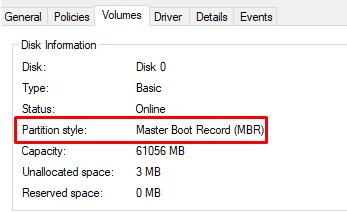
4. If the partition style is "MBR”, please make a backup of important data on the system and refer to steps 5-7 to convert the partition style to GPT.
If you have multiple OS installations or if some system partition is on a different drive than where the OS is, the conversion might not have the desired result. Please backup your DATA and reinstall the OS.
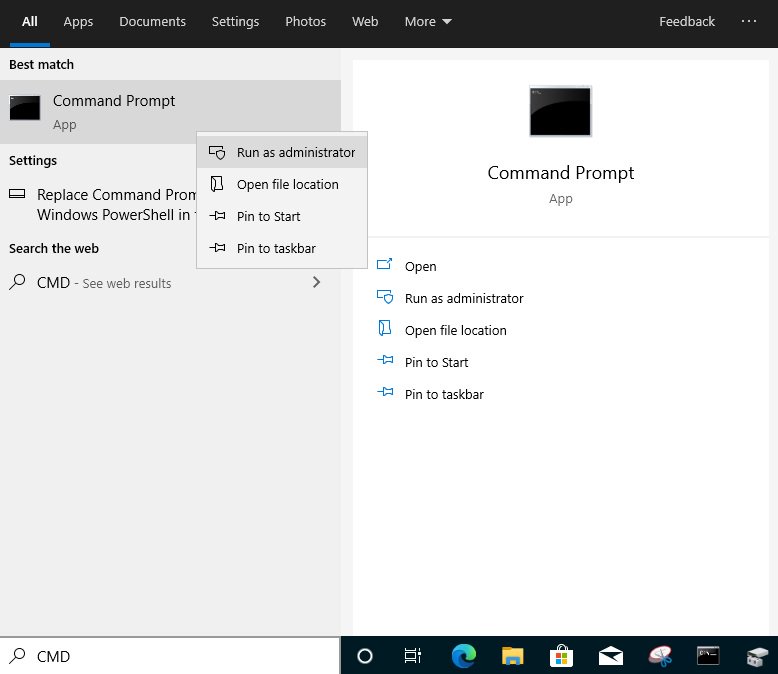
5. Type "CMD" in the Windows search bar, right-click on "Command Prompt” and choose to run as administrator.
6. Type the command "mbr2gpt /convert /allowFullOS” to convert the partition style and press [Enter].
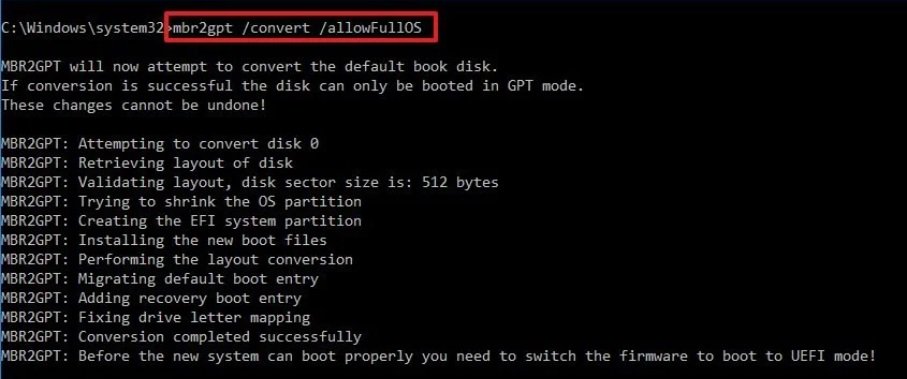
7. Restart the system, and the BIOS Mode/Partition style will be converted to UEFI/GPT.
Switching to UEFI Mode and Enabling Secure Boot in BIOS
1. Please press the "F2” key during POST to enter BIOS setup.
Go to Boot\CSM (Compatibility Support Module) and set "CSM” to "Disabled”.
Press the "F10” key to save configuration changes.

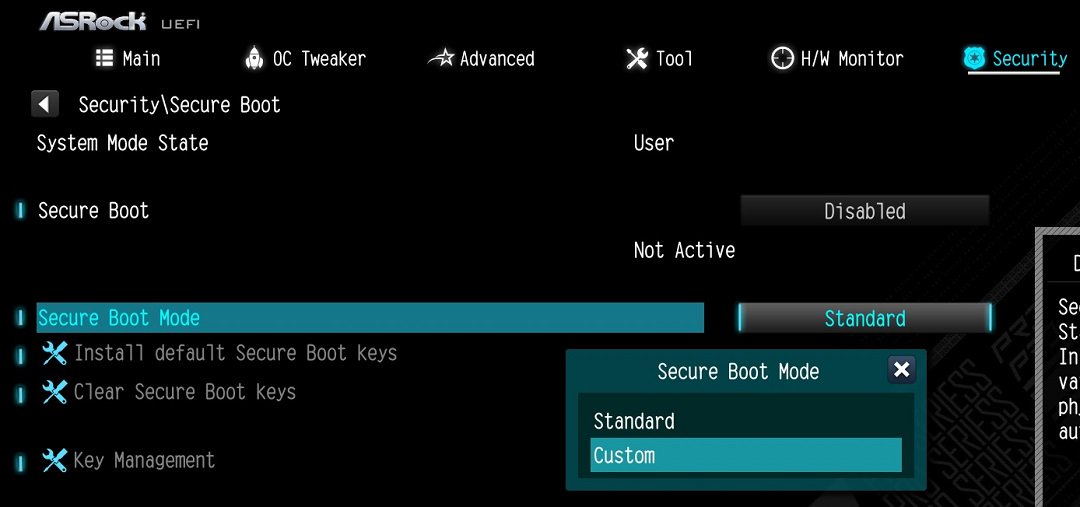
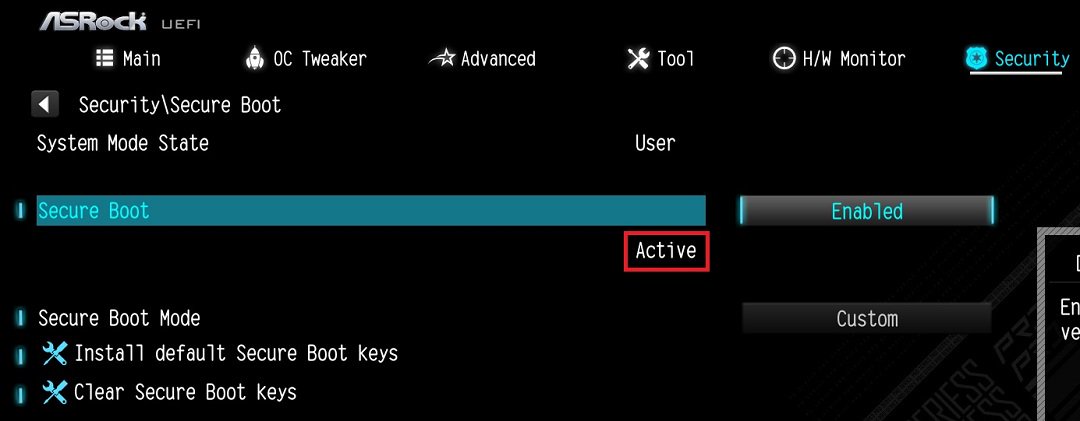
2. Go to Security\Secure Boot and set "Secure Boot Mode” to "Custom”.
3. Please press "Install default Secure Boot keys” and select "Yes” to install Secure Boot keys. If at this point this option is greyed out, Secure Boot key have been loaded already.

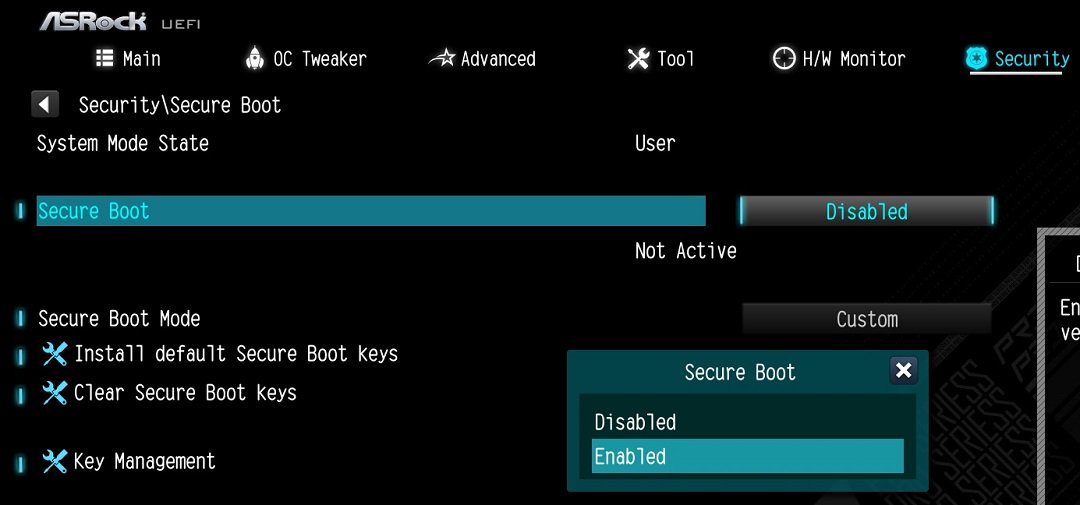
4. Set "Secure Boot” to "Enabled”. Then press the "F10” key to save configuration changes.
5. After the system restarts, go to Security\Secure Boot, and make sure that Secure Boot is showing "Active”.
 Update BIOS and AMD fTPM
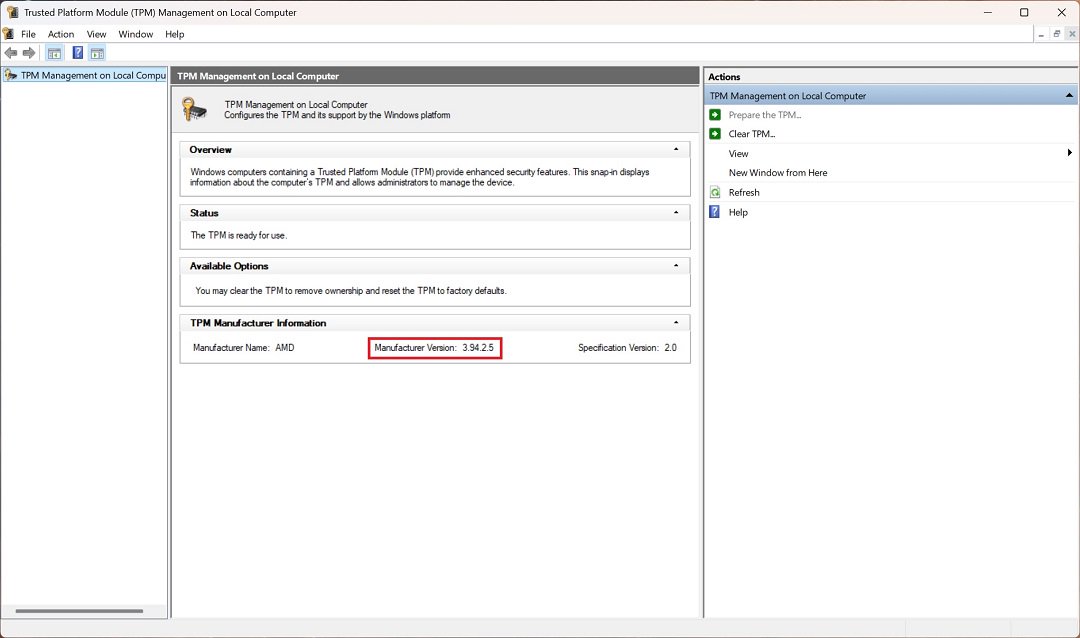
To ensure compatibility between games and Secure Boot/TPM 2.0, ASRock has released new BIOS versions for AM4 motherboards, to update to AMD fTPM 3.x.2.x version.
Type "TPM.msc" in the Windows search bar to find the current fTPM version.
If your current fTPM version is 3.x.0.x, we recommend updating to the latest BIOS version to get the fTPM update. This BIOS version should help you to enable anti-cheat on for example Battlefield 6 or Call of Duty:Black Ops 7.
 fTPM 3.*.2.* (TPMB) Information
AMD has informed us that only CPUs with below former codename support fTPM 3.*.2.* (TPMB).
Raven2
Picasso
Matisse
Renoir
Cezanne
Vermeer
Please use below link to check if your CPU's former Codename is in the support list.
https://www.asrock.com/support/cpu.asp?s=AM4
If your CPU is not in the supported CPU lineup for TPMB compatibility, based on AMD's official specifications, your CPU does not meet the security requirements necessary for your game.
#Update #fTPM #Attestation #anti-cheat #anti #BF6 #Battlefield 6 #Battlefield #EA Javelin #COD22 #Call of Duty:Black Ops 7 #BO7 #secure boot #TPM
 Meniul