A:How to set up Teaming with Intel Ethernet Adapter under Windows10 1809 or later version?
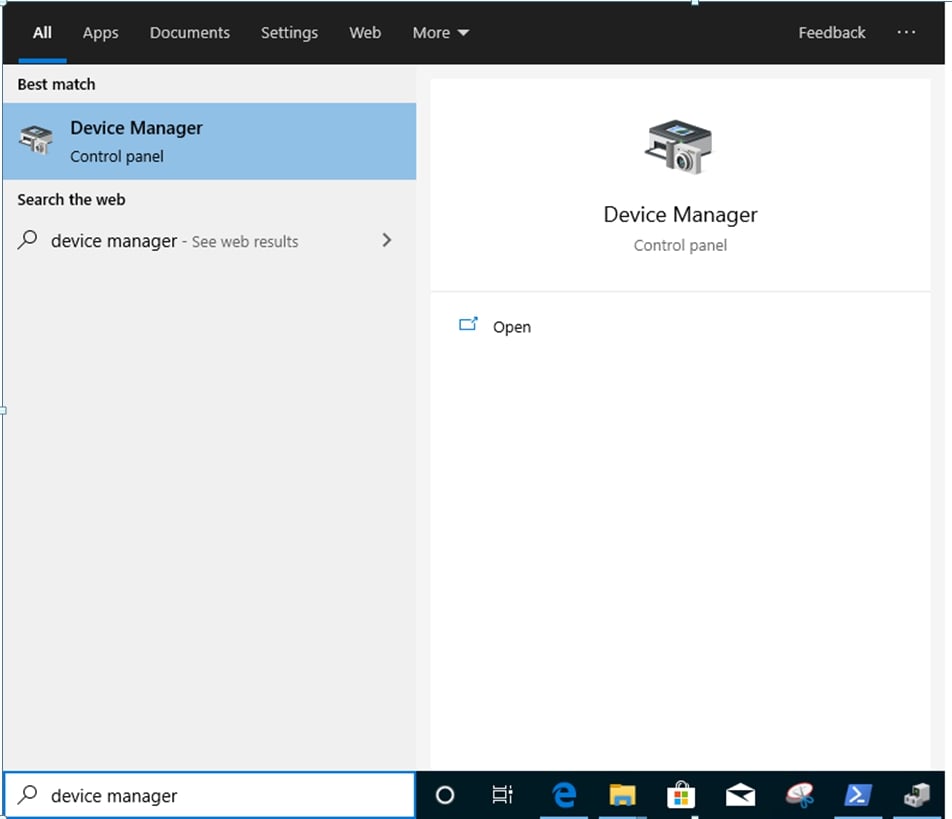
Step1: Access "Device Manager” by searching "Device Manager” at search bar.
Expand "Network Adapters” and right click the Ethernet device to uninstall it.
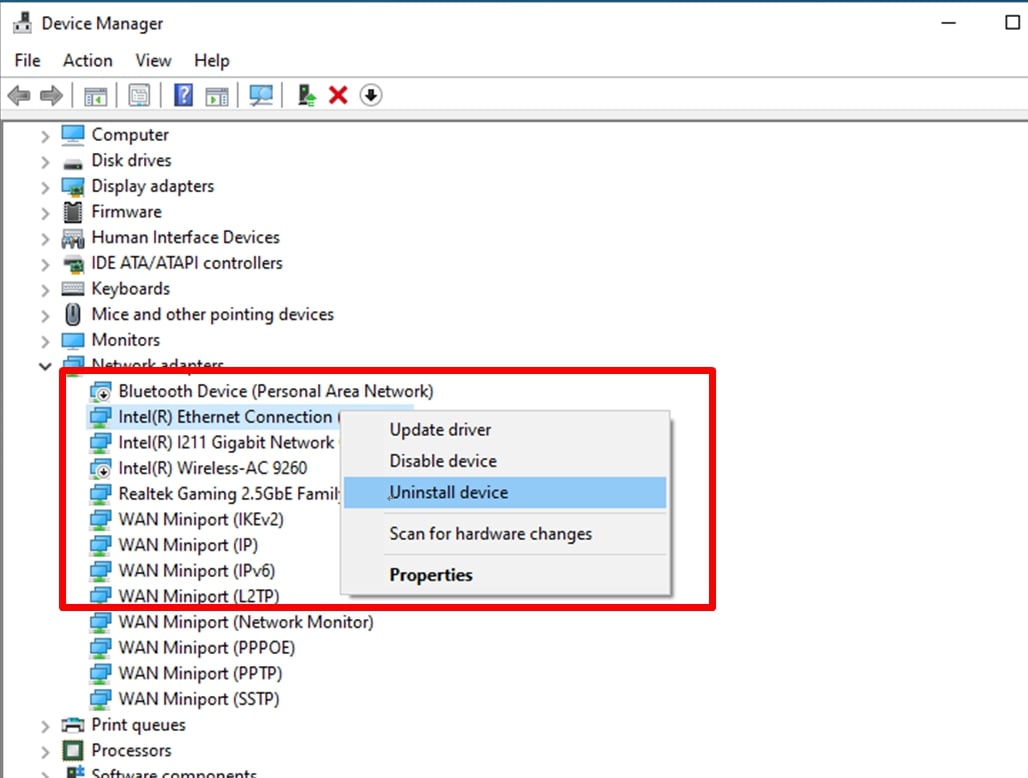
After uninstalling the Ethernet device, please cold boot the system (power off and then back on completely).
Step2: Download the latest driver (later than v23.5) from Intel or ASRock official website for your Intel® Ethernet Adapter.
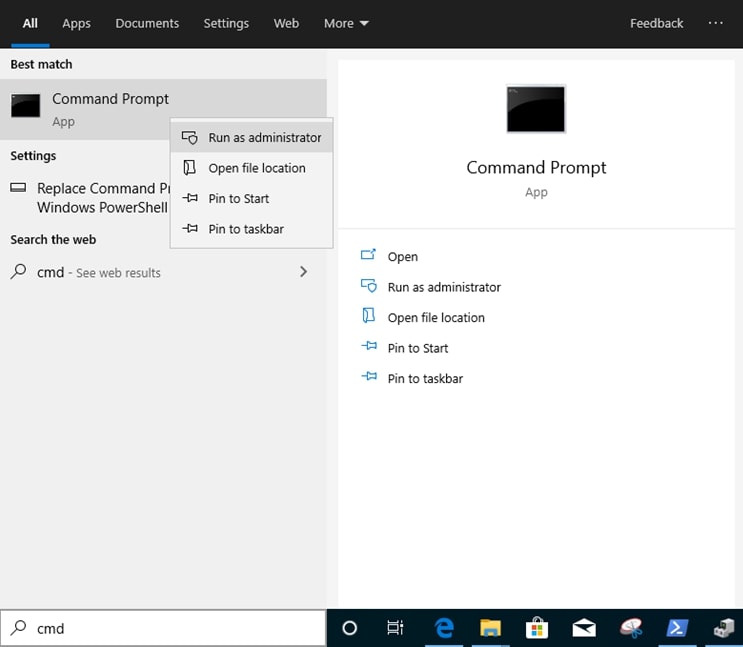
Step3: Search "CMD” at search bar and run Command Prompt as administrator.
드라이버 패키지의 압축을 풀고 APPS > PROSETDX > Winx64로 이동하세요. Root에 복사하세요.

Within the Command prompt, please change the root to APPS > PROSETDX > Winx64 folder by following command:
CD C:\Users\1\Desktop\24_2\APPS\PROSETDX\Winx64.

Step4: Install the driver by entering command:
DxSetup.exe BD=1 PROSET=1 ANS=1
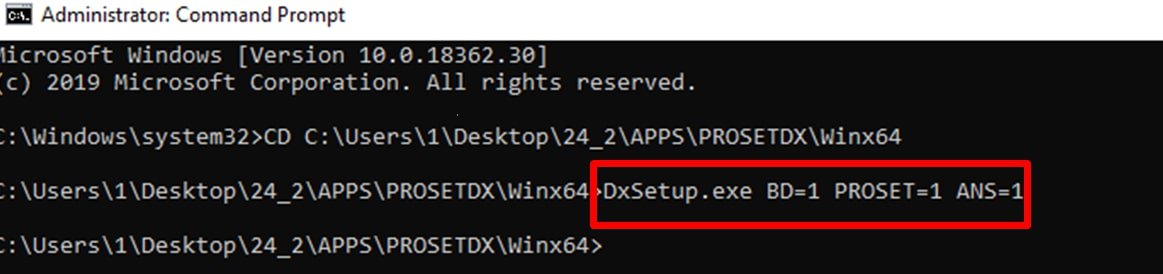
After the driver installation, please reboot the system.
Step5: Search "PowerShell” at search bar and run the Windows PowerShell as administrator
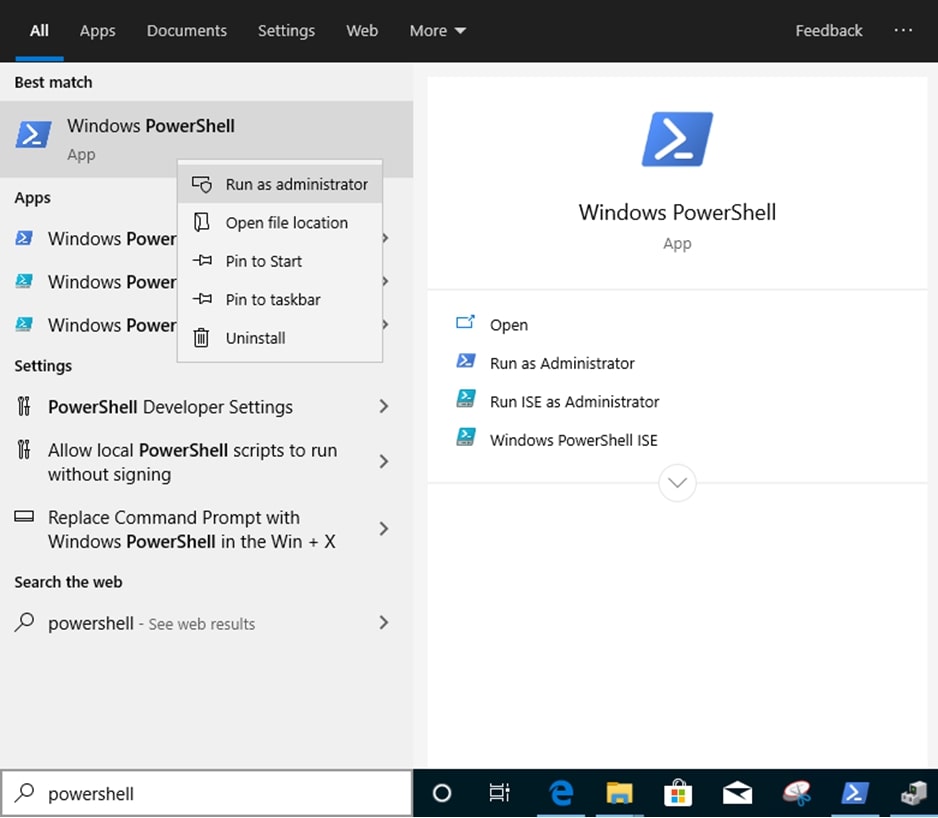
Enter the command:
Import-Module –Name "C:\Program Files\Intel\Wired Networking\IntelNetCmdlets\IntelNetCmdlets.dll"
It would not show any conformation. Please enter another command then:
New-IntelNetTeam

Step6: The system will ask for your Team Member Names. Please go to "Device Manager" > "Network Adapters" to confirm the names of the Ethernet Adapters.
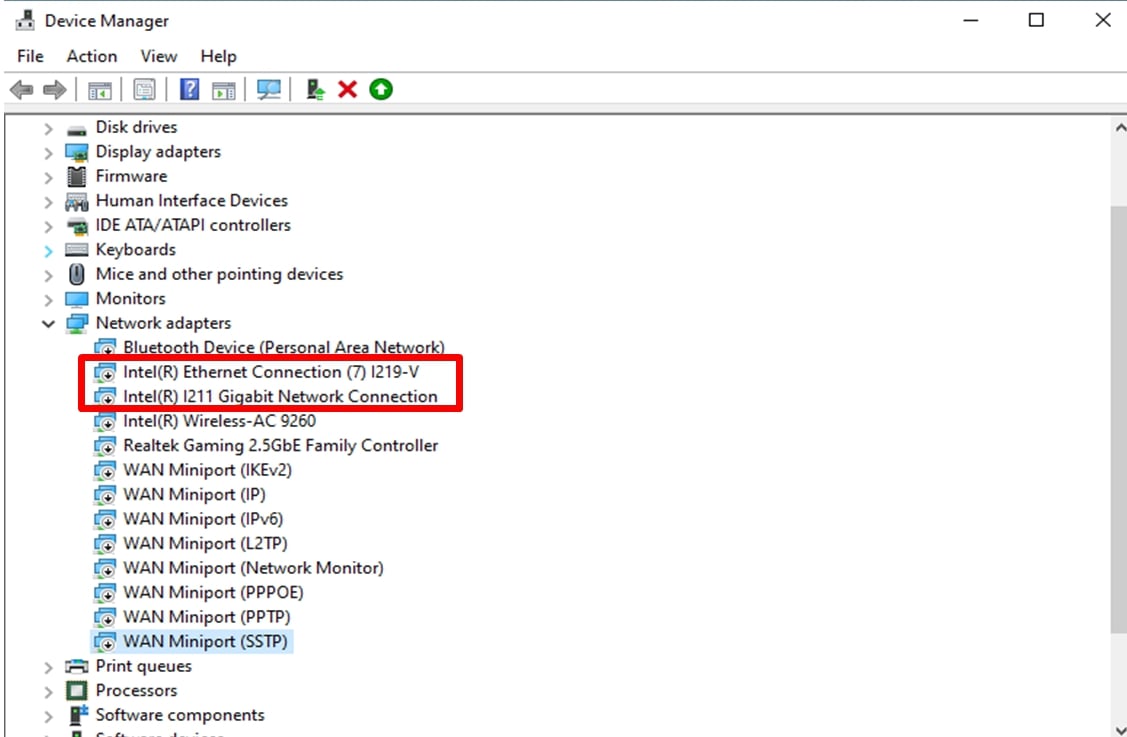
Enter the command:
Inte(R) Ethernet Connection (7) I219-V
Inte(R) I211 Gigabit Network Connection

If you just want to set up a Team by using two Ethernet adapters, please type "Enter” at "TeamMemberName[2]”.
Step7: The system will ask which Team Mode you want. You can refer to the list provided by Intel official website.
https://www.intel.com/content/www/us/en/support/articles/000032008/network-and-io/ethernet-products.html (Here we took the Static Link Aggregation mode for demonstration)
Enter the command:
StaticLinkAggregation

Step8: Enter a friendly Team name:
TEAM0
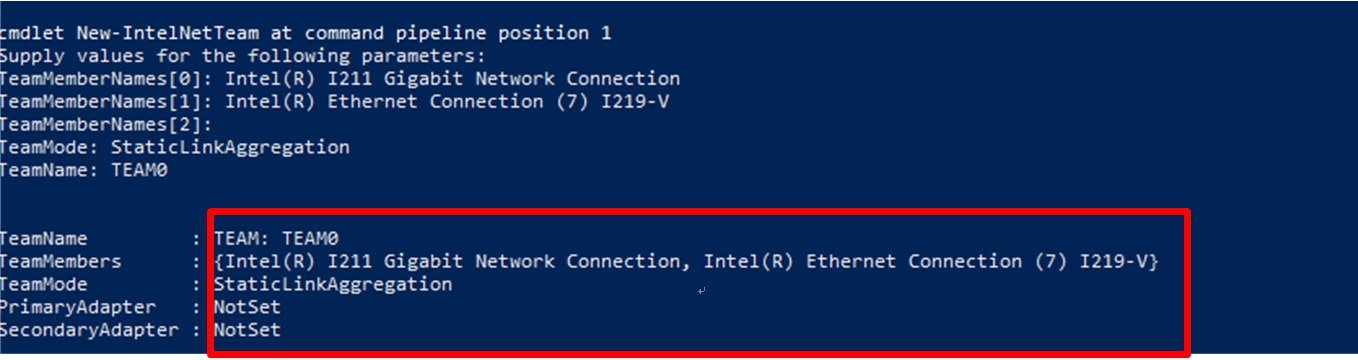
Step9: If you success, find the new Team adapter under Device Manager.
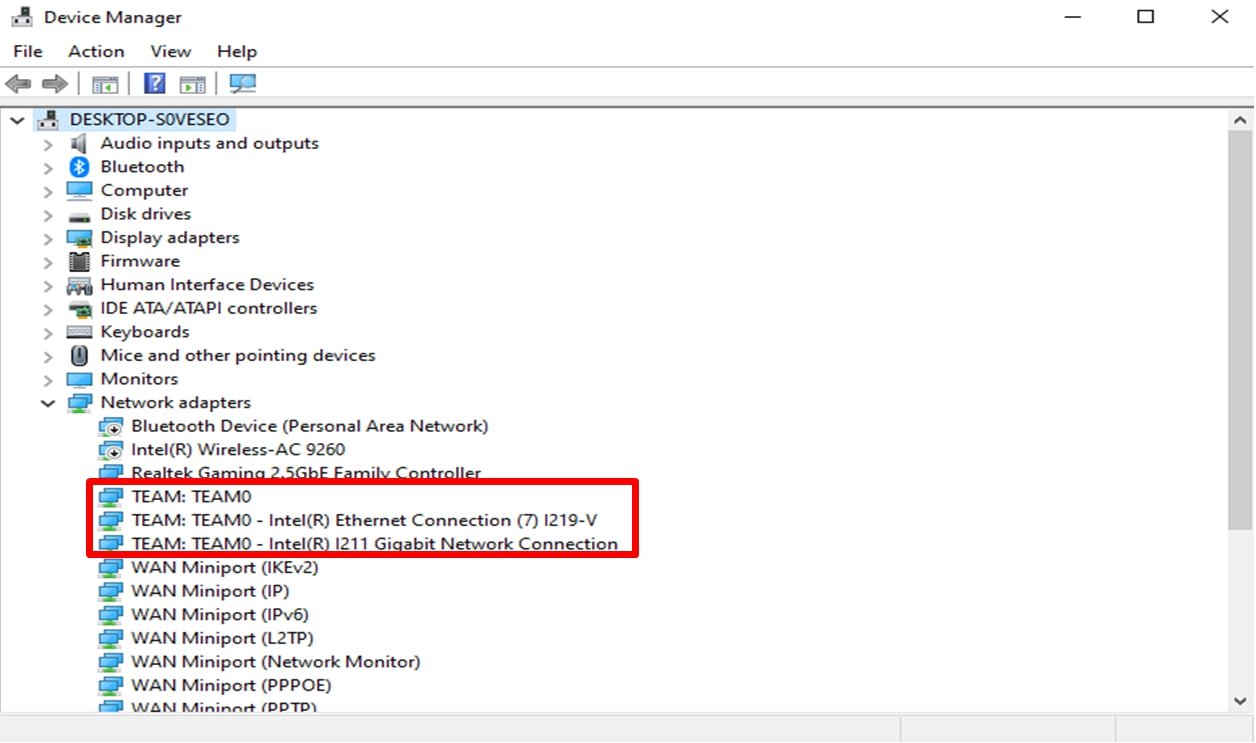
* If you want to uninstall the Team, please use the following command to uninstall it under Powershell:
Remove-IntelNetTeam
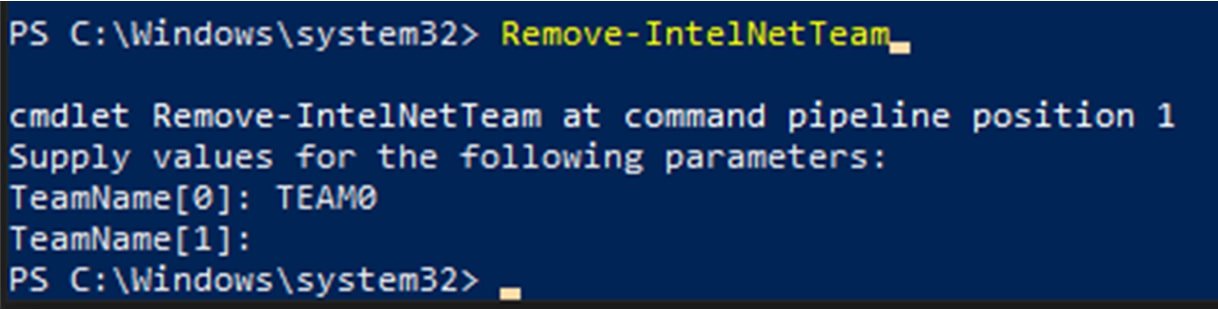
The system will ask you the Team Name, please enter your Team Name and the Team will be uninstalled.
For more details, please visit:
https://www.intel.com/content/www/us/en/support/articles/000032008/network-and-io/ethernet-products.html
 Menu
Menu







