Answer:Please follow the steps below to enable 120 Hz in PS5.
Step 1.
Please go to "Settings” and select "Screen and Video” in PS5.

Step 2a. (skip this step if you are 1080P monitor)
Select "Test 1440P Output” to enable the PS5 1440P output feature.

Step 2.
Set the "Resolution” to "1080P/1440P” (Depend on the monitor) and change "120 Hz Output” to "Automatic”

Step 3.
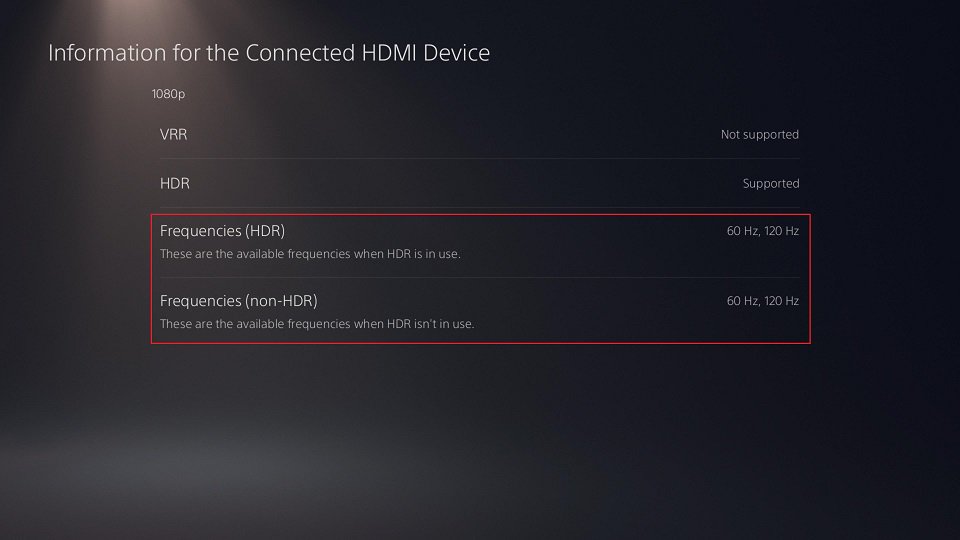
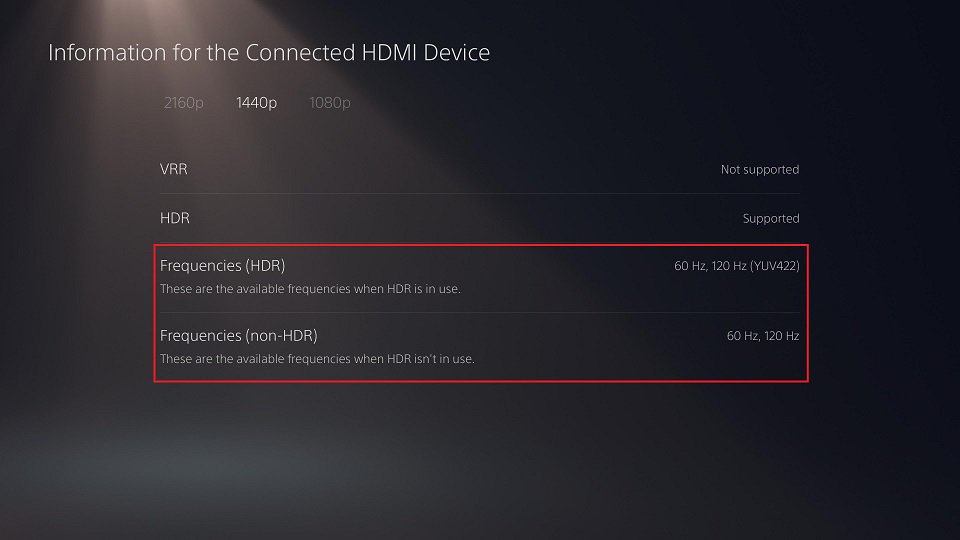
Select "Information for the Connected HDMI Device” to check if the 120 Hz option show up.

1080P:
1440P:
Step 4.
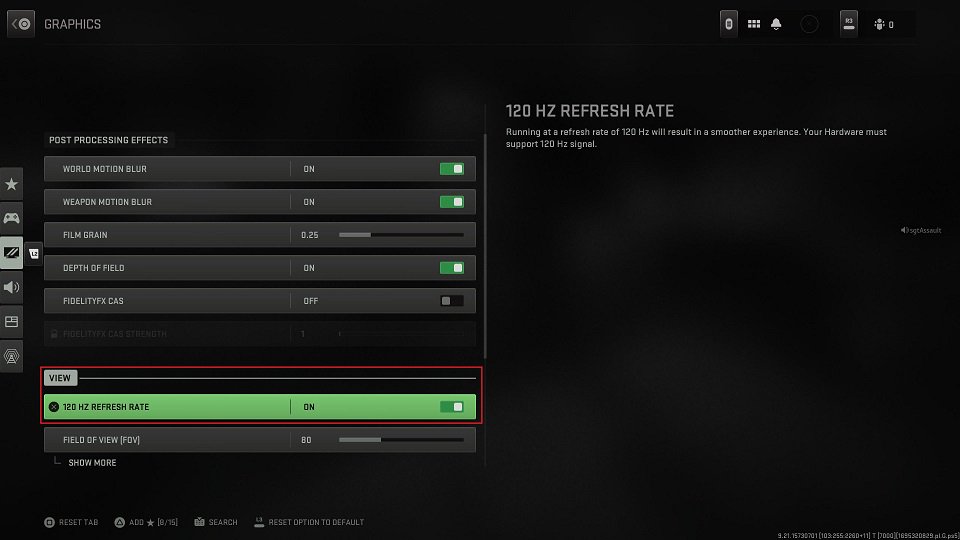
Go into the game and enable the 120 Hz refresh rate support.
*Please make sure your game can support 120 Hz.
Step 5.
When the 120 Hz game is running, you can pause the game and go to "Settings>Screen and Video>Current Video Output Signal” to check if the PS5 is outputting the 120 Hz content.
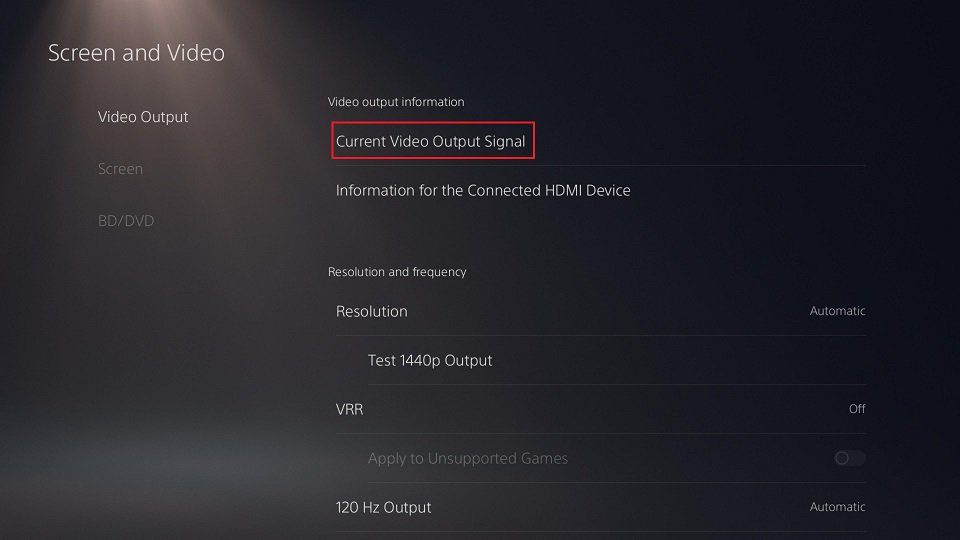
Screen and Video>Current Video Output Signal” to check if the PS5 is outputting the 120 Hz content.">
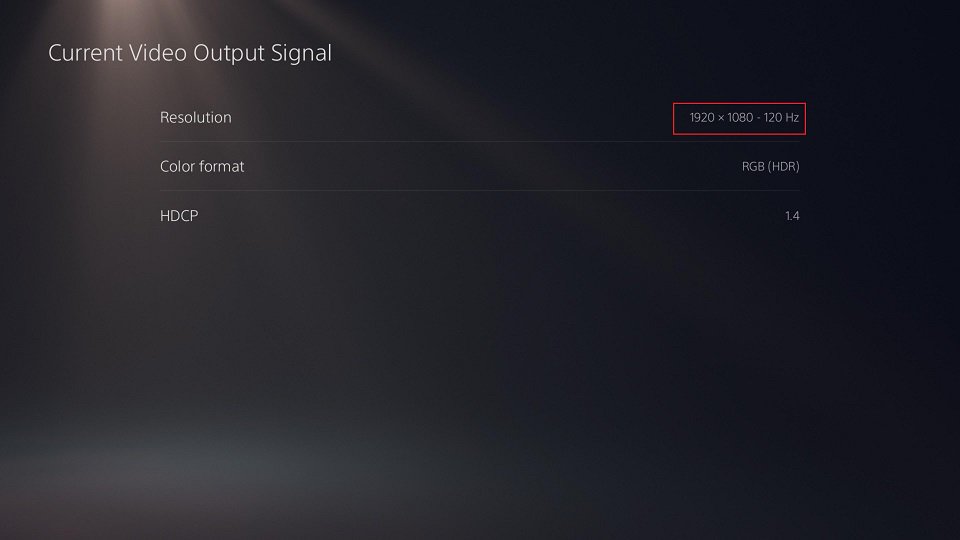
Screen and Video>Current Video Output Signal” to check if the PS5 is outputting the 120 Hz content.">
#Playstation #PS5 #Play #station #5 #120 #120Hz
 Menu
Menu







