Motherboards button
Cartes Mères
Graphics Card button
Carte graphique
Monitors button
Moniteur de jeu
Power Supply button
Power Supply
Mini PC button
Mini PC
AIO Liquid Coolers button
AIO Liquid Coolers
Industrial PC button
PCs Industriels
Server/WS button
Serveurs / Stations de Travail
Loading

We use cookies to offer you a more personalized and smoother experience.
By visiting this website, you agree to our use of cookies. If you prefer not to accept cookies or require more information, please visit our Privacy Policy.

Foire Aux Questions

Si votre questions porte sur un domaine particulier, vous pouvez choisir directement une catégorie ci-contre pour les réponses aux questions les plus fréquentes:

Résultats:
Question (Q&A-170|519): How to enable HDR function under Windows?(8/9/2022)
Answer:First check if your monitor supports HDR function. (High Dynamic Range)
You may check the product specifications on the ASRock website:
https://www.asrock.com/index.asp

E.g. ASRock Gaming Monitor PG27FF1A supports HDR function.
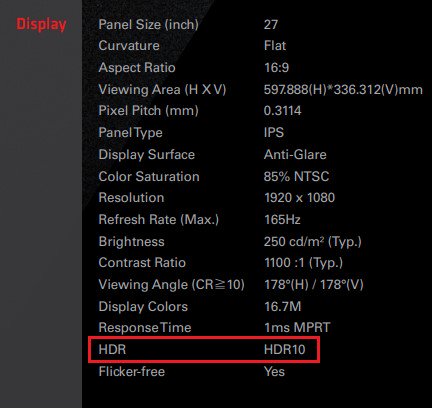
How to enable HDR function under Windows?

Settings under Windows 11:
1) Go to Settings> System> Display.
2) If your monitor supports HDR function, you may enable it.
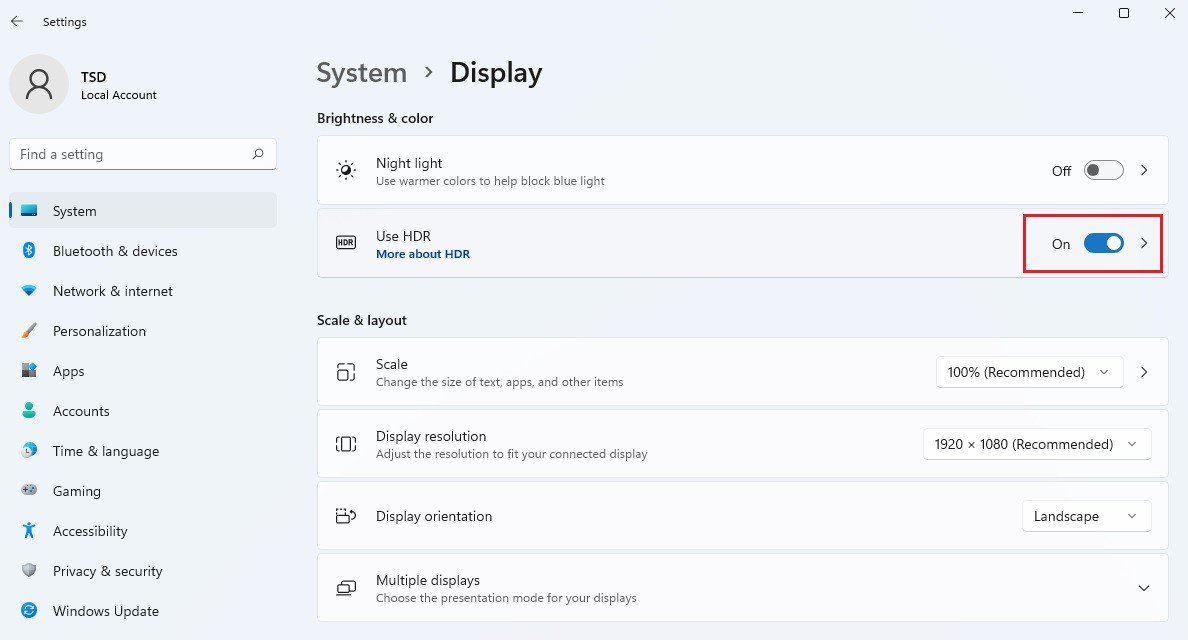
How to enable HDR function under Windows? Win11

Settings under Windows 10:
1) Go to Settings> System> Display.
2) If your monitor supports HDR function, you may enable it.
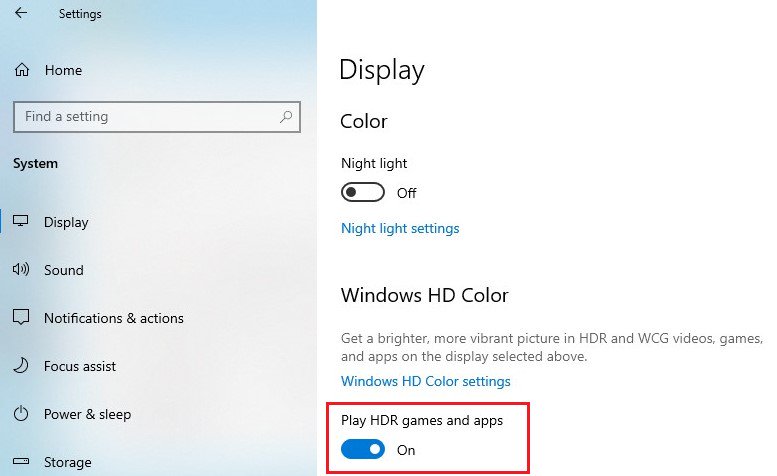
How to enable HDR function under Windows? Win10
Hardware requirements
- Processor: Intel 7th gen. processor or later
- Graphics card: NVidia GTX 10 Series or later/AMD RX500 Series or later

Software requirements
- OS: Windows 10 (ver:1709 or later)
- Software: Movies & TV with HEVC Codec installed
- Microsoft Edge Browser, PowerDVD 17 or later and VLC v3.0 (64bit) or later







