Answer:If you encounter this problem, there are two solutions you can choose, pls. select either one at your convenience.
Solution1
Please flash BIOS to P1.70 or later for AM2NF6G-VSTA and P1.60 or later for ALiveNF6G-DVI.
https://www.asrock.com/mb/download.asp?Model=AM2NF6G-VSTA#bios
https://www.asrock.com/mb/download.asp?Model=ALiveNF6G-DVI#bios
Solution2.
Or please refer following steps to re-write MAC address under Windows
® Vista™.
Step1: Check MAC address.
When system boot up, press "F2" to enter BIOS setting.
Boot-> "Boot settings Configuration" -> set "Boot From Onboard LAN" to "enable".
Press "F10". System will restart.
Please "F11" and select "NVIDIA Boot Agent".
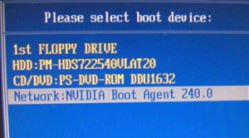
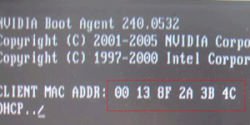
Then you will see MAC address, pls. record it with no space for later usage.
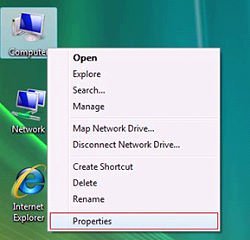
Step2: Boot system into Window Vista
Right click "Computer" and click "Properties"
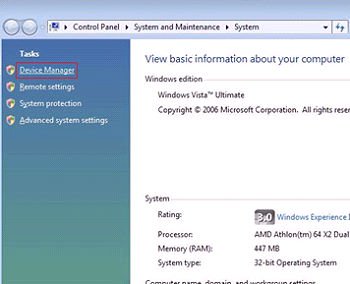
Step3:
Click "Device Manager"
Step4:
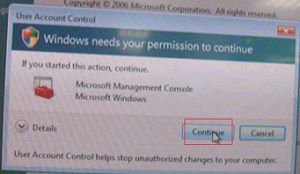
Click "Continue"
Step5.
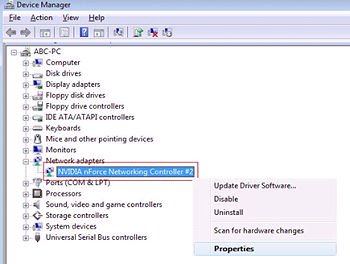
Right click "Networking Controller" and click "Properties".
Step6:
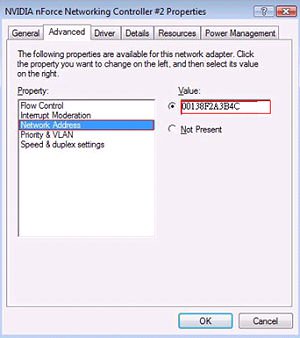
Choose "Network Address" in "Advanced " folder.
Write "MAC Address" which got from step1 into Value item.
Then click "OK".
 Menu
Menu







