We use cookies to offer you a more personalized and smoother experience. By visiting this website, you agree to our use of cookies. If you prefer not to accept cookies or require more information, please visit our Privacy Policy.

Necessary cookies These cookies are essential for the proper functioning of the website and cannot be turned off.
Analytics cookies These cookies help us understand how visitors use our website.
Marketing cookies These cookies are used to track visitors and display relevant advertisements.
Social media cookies These cookies allow you to share pages and content on social media.
Question: How to enable HDR function under Windows?(8/9/2022) Answer: First check if your monitor supports HDR function. (High Dynamic Range)
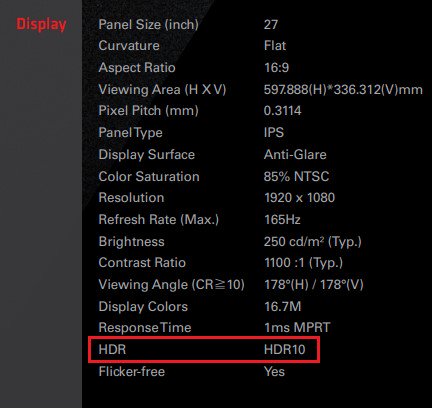
You may check the product specifications on the ASRock website: https://www.asrock.com/index.asp
E.g. ASRock Gaming Monitor PG27FF1A supports HDR function.
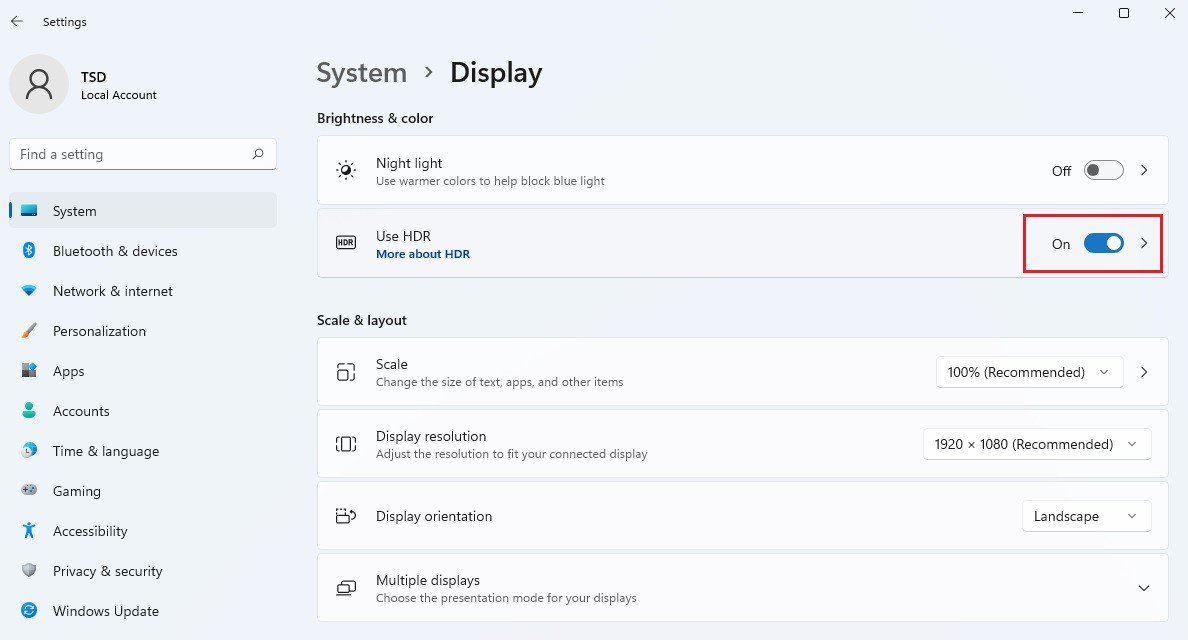
Settings under Windows 11:
1) Go to Settings> System> Display.
2) If your monitor supports HDR function, you may enable it.
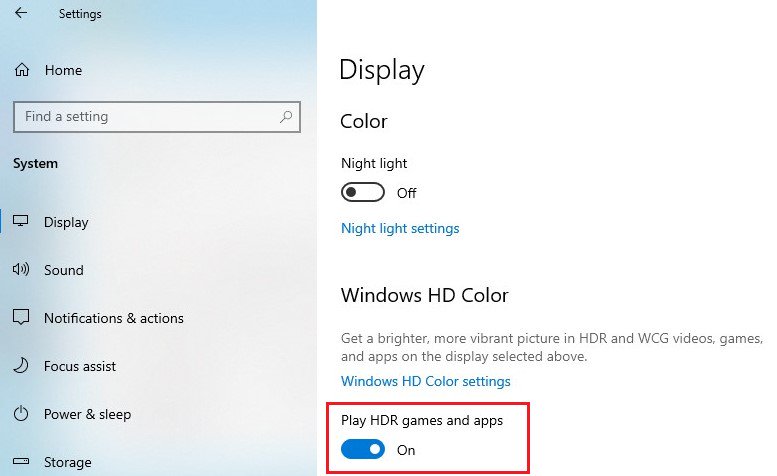
Settings under Windows 10:
1) Go to Settings> System> Display.
2) If your monitor supports HDR function, you may enable it.
Hardware requirements
- Processor: Intel 7th gen. processor or later
- Graphics card: NVidia GTX 10 Series or later/AMD RX500 Series or later
Software requirements
- OS: Windows 10 (ver:1709 or later)
- Software: Movies & TV with HEVC Codec installed
- Microsoft Edge Browser, PowerDVD 17 or later and VLC v3.0 (64bit) or later