We use cookies to offer you a more personalized and smoother experience. By visiting this website, you agree to our use of cookies. If you prefer not to accept cookies or require more information, please visit our Privacy Policy.

Necessary cookies These cookies are essential for the proper functioning of the website and cannot be turned off.
Analytics cookies These cookies help us understand how visitors use our website.
Marketing cookies These cookies are used to track visitors and display relevant advertisements.
Social media cookies These cookies allow you to share pages and content on social media.
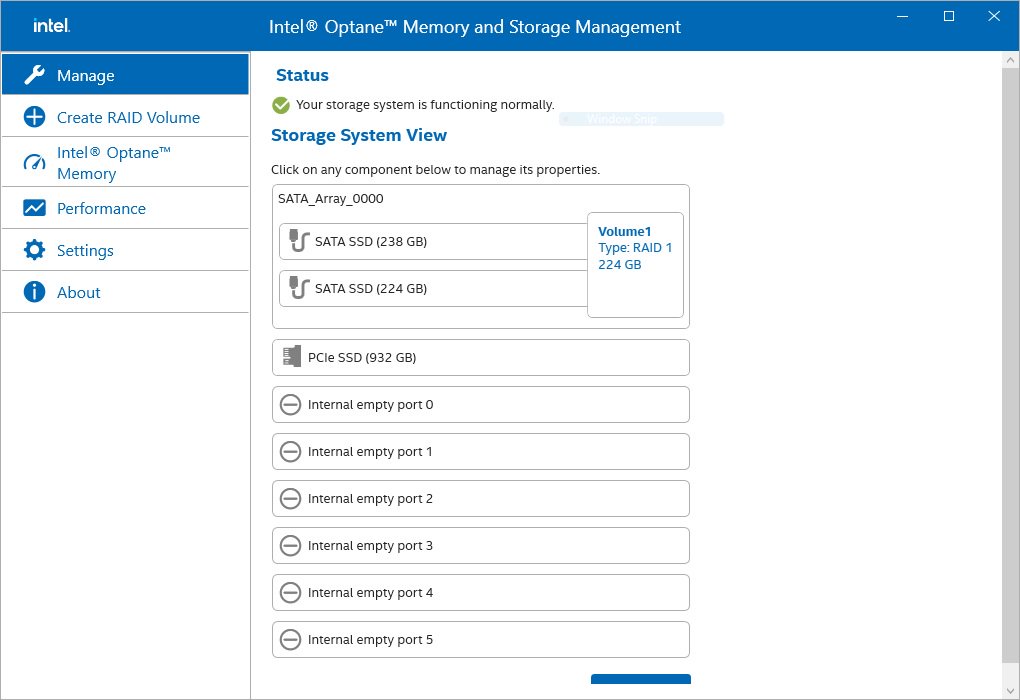
Question: How to check the RAID configuration via the Intel RST application under Windows 11?(12/15/2021) Answer: Please refer to the following steps to check the RAID configuration.
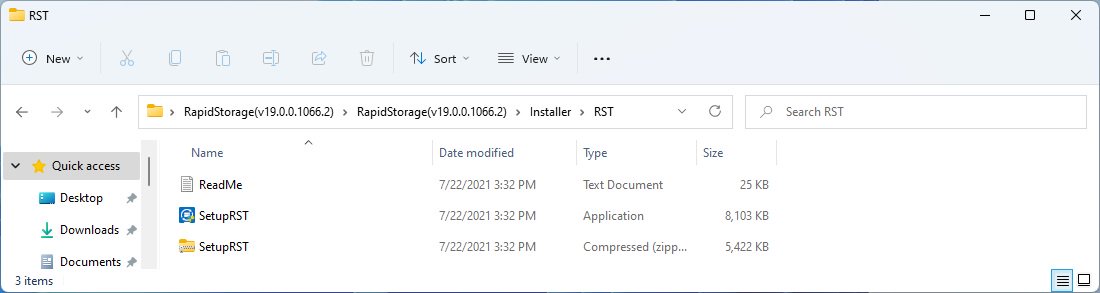
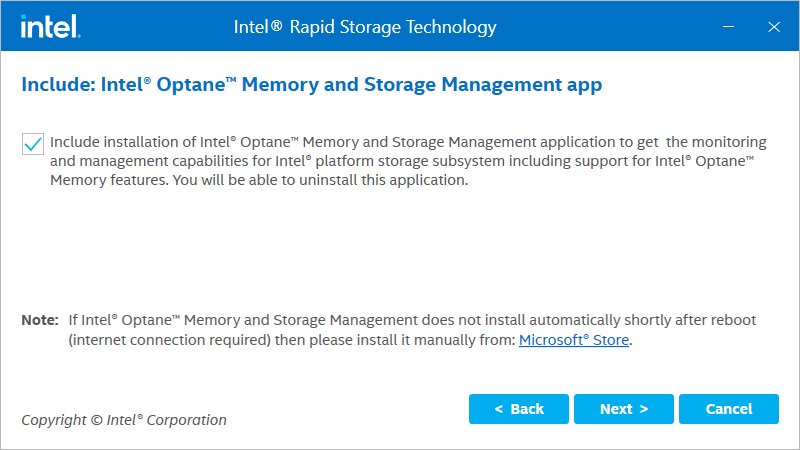
Step 1: Obtain the Intel(R) RST driver installation package and run the executable (SetupRST.exe).
*RST driver can be obtained via the download section of the product page on the ASRock website.
*Default settings and name of the driver may vary and is subject to change without notice.
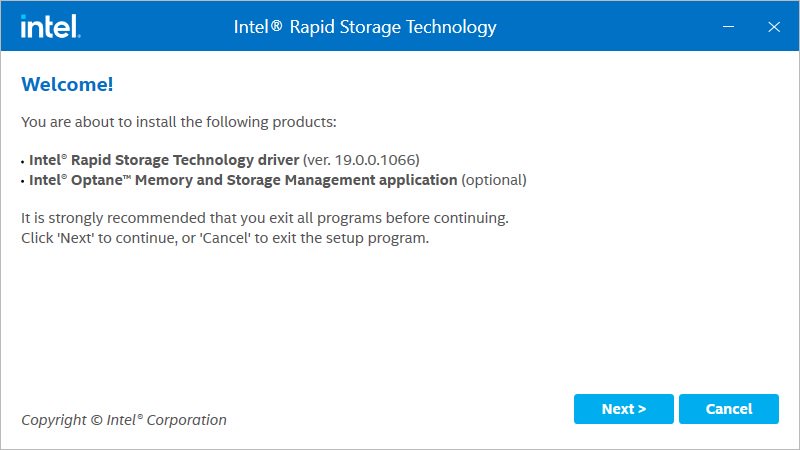
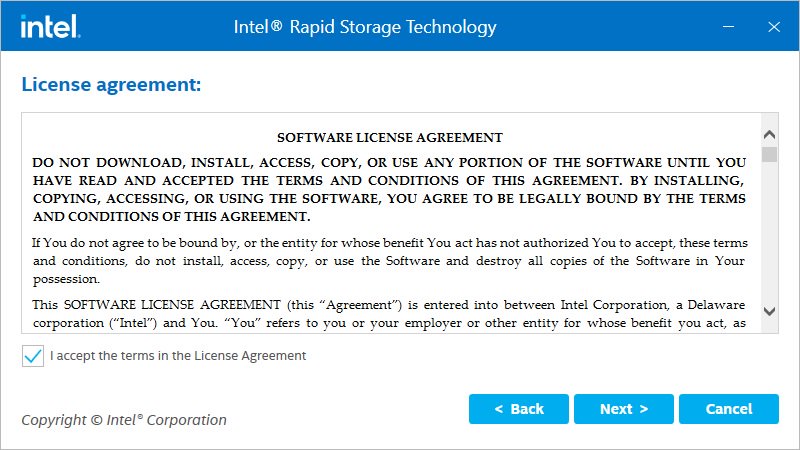
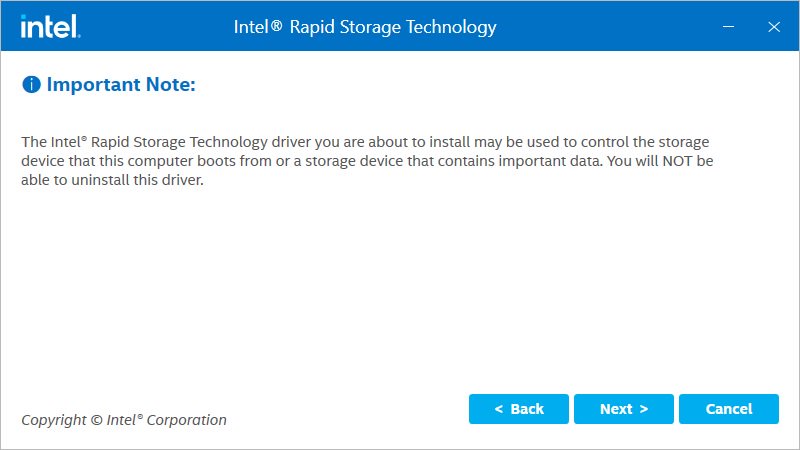
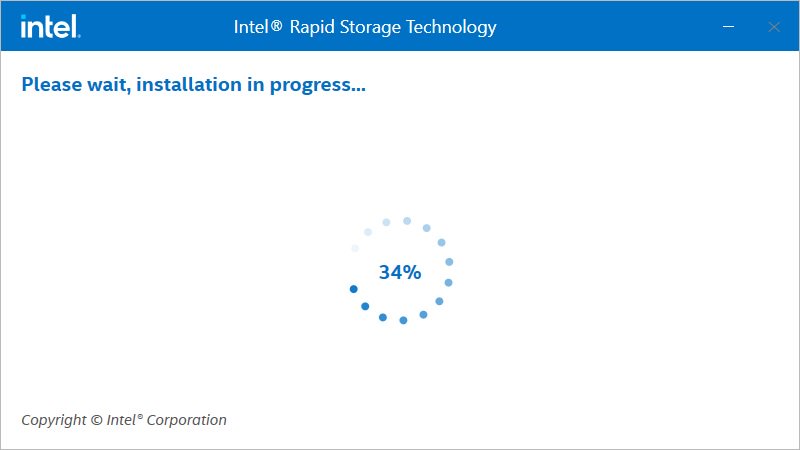
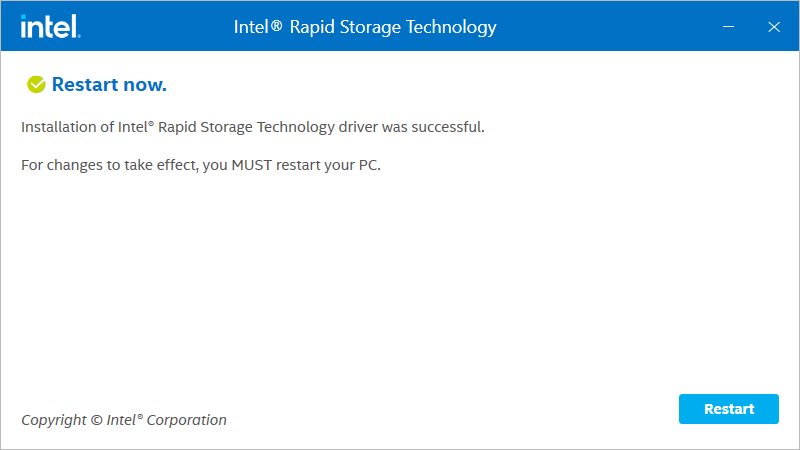
Step 2: Install using the default setting and reboot the computer.
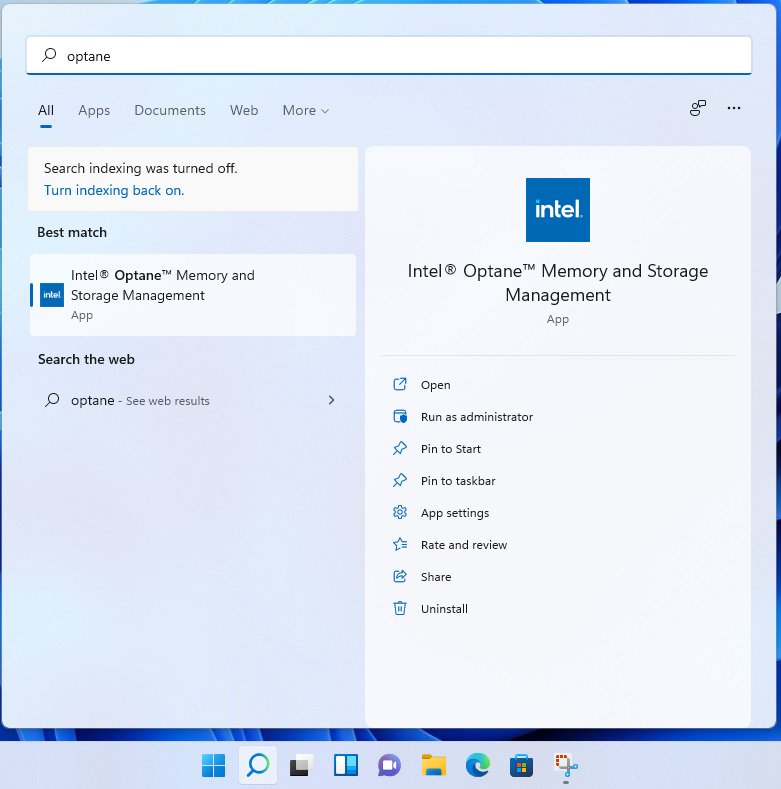
Step 3: From Windows desktop, find and launch the Intel® Optane(TM) Memory and Storage Management application.