Motherboards button
Placas-mãe
Graphics Card button
Placas de vídeo
Monitors button
Monitor Gamer
Power Supply button
Fonte de alimentação
Industrial PC button
PC Industrial
Server/WS button
Servidores/Estações
Loading

Usamos cookies para oferecer uma experiência mais personalizada e suave.
Ao visitar este site, você concorda com o nosso uso de cookies. Se preferir não aceitar cookies ou exigir mais informações, visite nossa Política de Privacidade.
Perguntas Frequentes

Caso você saiba a categoria da sua dúvida, você pode escolher uma das categorias abaixo para perguntas frequentes. Catalogo:

Resultados:
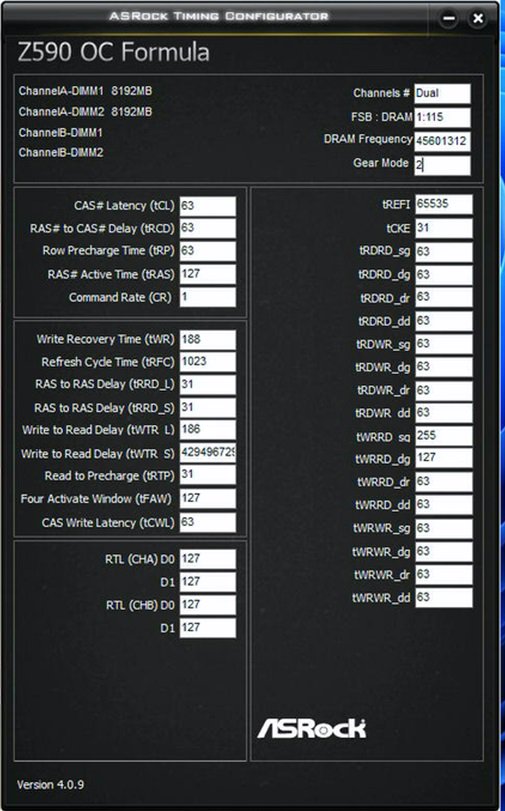
Q (505): Why does the ASRock Timing Configurator show strange values, and how can I use this OC software under Windows 11?
Why does the ASRock Timing Configurator show strange values, and how can I use this OC software under Windows 11?(10/1/2021)
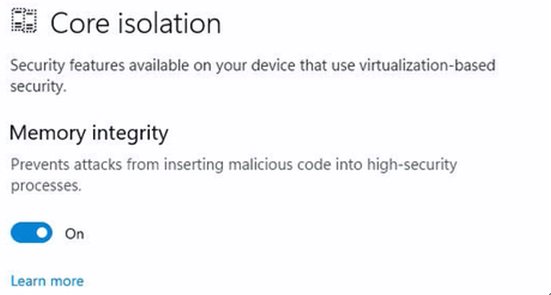
A:Microsoft® Windows 11® has a security function called "Memory integrity”. This function can prevent attacks from inserting malicious code into high-security processes, but it will interfere with the ability to read sensor values and affect the function of OC software.

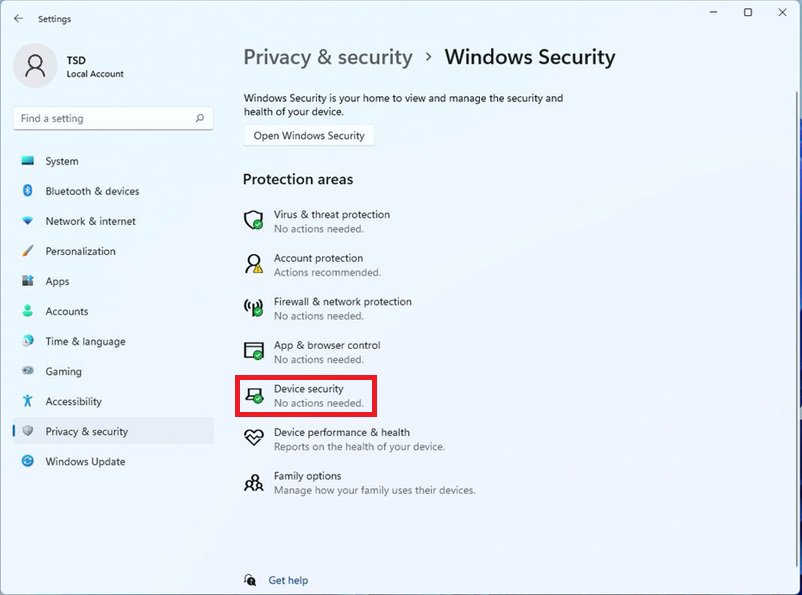
Why does the ASRock Timing Configurator show strange values, and how can I use this OC software under Windows 11? step1

We recommend temporarily disabling this function when you would like to use OC software. Please refer to the following steps to deactivate it.

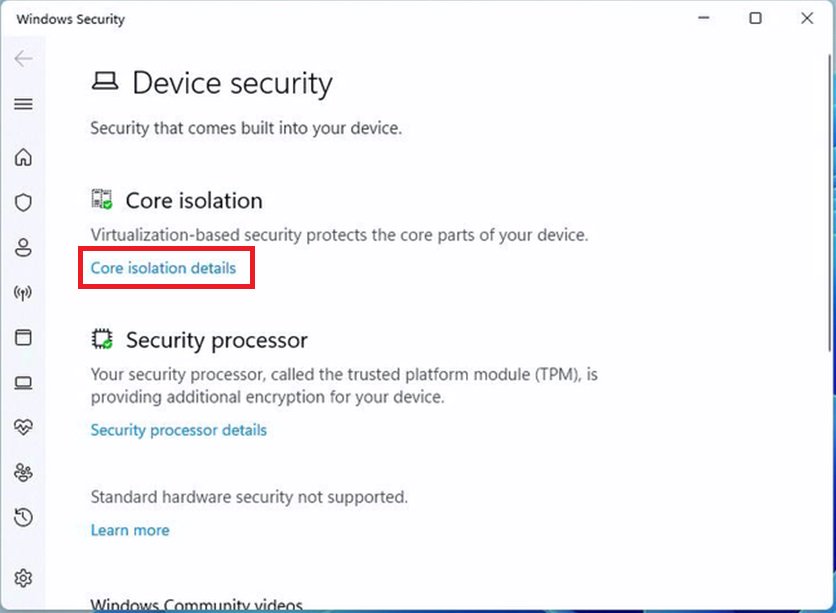
Why does the ASRock Timing Configurator show strange values, and how can I use this OC software under Windows 11? step2

Step.2 Press "Core isolation details”.

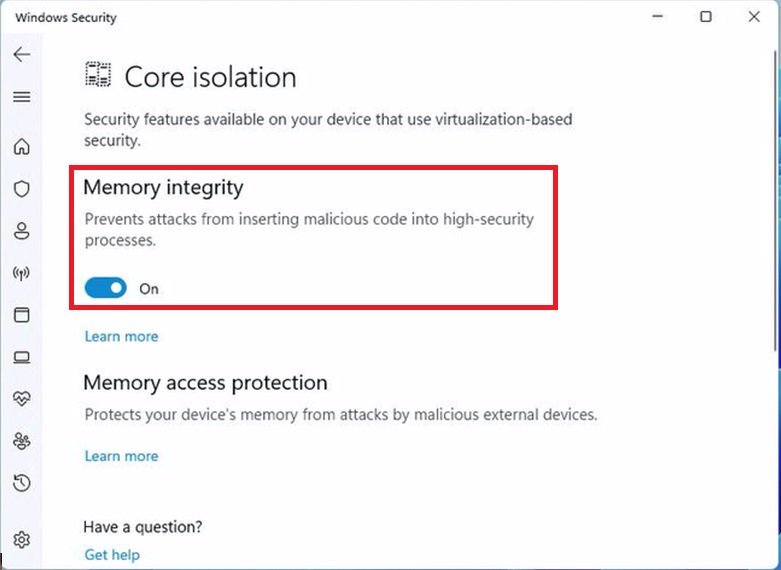
Why does the ASRock Timing Configurator show strange values, and how can I use this OC software under Windows 11? step3

Step.3 Disable "Memory integrity” and restart the system to apply the setting.

Why does the ASRock Timing Configurator show strange values, and how can I use this OC software under Windows 11? step4