We use cookies to offer you a more personalized and smoother experience. By visiting this website, you agree to our use of cookies. If you prefer not to accept cookies or require more information, please visit our Privacy Policy.
Necessary cookies These cookies are essential for the proper functioning of the website and cannot be turned off.
Analytics cookies These cookies help us understand how visitors use our website.
Marketing cookies These cookies are used to track visitors and display relevant advertisements.
Social media cookies These cookies allow you to share pages and content on social media.
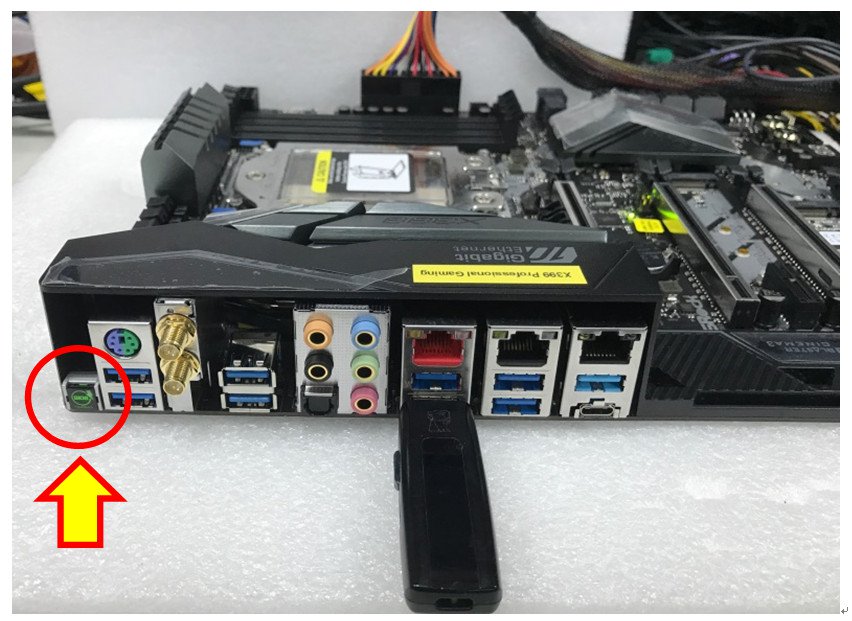
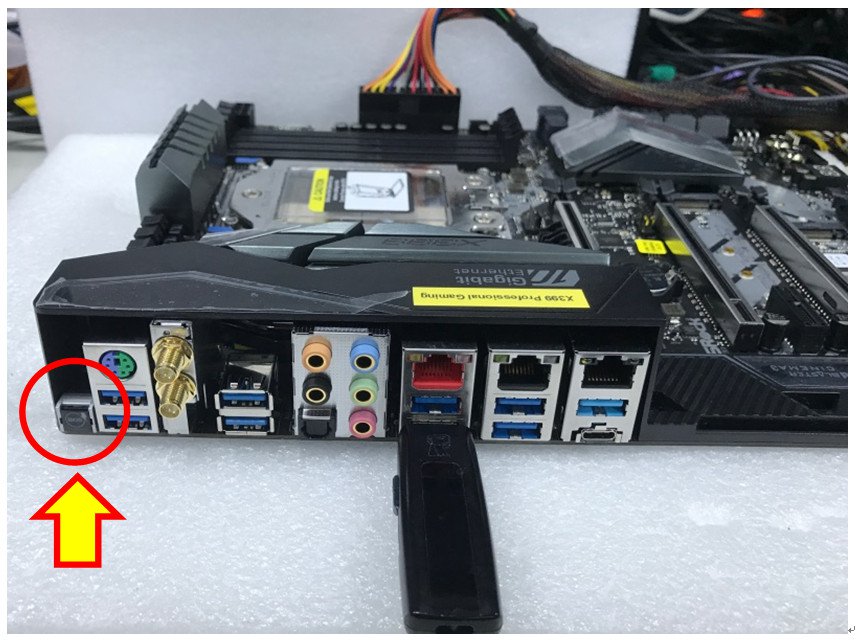
Question: I would like to use AMD Threadripper 2 CPU on ASRock X399 platform, what should I do?(7/1/2018) Answer: ASRock X399 platform has supported AMD Threadripper 2 CPU since BIOS version P3.XX.
If your BIOS version is older than P3.XX, please update BIOS without powering on the system (without CPU) by using the BIOS Flashback feature that X399 supports.
Please refer to the following procedures to update the BIOS.
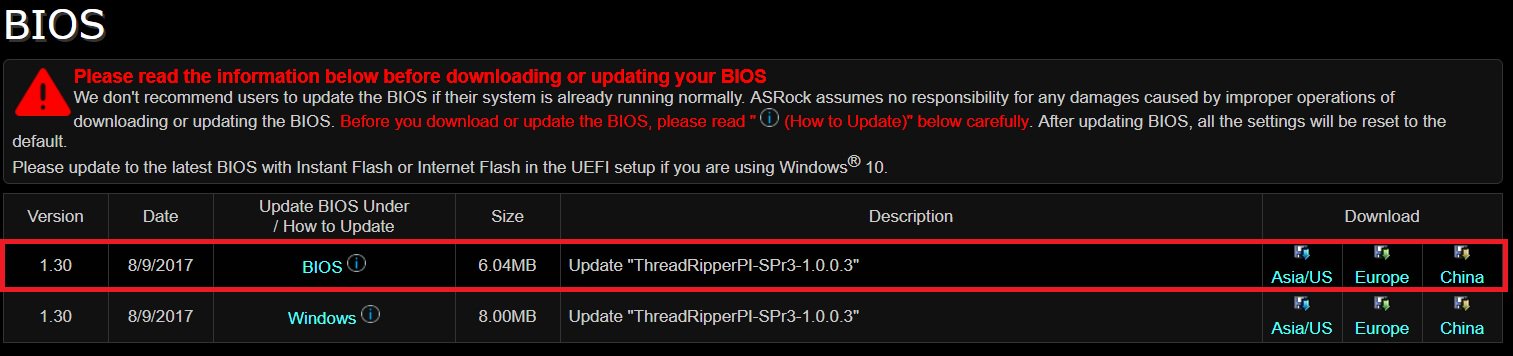
1.Visit ASRock website and enter the BIOS download page of your motherboard to download the latest BIOS.
Link: https://www.asrock.com/mb/
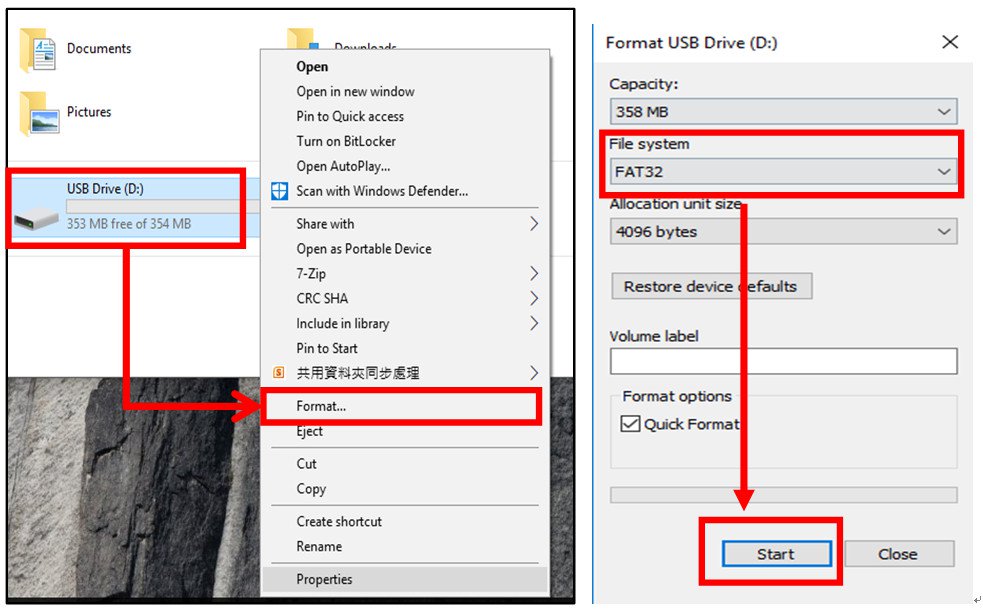
2.Copy the BIOS file to your USB flash drive. Please make sure that the file system on the USB flash drive is FAT32.
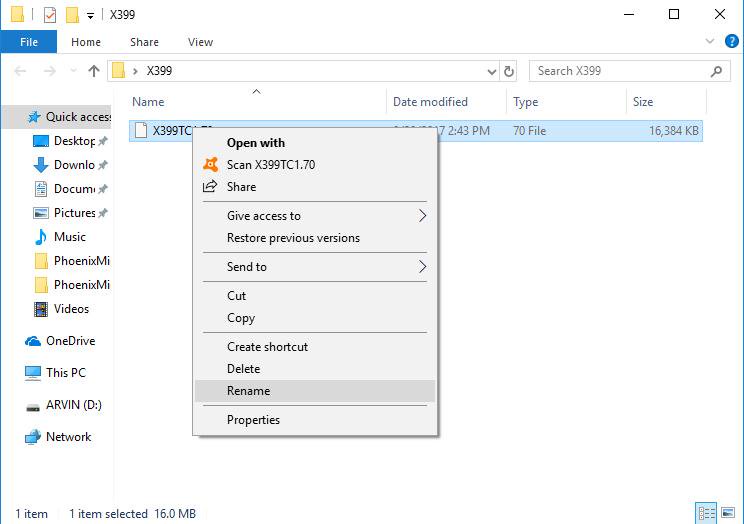
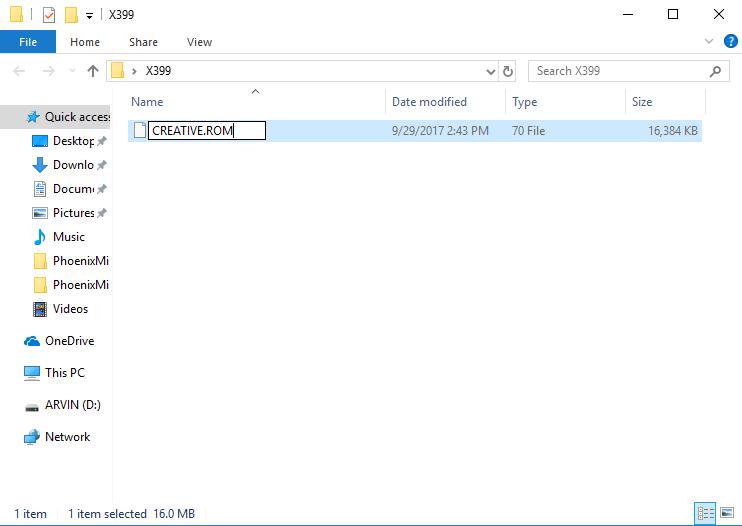
3.Extract BIOS file from the zip file and rename the file to "CREATIVE.ROM”.
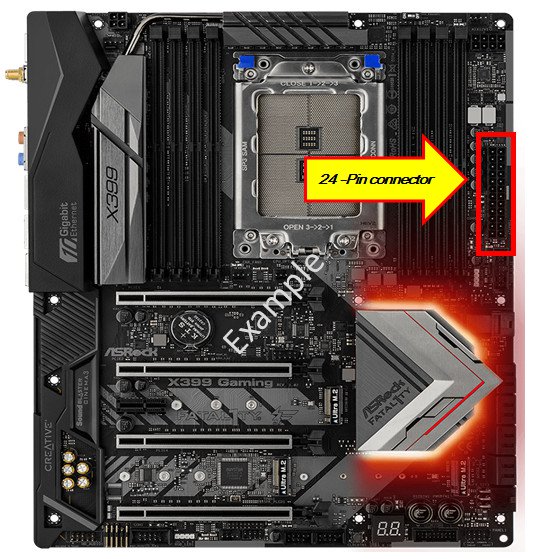
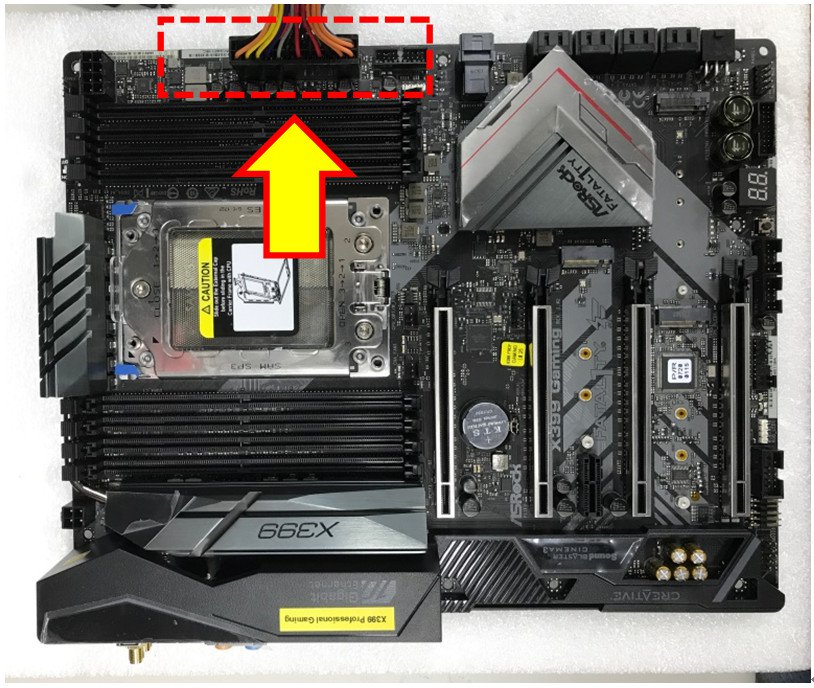
4.Plug the 24 pin power connector on the motherboard without other devices. Then turn on the power supply's AC switch. Please DO NOT power on the system.
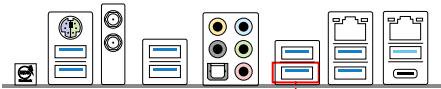
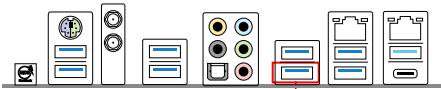
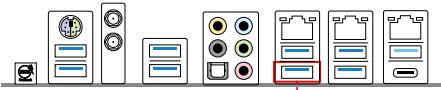
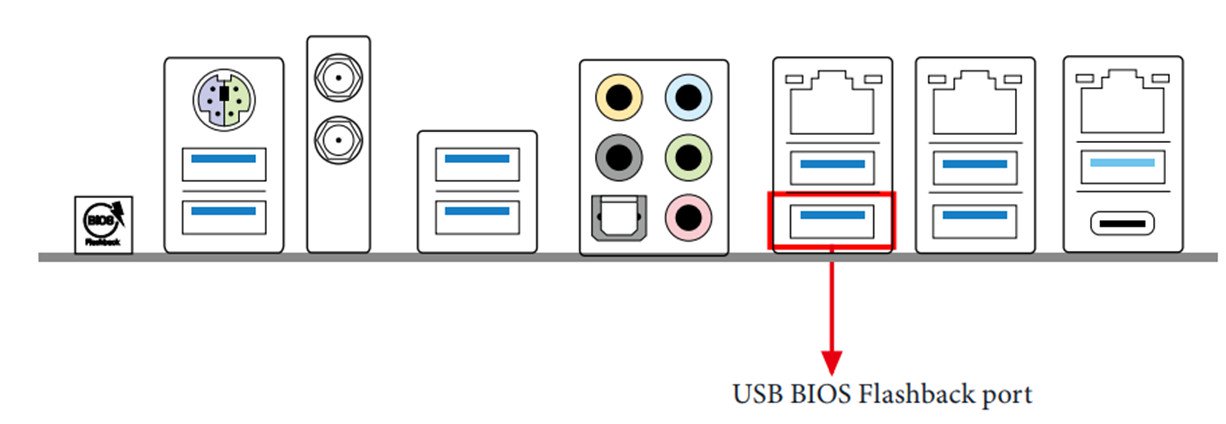
5.Then plug your USB drive to the USB BIOS Flashback port.
*Please refer to the user manual for the detail information of USB Flashback port.
Model
USB BIOS Flashback port
X399 Taichi
USB3_6
X399M Taichi
USB3_6
Fatal1ty X399 Professional Gaming
USB3_6
6.Press the BIOS Flashback Switch for about three seconds. Then the LED starts to blink.
7.Wait a few seconds. The BIOS flashing process is completed when the LED stops blinking.
*If the LED light turns solid green, the BIOS Flashback is not operating properly. Please make sure that you plug the USB drive to the USB BIOS Flashback port properly.
Question: I'd like to use the Windows Mixed Reality Headset on on-board HDMI, what should I do?(12/1/2017) Answer: Please follow the steps below
1. Refer to the "Microsoft Windows Mixed Reality PC hardware guidelines” to check the system hardware requirement. https://support.microsoft.com/en-us/help/4039260/windows-10-mixed-reality-pc-hardware-guidelines
*The Windows Mixed Reality requires Integrated Intel HD Graphics 620 or greater DX12-capable integrated GPU.
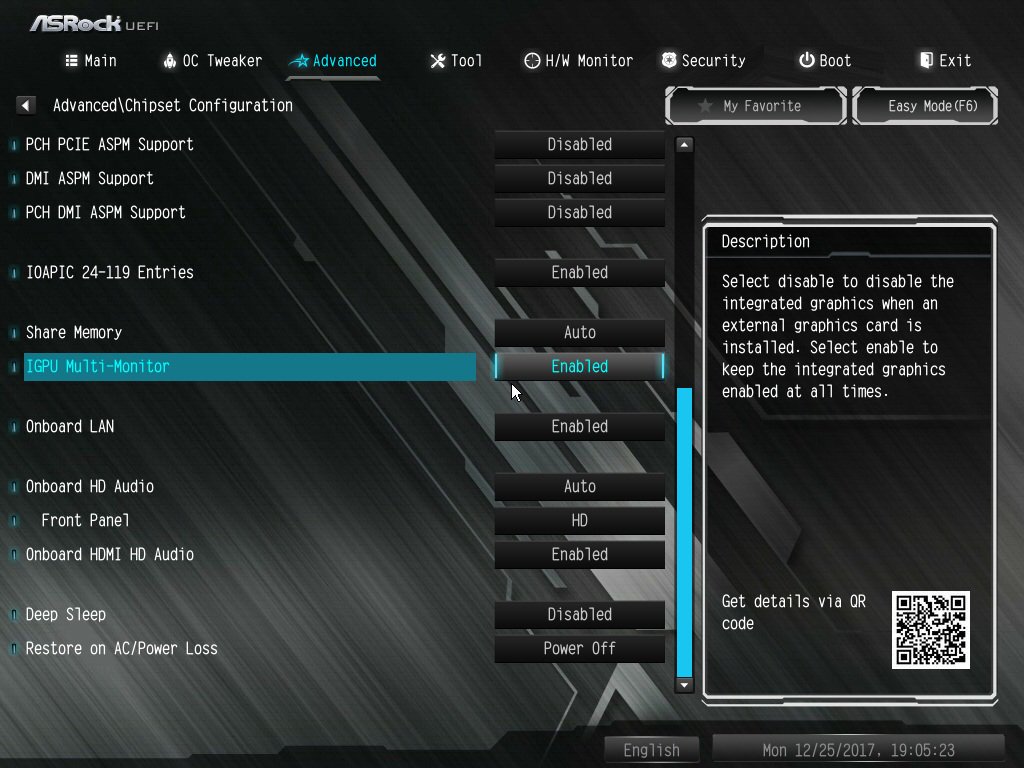
2. If an external graphics card is installed, please enable "IGPU Multi-Monitor” under BIOS.
BIOS Path: Advanced > Chipset Configuration > IGPU Multi-Monitor
3. Download the VGA driver version 15.60.01.4877 from the Intel download center and Install it on your system.
Download Link: https://downloadcenter.intel.com/product/128199/Graphics-for-8th-Generation-Intel-Processors
4. Install the "Windows Mixed Reality Headset” USB 3.0 connector to the on-board USB3.0 port.
5. Install the "Windows Mixed Reality Headset” HDMI connector to the on-board HDMI port
The Windows Mixed Reality Headset should work now.
Question: I'd like to build a mining system on H81 Pro BTC. Should I connect the PCIe power connector to PSU?(11/1/2017) Answer: Yes, it is required to connect the PCIe power connector to PSU.
Please make sure all the connected power connectors are on the same PSU.
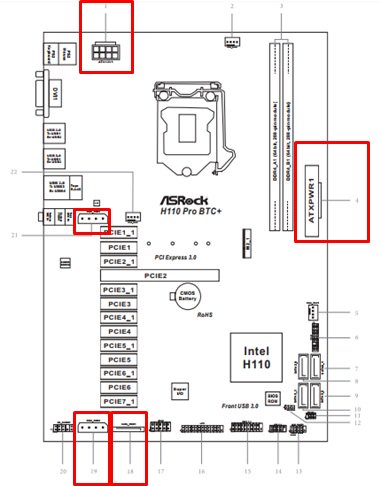
Question: If I have two PSU for my mining system, how do I connect the PSU to H110 Pro BTC+?(10/1/2017) Answer: If you have two PSU for your mining system, H110 Pro BTC+ related power connectors must be connected to the same PSU.
Please make sure all the connected power connectors (4-pin, 24-pin, SATA and PCIe) are on the same PSU.
Question: The system cannot recognize one of my graphics cards. What should I do?(9/1/2017) Answer: If some graphics cards are not recognized by the system, it is not necessarily related to only the motherboard but also to other components. The riser cards, power supply, graphics cards and even the OS are all key points for the system. Please refer to the following three parts to check your system.
(A) The PCIe riser card
1. Please double check if the graphics cards are installed properly on the riser cards. Or take the graphics cards off the riser cards and install them on the riser cards again.
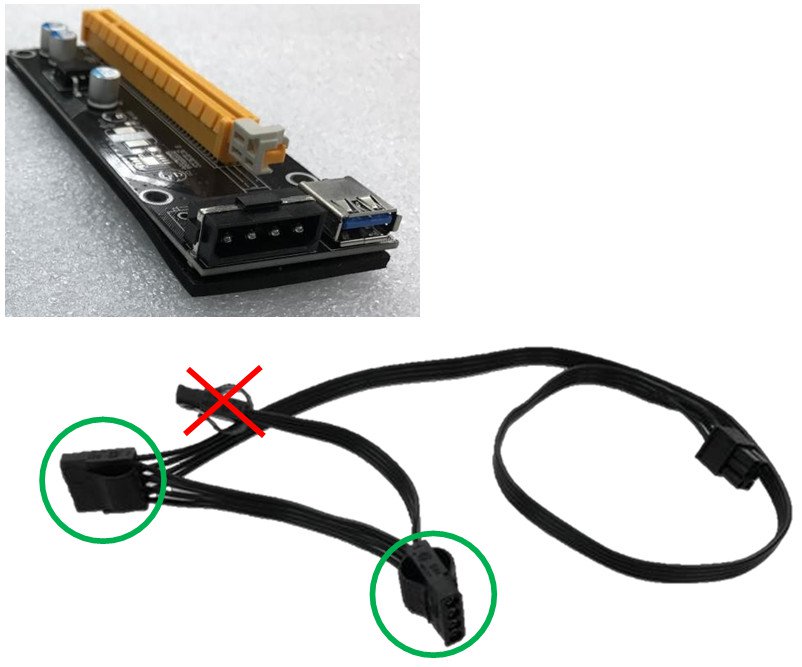
2. We recommend choosing PCIe riser cards with 6-pin power for the mining system.
3. If you are using PCIe riser cards with a Molex connector, please use maximum two Molex connectors on each power cable. Not more.
(B) Power supply
When using (close to) 13 graphics cards, you will probably have to use 2 power supplies. Normally the power supply will provide 12V, 5V and 3.3V power to the motherboard.
But in a mining system with multiple power supplies the situation is different. The first power supply has to be connected to the motherboard (12V, 5V and 3.3V) and some of the graphics cards (12V). The second power supply should only be connected to some graphics cards (12V). Because the second power supply will only supply 12V voltage to the graphic cards, it can cause power loading imbalance.
Power supply vendors suggest users to use only one power supply per system.
(C) Graphics cards
1. The single GPU systems typically draw about 200W, the system will need adequate power for whole system. Please double check if the system power is enough for the whole system.
2. Please install one graphics card and make sure it can be recognized under device manager.
If it is not, please shut down the system and press the power button to boot the system again. Then wait for the system to detect the device.
3. If it is not detected please clean the golden finger of the graphics card with a rubber (pencil eraser) and reinstall the card.
Question: I'd like to install the TR4 1900X CPU on X399Taichi or X399 Prof. Gaming, what should I do?
Please refer to the following steps to update the BIOS P1.30 or later version to support TR4 1900X CPU.(8/1/2017) Answer: Step 1. Download the BIOS P1.30 or later version from ASRock's website
X399 Taichi: https://www.asrock.com/mb/AMD/X399%20Taichi/index.asp#BIOS
X399 Prof. Gaming: https://www.asrock.com/MB/AMD/Fatal1ty%20X399%20Professional%20Gaming/index.asp#BIOS
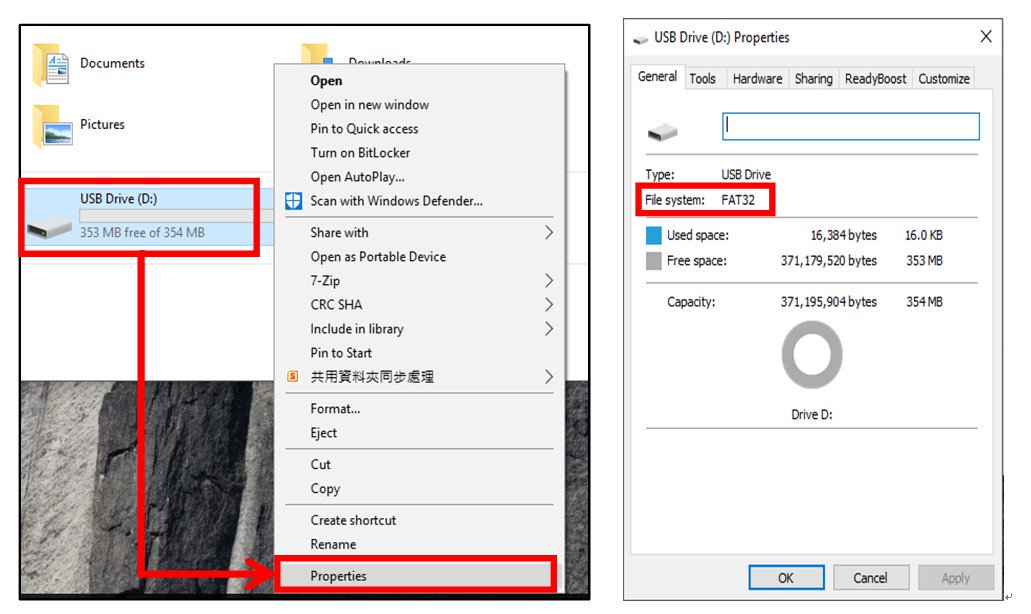
Step 2. Please make sure that the file system of your USB flash drive is FAT32.
Go to This PC → Right click on the mouse → Select Properties → File system
Step 3. If the USB drive is not FAT32 format, please create an USB flash with FAT32 format.
Go to This PC → Right click on the mouse → Select Format → Select FAT32 → Start
Step 4. Copy the BIOS file to your USB flash drive and extract BIOS file from the zip file.
Step 5. Rename the file to "creative.rom” and put the file on root directory
Step 6. Install the 24 pin power connector to the motherboard. Then turn on the AC switch of the power supply.
*There is no need to power on the system.
Step 7. Connect your USB drive to the USB BIOS Flashback port.
Step 8. Press the BIOS Flashback button for about three seconds. Then the LED starts to blink.
Step 9. Wait until the LED stops blinking, indicating that BIOS flashing has been completed.
*If the LED light turns solid green, this means that the BIOS Flashback is not operating properly.
1. Please make sure that you connect the USB drive to the USB BIOS Flashback port.
2. BIOS Flashback button (BIOS_FB1, see p.9, No. 19) allows users to flash the BIOS.
3. Flash the BIOS again from step 5.
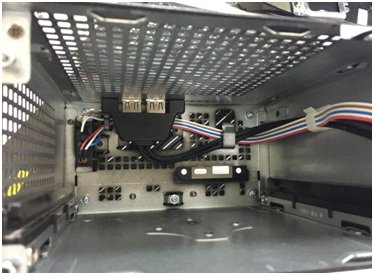
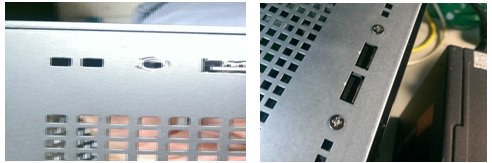
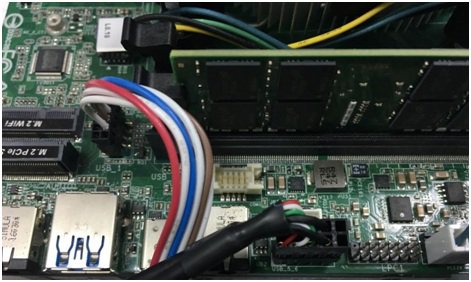
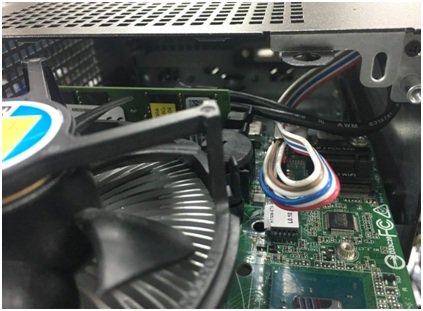
Question: I want to add USB 2.0 front panel for DeskMini, how do I install the USB 2.0 front panel ?(12/1/2016) Answer: If you would like to install the USB2.0 front panel on the Deskmini, please refer the following steps to install it.
Step 1. Before installing the USB2.0 front panel into the chassis.
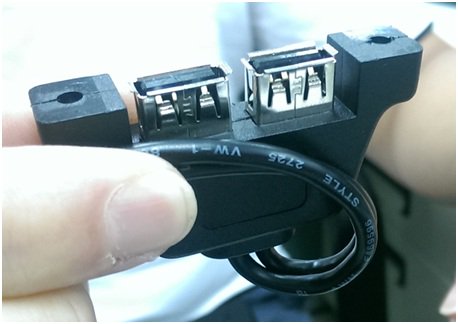
Please refer the following picture to setup the USB2.0 front panel cable.
Step 2. Put the USB2.0 front panel into the chassis as following picture.
Step 3. Screw the USB2.0 front panel on the chassis as following pictures.
Step 4. Install the USB2.0 connector to USB2.0 header.
Step 5. Insert the motherboard into the chassis.
Question: I've connected a PS/2 mouse to the PS/2 connector on my Intel 100 series platform but it doesn't work.(12/1/2015) Answer: Please set "PS/2 Y-cable" to "Auto" in the BIOS.
(BIOS -> Advanced -> Super IO Configuration -> Set "PS/2 Y-cable" item to "Auto")
Question: My monitor and DisplayPort cable supports DP1.2. However, the AMD VGA driver still shows "A display capable of DisplayPort v1.2 data rates and multi-streaming is currently connected to a connector that does not support DisplayPort v1.2" on AMD FM2+ platform. How to fix this issue?(6/1/2015) Answer: Please download and install AMD VGA driver v14.9 to solve this issue.
AMD VGA driver V14.9 download link: http://support.amd.com/en-us/download/desktop/previous/detail?os=Windows%207%20-%2064&rev=14.9
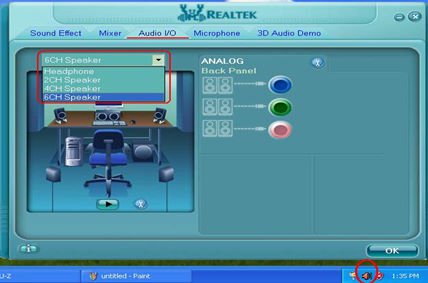
Question: My motherboard with Realtek ALC662 audio codec supports 5.1 channel HD Audio. But it has 3 audio connectors (Light blue, Lime and Pink) on the rear audio panel. How do I connect my 5.1 channel speakers to the rear audio panel?(3/24/2008) Answer: Please refer to following steps to connect your 5.1 channel speakers:
1. Connect the "Rear Speaker" to Line In (Light blue) port
2. Connect the "Front Speaker" to Line Out (Lime) port
3. Connect the "Central / Subwoofer" to Microphone (Pink) port
4. Adjust the "Audio I/O" setting to "6CH Speaker" in REALTEK Audio Management. Please refer to the following picture:
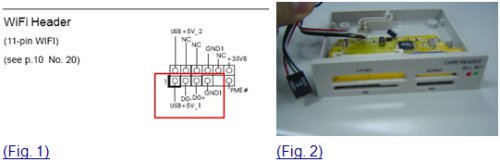
Question: My motherboard is Wolfdale1333-D667 R1.0/R2.0. I want to install one more internal USB device, is there any way I can do?(2/14/2008) Answer: Actually, the WiFi connector (Fig.1) can connect one more internal USB device.
You may install an additional internal USB device that with 4 pin connector on this motherboard.
For example: A USB card reader with 4 pin connector. (Fig. 2)
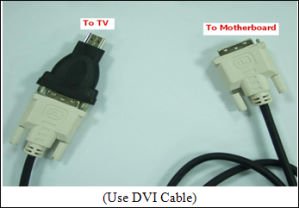
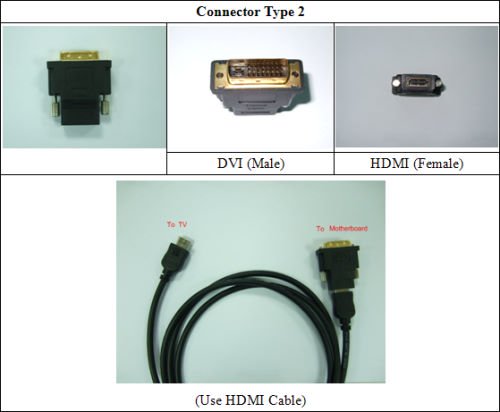
Question: ALiveNF7G-HD720P/ALiveNF7G-HDready support HDMI output?(6/25/2007) Answer: Yes, ALiveNF7G-HD720P/ALiveNF7G-HDready supports HDMI output.
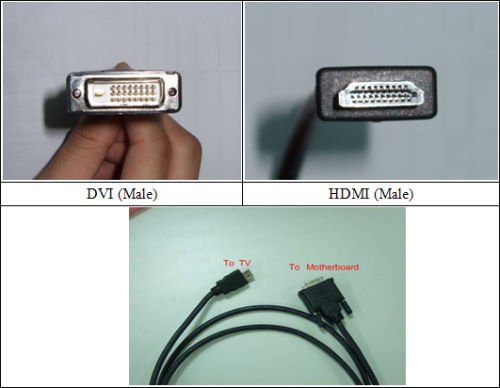
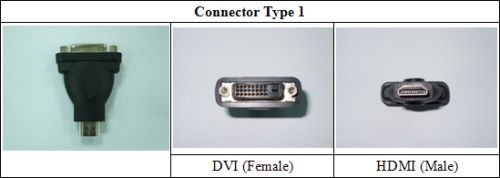
However, a DVI to HDMI cable or adapter is required.
DVI to HDMI cable
DVI to HDMI Connector
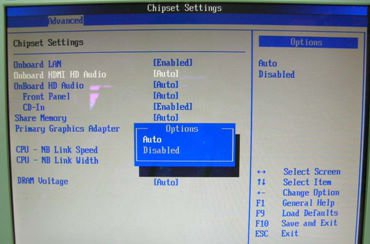
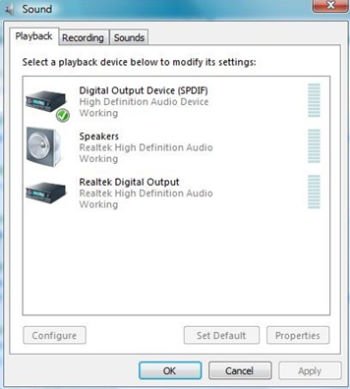
Besides the DVI to HDMI cable/adapter, please also do the following settings in BIOS SETUP and Windows® Vista™/Vista 64-bit:
1.In BIOS SETUP, go to "Advanced"->"Chipset Configuration", and set the option "Onboard HDMI HD Audio" to [Auto].
2.Under Windows® Vista™/Vista 64-bit, go to "Sound" settings and select the Digital Output Device (SPDIF) as a playback device.
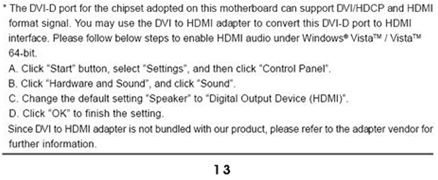
You can find more detail information in user manual page 13:
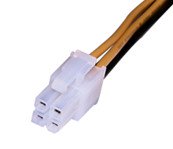
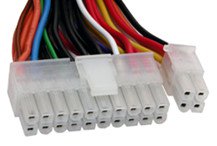
Question: My power supply has two 4-pin (2X2) power connectors. Which one should I connect to the motherboard?(10/20/2006) Answer: Please refer to the following pictures:
1.Please use this connector on the motherboard. (2 black and 2 yellow wires)
2.This is 20+4 pin connector; please only connect the 20-pin connector to the motherboard. Please DO NOT connect this 4-pin connector to the motherboard. (1 black, 1 yellow, 1 red and 1 orange wire)
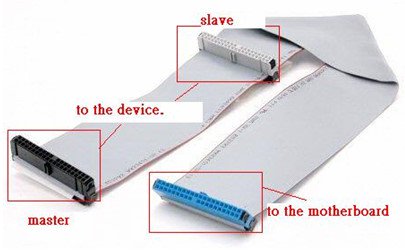
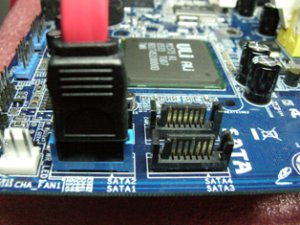
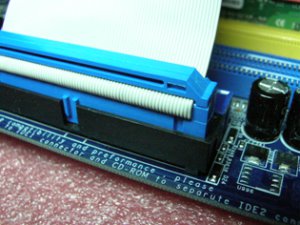
Question: During the POST, there is a number "0075" or "0078" showed at the right corner of the screen, and the system stop for a long time. What can I do?(10/20/2006) Answer: The problem may be caused by incorrect jumper settings or bad cables of your IDE or SATA devices. Please refer to following steps to check your system. For IDE devices:
1.If you connect 2 IDE devices to 1 IDE cable, please double check the jumpers of your IDE devices if they were set correctly. The device which is connected to the black connector should be set as master, and the other should be set as slave (gray connector).
2.Please exchange the devices of master and slave on the IDE cable.
3.Please replace the IDE cable by a new one.
4.Please replace the IDE hard drive by a new one.
For SATA devices:
1.Please adjust the jumpers of your SATA2 (3.0 Gb/s) hard disk drive as SATA1 (1.5 Gb/s) mode if your motherboard supports SATA1 (1.5 Gb/s) mode only.
2.Please replace the SATA cable by a new one.
3.Please replace the SATA hard drive by a new one.
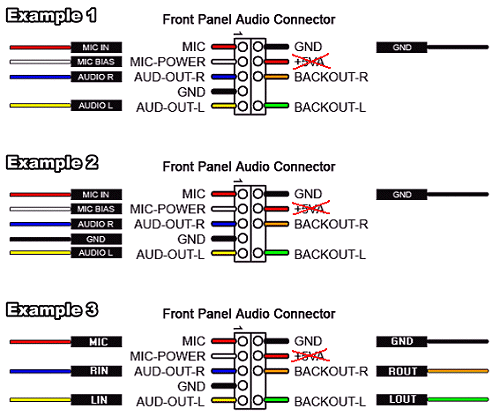
Question: My onboard audio is AC'97 audio. The front panel audio connector cables of my case are different from the description of manual. How should I connect them? Please advice.(4/21/2006) Answer: The wording on the front panel connector cables may be different by each chassis manufacturer. Please check the function of each cable. Otherwise it may damage the board if cables are connected to the wrong connectors. We found that if you connect the "GND" (Ground) or "USB VCC" (USB Power) connector pins to the "+5V" pin, it will damage the motherboard after booting up the system. So we recommend you must not install any connector on the +5V pin of the Front Panel Audio header. It will not affect the Audio function if you remove the connector from the +5V pin.
For this reason, we will remove the +5V pin from the Front Panel Audio header of our products in the future.
There are three examples for your reference, please refer to the following pictures.
Question: I installed a SATA hard disk and a CD/DVD drive on 775Twins-HDTV/P4Twins-HDTV, connected the hard disk to SATA1 connector and the CD/DVD to IDE1. Enabled "ATA Combination Mode" in BIOS settings. But the motherboard could not detect the CD/DVD drive. Why?(3/20/2006) Answer: Please connect SATA hard disk to SATA1 connector and CD/DVD drive to IDE2. When you enable "ATA Combination Mode", only SATA1 and IDE2 connectors can work, other connectors are disabled. We recommend you to disable "ATA Combination Mode". In that case all 4 SATA and 2 IDE channel can work, and you can get the advantages of SATA hard disks.
Question: If I use AC'97 front audio panel with, how do I connect to the High Definition Audio header on the motherboard and get front audio work?(2/17/2006) Answer: If you use AC'97 audio panel, please install it to the front panel audio header as below:
A. Connect Mic_IN (MIC) to MIC2_L.
B. Connect Audio_R (RIN) to OUT2_R and Audio_L (LIN) to OUT2_L.
C. Connect Ground (GND) to Ground (GND).
D. MIC_RET and OUT_RET are for HD audio panel only. You don't need to connect them for AC'97 audio panel.
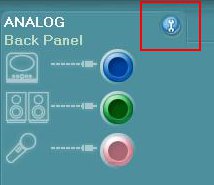
E. Enter BIOS Setup Utility. Enter Advanced Settings, and then select Chipset Configuration. Set the Front Panel Control option from [Auto] to [Enabled]. For Windows® XP
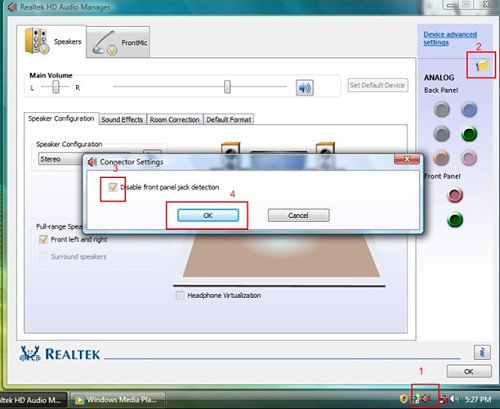
F. Enter Windows® system. Click the icon on the lower right hand taskbar to enter Realtek HD Audio Manager. Click "Audio I/O", select "Connector Settings", choose "Disable front panel jack detection", and save the change by clicking "OK". For Windows® Vista™
F. Enter Windows® system, 1: Double click the icon on the lower right hand taskbar to enter Realtek HD Audio Manager. 2: Click the "Folder" icon at the top-right corner. 3. Check "Disable front panel jack detection". 4. Click "OK".
(Please refer to the following picture)
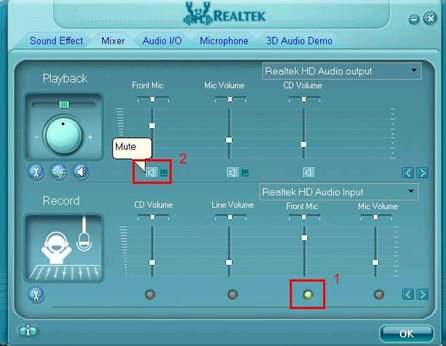
G. To activate the front mic: For Windows® XP:
Please select the Front Mic as default record device in No. 1.
If you want to hear your voice through Front Mic, please deselect "Mute" in No. 2 For Windows® Vista™:
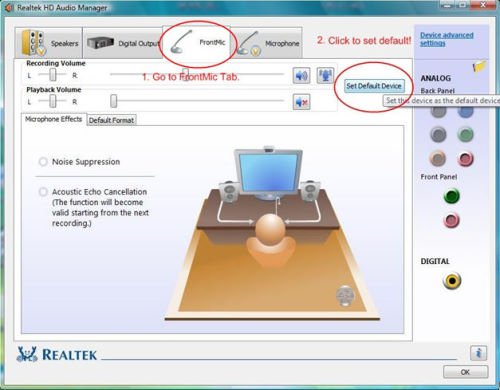
1.Go to the "FrontMic" Tab in the Realtek Control panel.
Click "Set Default Device" to make the Front Mic as the default record device.
Question: My motherboards are K7VT4A+ and K7VM3. During the POST, it shows "Mac address are invalid in both CMOS and DMI. Press F1 to resume". What should I do?(12/15/2004) Answer: Please try to install your CD-ROM, CD-RW, DVD-ROM, or DVD-RW to primary IDE (IDE1, blue connector) and install your hard drive to secondary IDE channel. If you still encounter problem, please download the tool to rewrite the MAC address from: https://www.asrock.com/support/Download/MACTool.asp
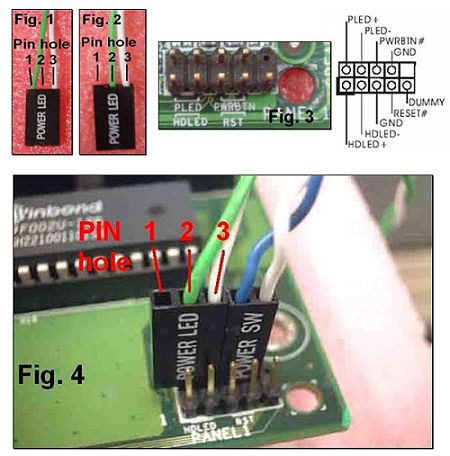
Question: When connecting the POWER SW, POWER LED, RESET SW and HDD LED cables from my chassis to the PANEL1 connector on the motherboard, I found that the pin holes of the cable does not match with the connector. What should I do?(3/15/2004) Answer: Please see the following pictures. If your POWER LED cable is designed with 2 cables in pin hole 1 and 3 (see Fig.1), please remove one of the cables and insert to the middle pin hole 2 (see Fig.2). Then, please refer to Fig.3 and Fig.4 for the connection.
Question: My motherboard is Intel or ALi south bridge based motherboard. When I connect the ATX power connector to the motherboard, the system power on right away. Why?(3/15/2004) Answer: This issue will happen if CMOS checksum is bad. Please enter the BIOS setup then load BIOS default setting to solve this issue.
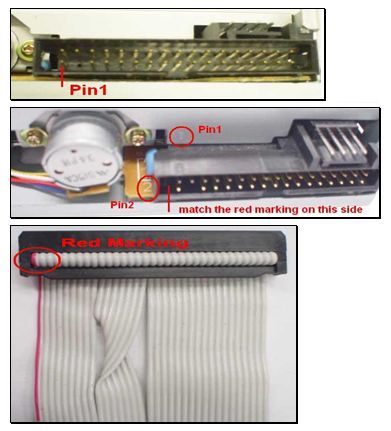
Question: I'd just finished setting up my system. When booting it up, I found that the LED of the floppy drive is always on and I cannot read any floppy disk with the floppy drive. Why?(1/14/2004) Answer: Perhaps the floppy ribbon cable is connected to the floppy drive with the wrong orientation. Please reconnect the floppy cable and make sure to match the red marking on the floppy ribbon cable with Pin1 of the floppy drive connector. However, some floppy drives' connectors may not be easily to define Pin1. You can try to check around the connector. Usually, there will be labels for Pin1 or Pin2.
Question: I want to use the hot plug feature with my SATA HDD. What requirements do I need to know?(12/12/2003) Answer: Please read below operation guide of Serial ATA HDD Hot-Plug on ASRock motherboard carefully.
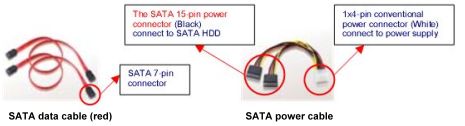
Before you process the SATA HDD Hot-Plug, please check below cable accessories from the motherboard gift box pack.
7-pin SATA data cable x 2
SATA power cable with SATA 15-pin power connector interface x 1
1.Without SATA 15-pin power connector interface, the Serial ATA HDD Hot-Plug cannot be processed.
2.Even some SATA HDDs provide both SATA 15pin power connector and IDE 1x4-pin conventional power connector interfaces, the IDE 1x4-pin conventional power connector interface is definitely not able to support Hot-Plug and will cause the HDD damage and data loss.
Points of Attention – Before you start to process the Hot-Plug:
Below operation procedure is designed only for ASRock motherboard, which supports SATA HDD Hot-Plug.
*SATA Hot-Plug support of ASRock motherboard is indicated in the product spec on our web site .
Make sure your SATA HDD can support hot-plug function from your dealer or HDD user manual. The SATA HDD, which cannot support hot-plug function, will be damaged under the hot-plug operation.
Please make sure the SATA driver is installed into system properly.
The latest SATA driver is available on our support web site https://www.asrock.com/support/index.asp
Make sure to use the SATA power cable & data cable, which are from ASRock motherboard package.
Please follow below instructions step by step to reduce the risk of HDD crash or data loss.
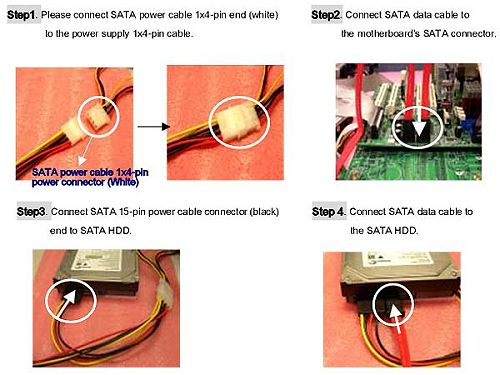
How to Hot-Plug a SATA HDD:
Points of Attention – Before you process the Hot-plug:
Please do follow below instruction sequence to process the Hot-plug, improper plug procedure will cause the SATA HDD damage and data loss.
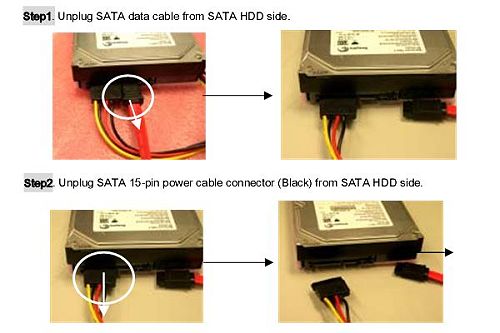
How to Hot-Unplug a SATA HDD:
Points of Attention – Before you process the Hot-Unplug:
Please do follow below instruction sequence to process the Hot-unplug, improper unplug procedure will cause the SATA HDD damage and data loss.
Question: I'm using an add-on LAN card on my ASRock motherboard. The LAN card provides a "Wake On LAN" connector with a cable. Is there a connector on the motherboard so that I can plug this cable?(12/12/2003) Answer: There's no need to connect this cable to the motherboard and you are still able to use the "Wake On LAN" feature with the add-on LAN card. To use it, please remember to enable the "PCI Device Power On" option in BIOS.
Question: May I use the power supply without +12V power (4 pins) connector for ASRock Intel platform Motherboards? (6/13/2003) Answer: ASRock has its own design to omit the Intel specified 4-pin connector. All needed power for motherboard can be supplied from 20-pin ATX connector. So ASRock P4 platform motherboards is able to support some power supplies without +12V 4-pin connector.
Question: Can I use the microphone if I select 6 speakers in C-Media Audio Configuration?(5/9/2003) Answer: If you select 6 speakers in C-Media Audio Configuration for 5.1 CH output, all three audio connectors (Line in, Line out and MIC) are defined as output connectors.
Microphone is an input device. So you are not able to use the microphone at this moment.
Question: What's the function of JL1 and JR1 jumpers on my ASRock motherboard?(5/9/2003) Answer: When you connect speakers in back panel and front panel at the same time,
1. If the jumpers JL1 and JR1 are short, both front panel and rear panel audio connectors can work.
2. If both jumper caps on JL1 and JR1 are removed, only front panel audio works.
However, it requires your front panel to support the function.
Question: How can I run a FSB800 CPU on P4i45G correctly?(5/9/2003) Answer: The requirement for P4i45GL to run with a FSB800 CPU is as following:
1. Adjust the FSB jumper from 1-2 pin (normal) to 2-3 pin (test). The jumper is near the CPU fan connector.
2. Memory requires DDR333 SDRAM
Please make sure that the jumper setting is correct and the memory is DDR333.