We use cookies to offer you a more personalized and smoother experience. By visiting this website, you agree to our use of cookies. If you prefer not to accept cookies or require more information, please visit our Privacy Policy.
Necessary cookies These cookies are essential for the proper functioning of the website and cannot be turned off.
Analytics cookies These cookies help us understand how visitors use our website.
Marketing cookies These cookies are used to track visitors and display relevant advertisements.
Social media cookies These cookies allow you to share pages and content on social media.
Question: What kind of M.2 specification can your AM4 motherboard support? Is M.2 shared with SATA port? Which SATA port?(3/1/2017) Answer: M.2 specification support may vary with a different AM4 motherboard. Please refer to the following table for support information.
Please refer to the following table for detail information.
Model
M.2 slot support PCIE/SATA
Is M.2 shared with SATA Port? Which SATA port shared with M.2
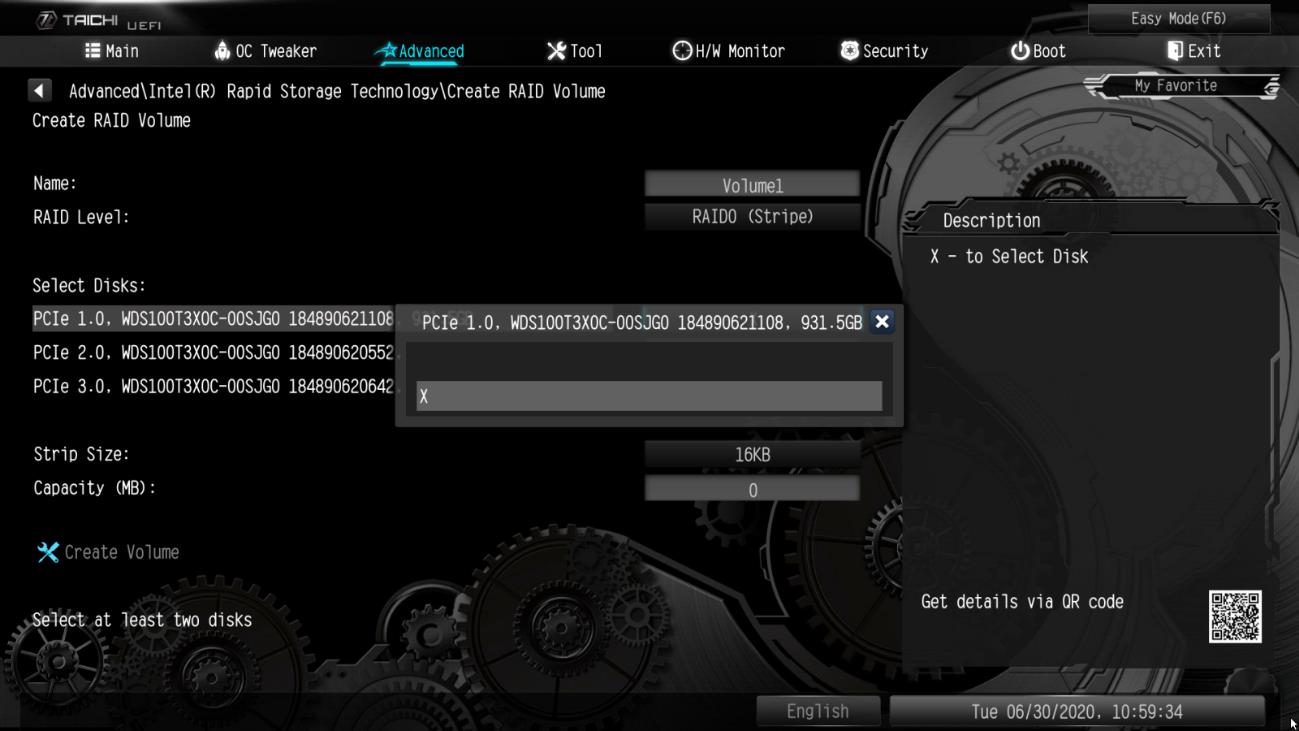
Question: How can I remap M2_3 slot and other M.2 slots to configure a PCIE SSD RAID on Z490 Taichi?(6/1/2020) Answer: Please make sure to use identical PCIE SSDs that are the same type and volume.
Follow the steps below to adjust the BIOS settings to configure the PCIe RAID.
STEP 1. Enter the UEFI Setup Utility by pressing or < Del > hotkey during the post screen.
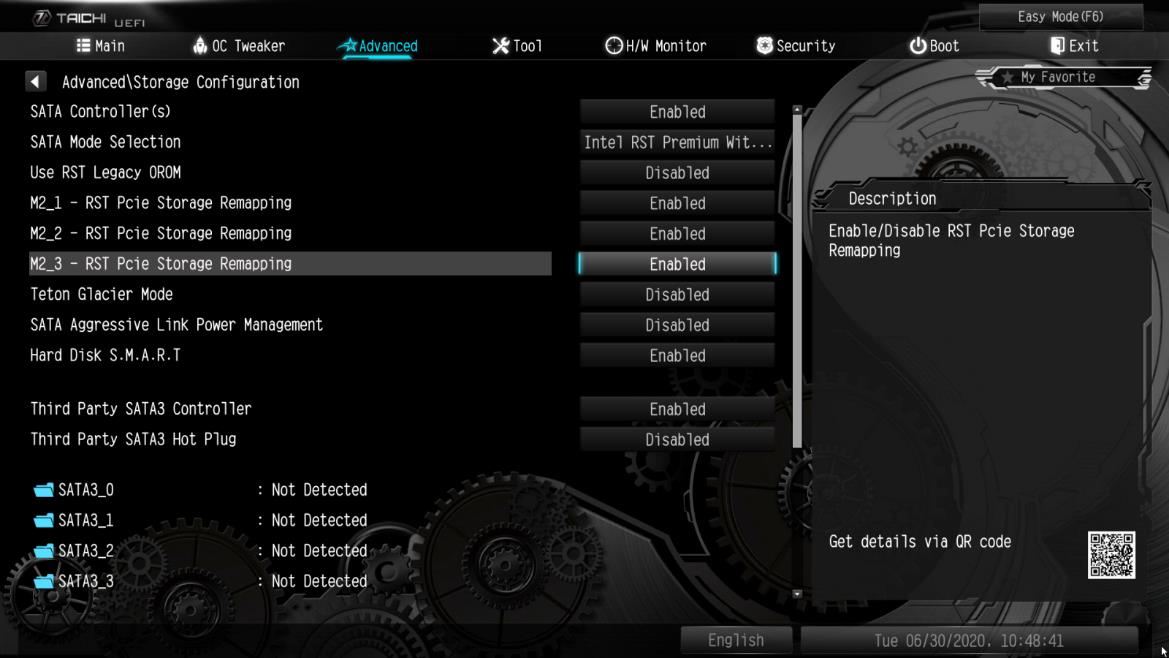
STEP 2. Go to Advanced -> Storage Configuration and set SATA Mode Selection to [RAID Mode].
STEP 3. Go to Boot -> CSM and set Launch Storage OpROM policy to [UEFI only].
STEP 4. Adjust the M.2 slots - RST PCie Storage Remapping that you've installed PCIE SSDs to [Enabled]. Press to save the settings and exit setup.
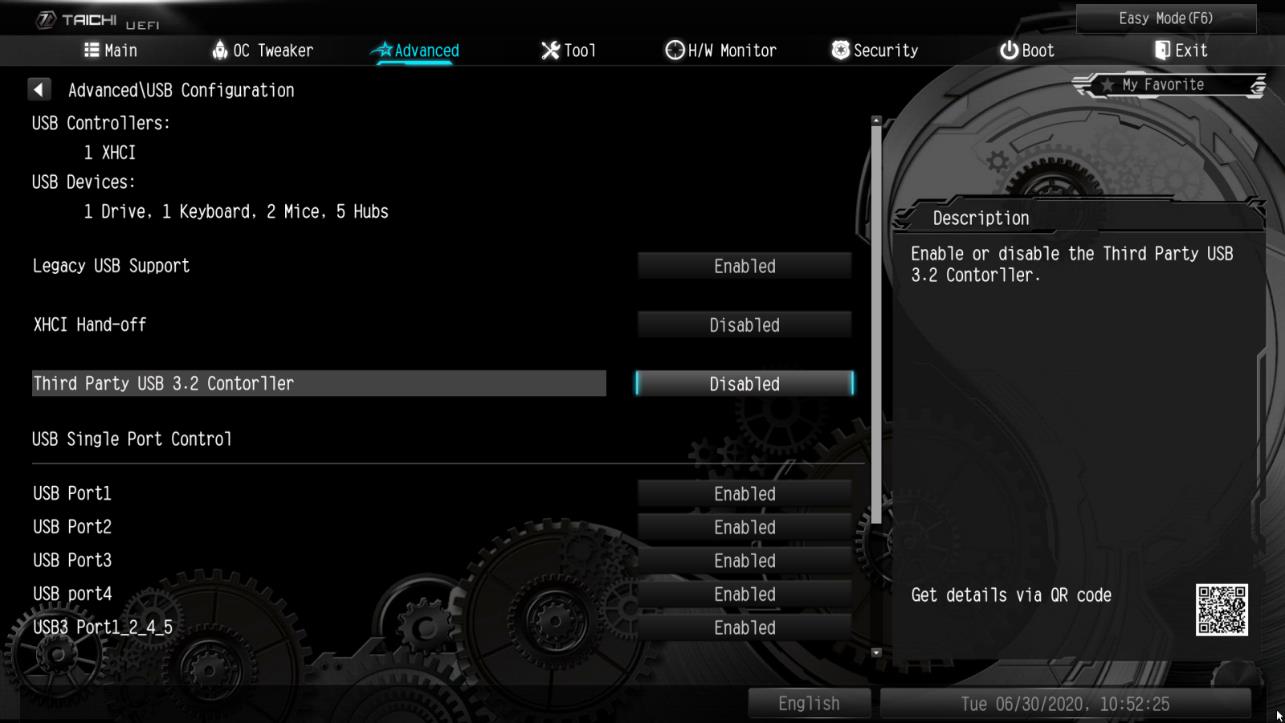
STEP 5. Go to Advanced -> USB Configuration and set Third Party USB 3.2 Controller to [Disabled]. Press to save the configuration changes and exit setup. Caution: After disabling the Third Party USB3.2 Controller, the onboard Type-C port will be turned off.
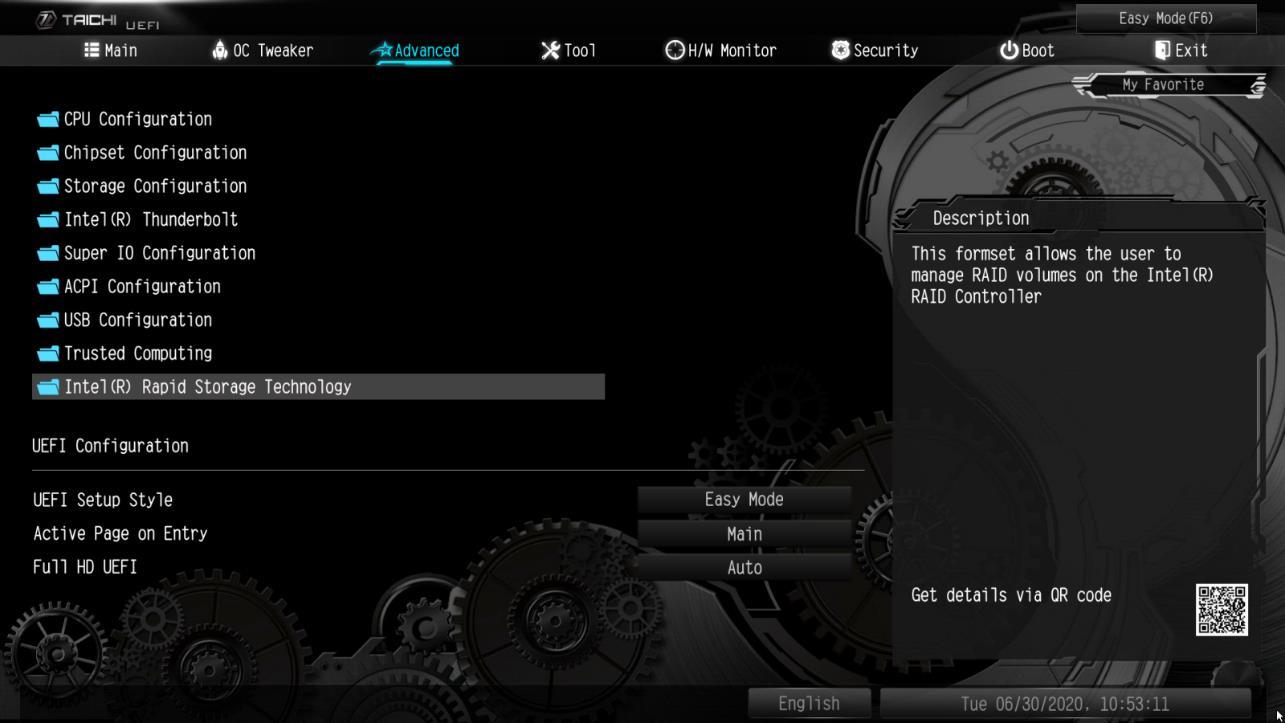
STEP 6. Enter Intel(R) Rapid Storage Technology in Advanced page.
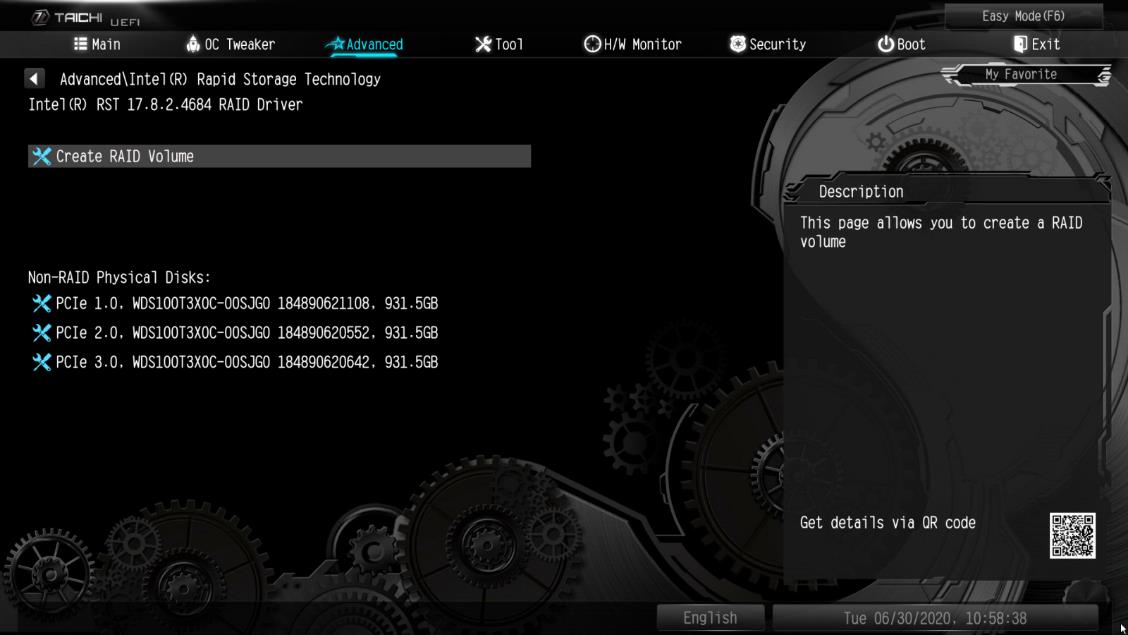
STEP 7. Select the option Create RAID Volume and press .
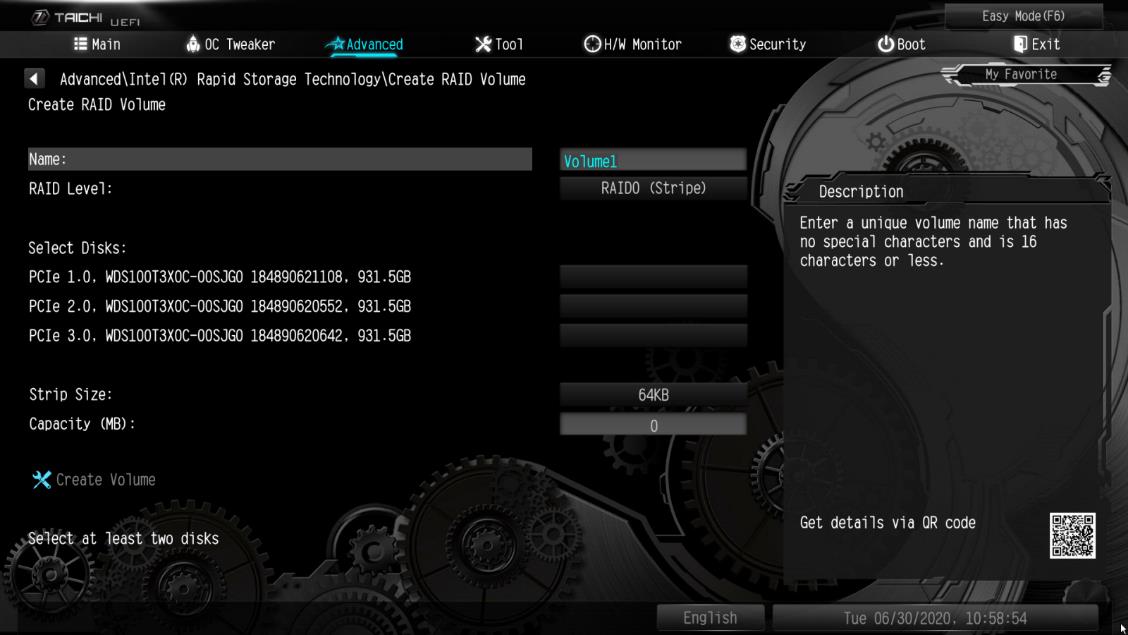
STEP 8. Key-in a volume name and press , or simply press to accept the default name.
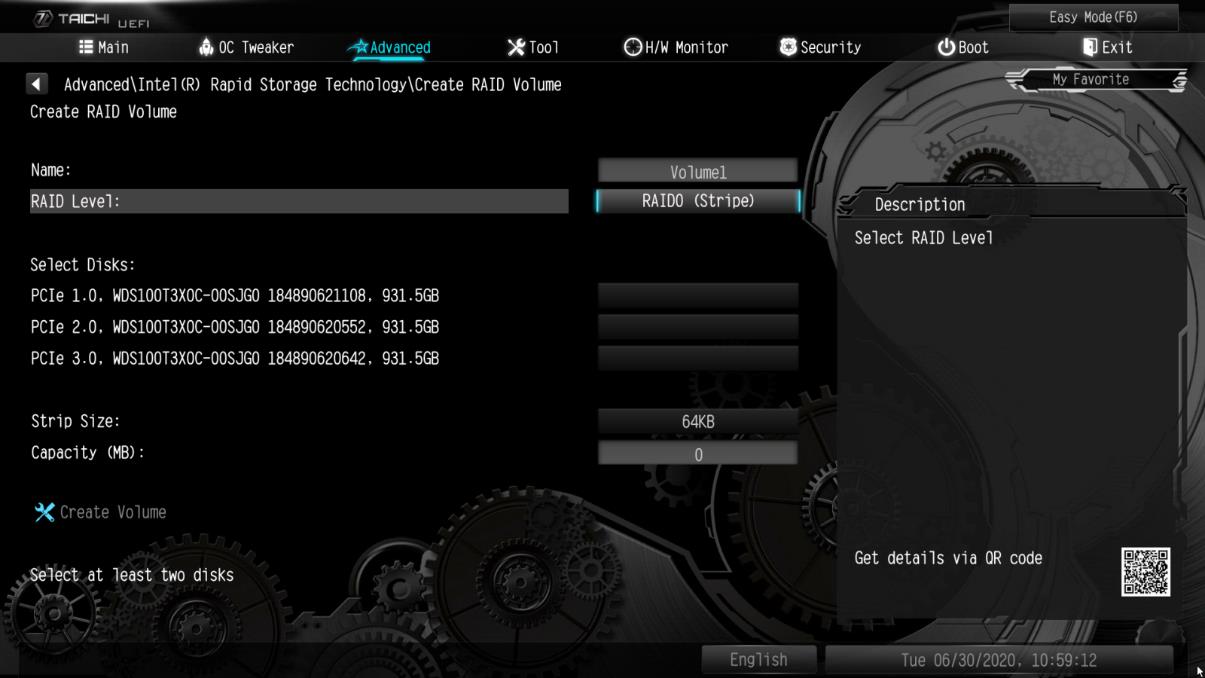
STEP 9. Select your desired RAID Level and press .
STEP 10. Select the target hard drives which you want to build in RAID array and press .
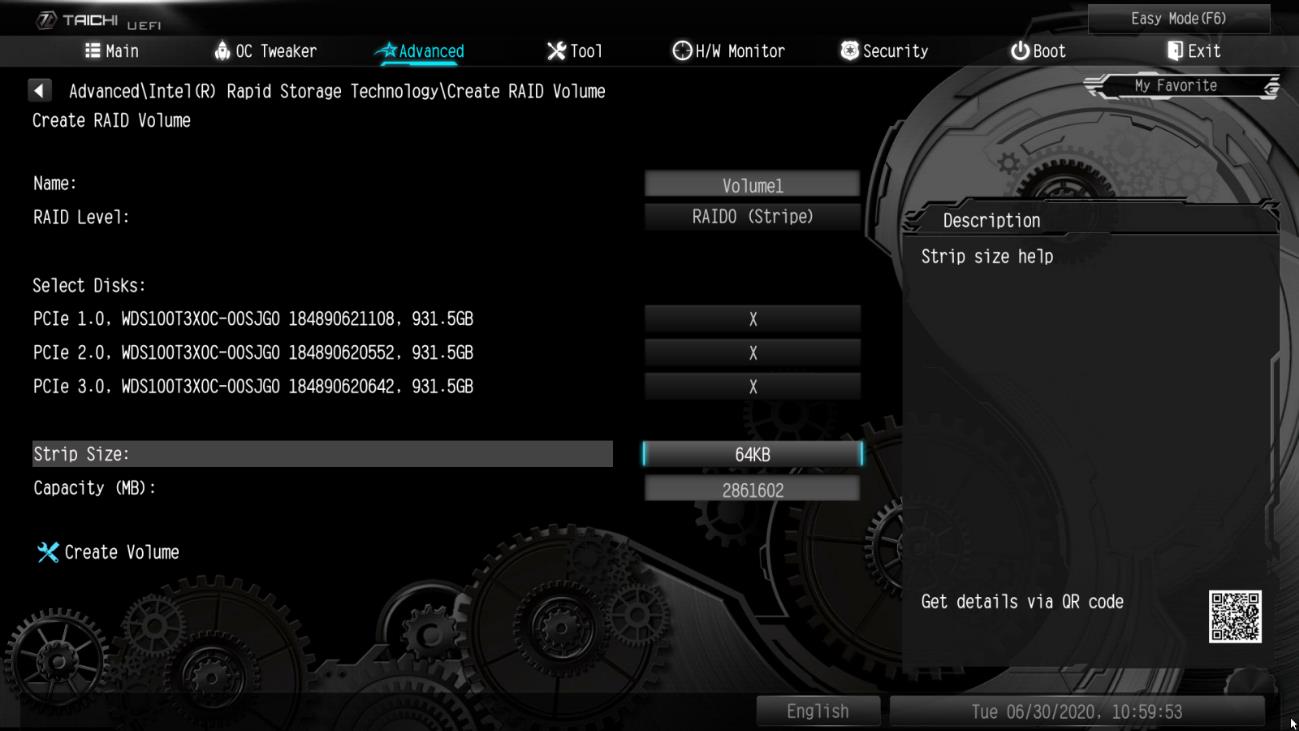
STEP 11. Select a stripe size for the RAID array and press .
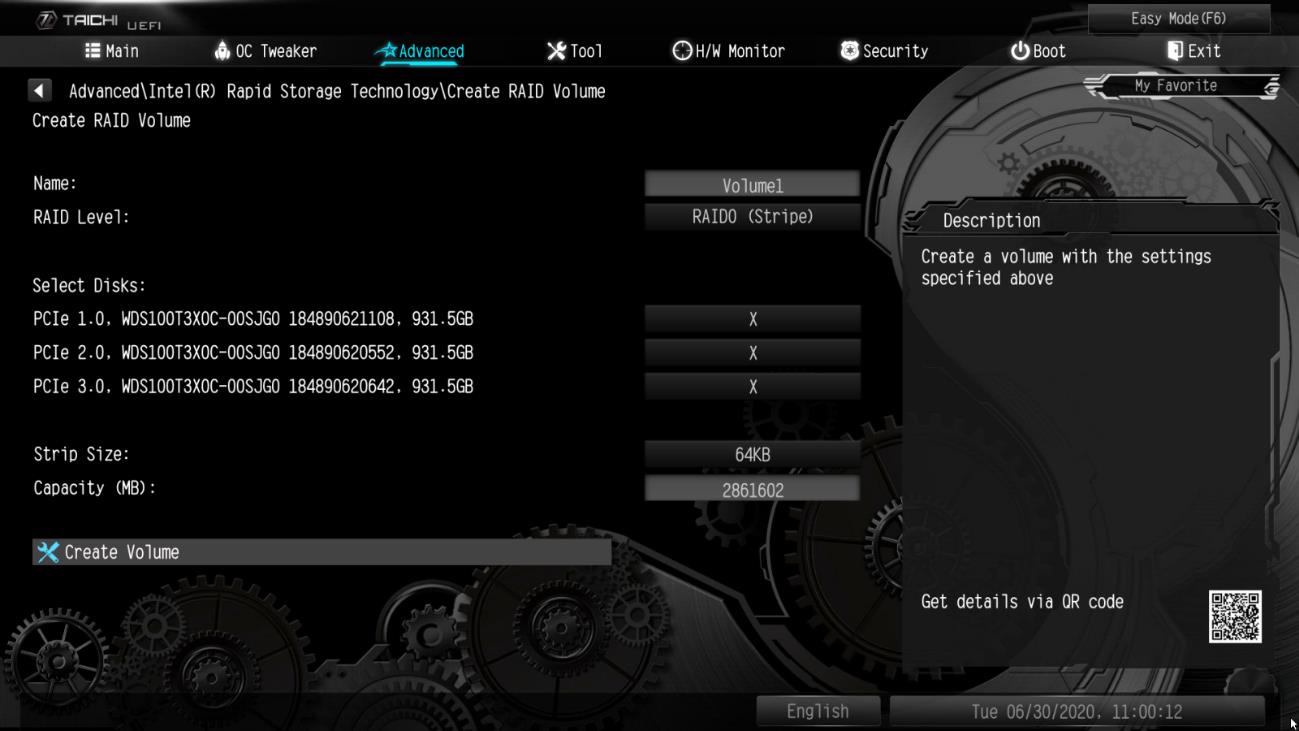
STEP 12. Select Create Volume and press to start creating the RAID array.
Question: How do I enable Optane H10 when another Intel M.2 SSD is installed on Intel 300/400 series platform?(9/1/2020) Answer: To enable an Optane H10 while another Intel M.2 SSD is installed, please refer to the following steps:
Step 1. Make sure that H10 Optane memory is installed in the Optane supporting M.2 socket by checking the storage section of the motherboard web page.
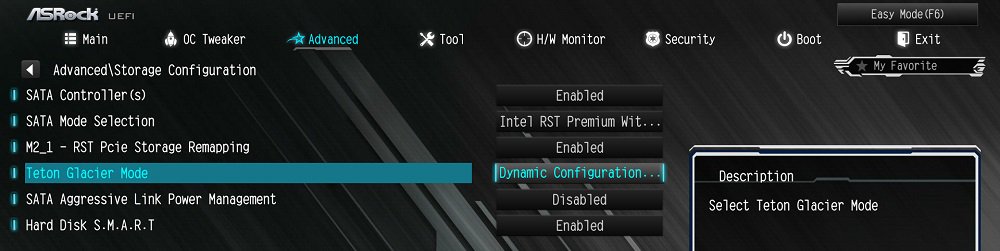
Step 4. Enable the Teton Glacier Mode in BIOS and press F10 to save the settings.
Advanced\Storage Configuration\Teton Glacier Mode\Dynamic Configuration for Hybrid Storage Device Enable
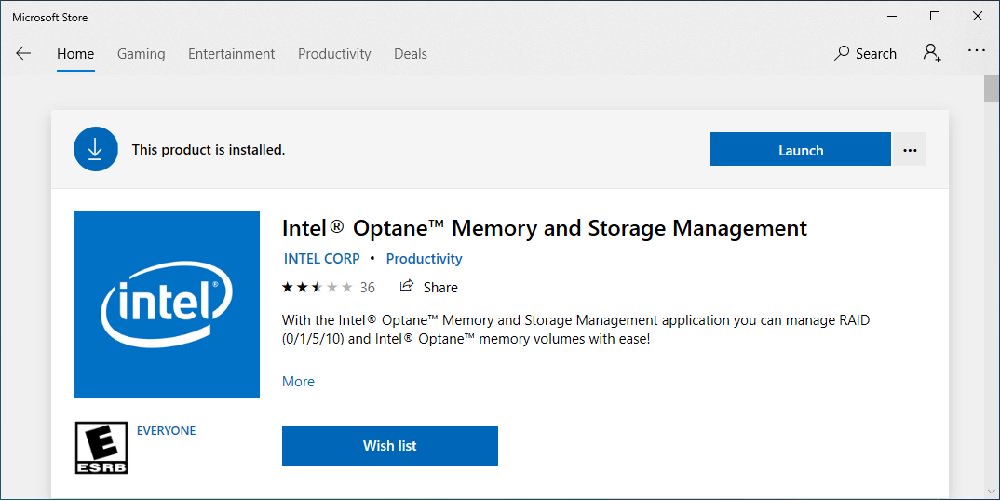
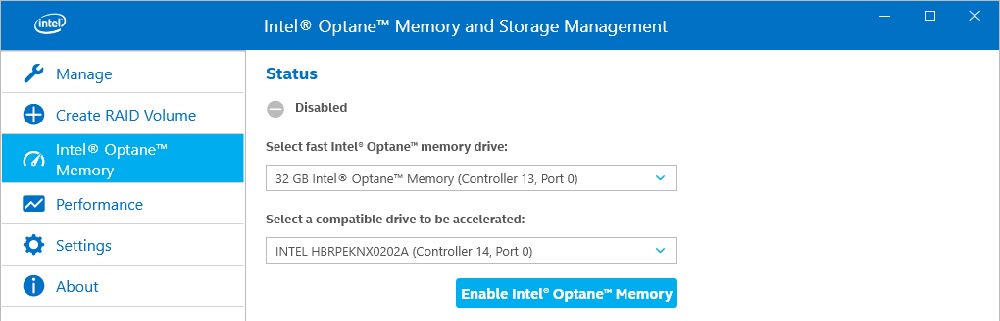
Step 5. Launch the Intel Optane Memory and Storage Management tool from the Microsoft store.
Step 6. Enable Optane memory. (One restart is required)
Step 7. After the system has restarted, the Optane Management tool will show Optane memory is enabled.