We use cookies to offer you a more personalized and smoother experience. By visiting this website, you agree to our use of cookies. If you prefer not to accept cookies or require more information, please visit our Privacy Policy.

Question: Where can I get the detailed BIOS setting description?(3/3/2003) Answer: You can find the detailed user manual and BIOS setting description in ASRock support CD.
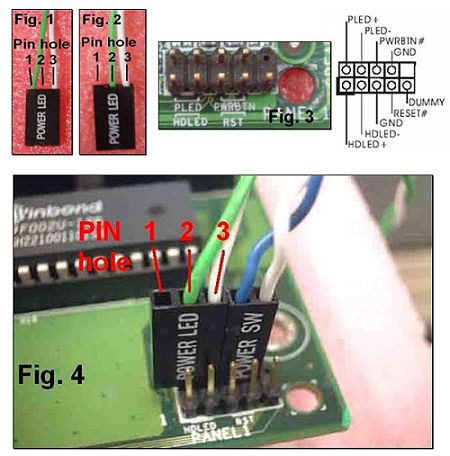
Question: When connecting the POWER SW, POWER LED, RESET SW and HDD LED cables from my chassis to the PANEL1 connector on the motherboard, I found that the pin holes of the cable does not match with the connector. What should I do?(3/15/2004) Answer: Please see the following pictures. If your POWER LED cable is designed with 2 cables in pin hole 1 and 3 (see Fig.1), please remove one of the cables and insert to the middle pin hole 2 (see Fig.2). Then, please refer to Fig.3 and Fig.4 for the connection.
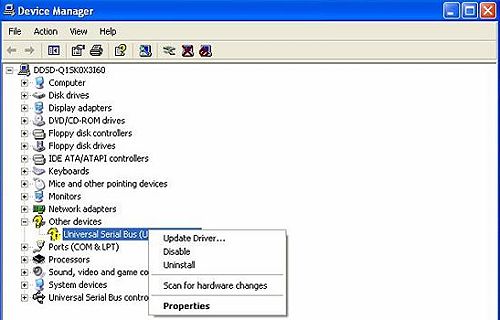
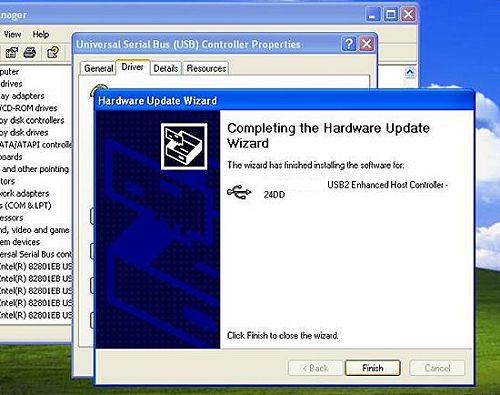
Question: My OS is Windows XP (or Windows 2000), and I have installed XP Service Pack 1 (Windows 2000 Service Pack 4). But when I use USB 2.0 devices, it will show "High-Speed devices is attached to a non-Hi-Speed port". How can I use USB 2.0 devices?(10/15/2004) Answer: Please go to "device manager" to check if the driver was installed properly. If not, please do the following steps.
1.Right click the exclamation mark device and choose properties.
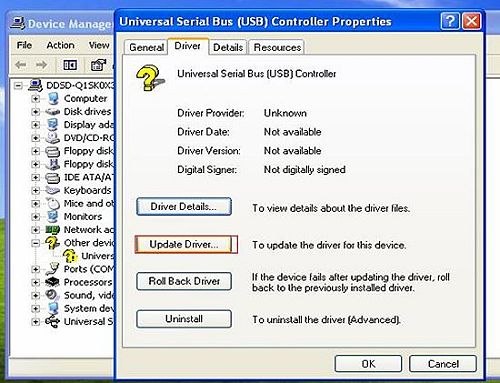
2.Click "update driver".
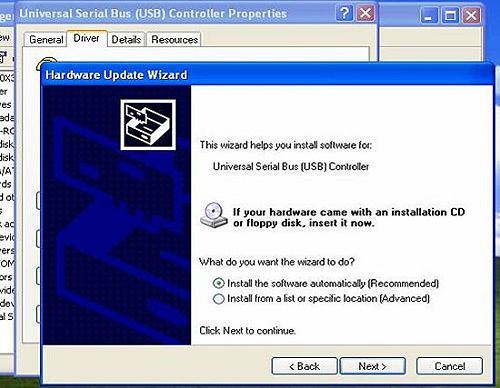
3.Choose "Install the software automatically"
4.Then it will find the device. Please click finish.
Question: I installed a Windows XP operating system for 775Twins-HDTV in my SATA HDD. I want to duplicate my SATA HDD to another new SATA HDD by using GHOST program. After finished, the new duplicated SATA HDD cannot boot up. What should I do?(11/18/2005) Answer: We recommend you to install Windows XP on your original SATA HDD again and install the SATA drivers at the beginning of Windows XP installation. Please refer to the following steps:
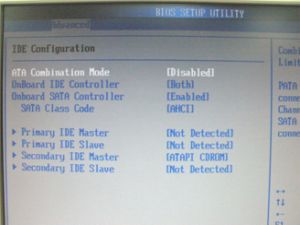
Step 1: Please go to BIOS to disable the "ATA Combination Mode", or you can reserve it as default value. (BIOS/ Advanced/ IDE Configuration/ ATA Combination Mode/ Disabled)
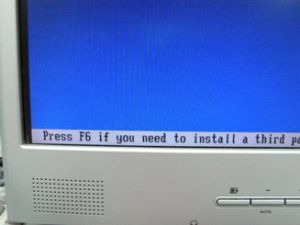
Step 2: Please press "F6" to install SATA drivers at the beginning of the Windows XP installation.
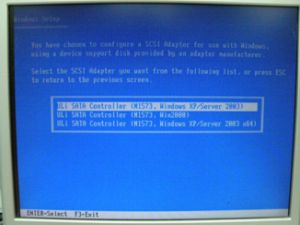
Step 3: Install the SATA drivers. (Please make a SATA Driver Diskette at first. Please refer to the 775Twins-HDTV user manual page 25.)
Step 4: Start to install the operating system.
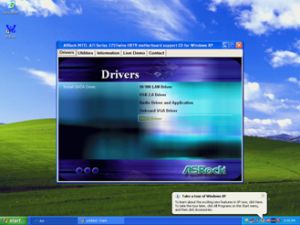
Step 5: After finished the Windows XP installation, we recommend you to install the SATA driver from support CD.
Step 6: Now, you can start to duplicate the HDD by using GHOST program.
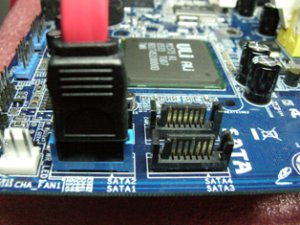
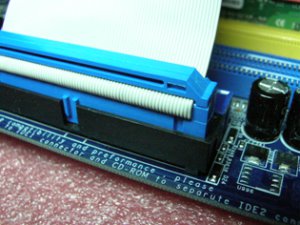
Question: I installed a SATA hard disk and a CD/DVD drive on 775Twins-HDTV/P4Twins-HDTV, connected the hard disk to SATA1 connector and the CD/DVD to IDE1. Enabled "ATA Combination Mode" in BIOS settings. But the motherboard could not detect the CD/DVD drive. Why?(3/20/2006) Answer: Please connect SATA hard disk to SATA1 connector and CD/DVD drive to IDE2. When you enable "ATA Combination Mode", only SATA1 and IDE2 connectors can work, other connectors are disabled. We recommend you to disable "ATA Combination Mode". In that case all 4 SATA and 2 IDE channel can work, and you can get the advantages of SATA hard disks.
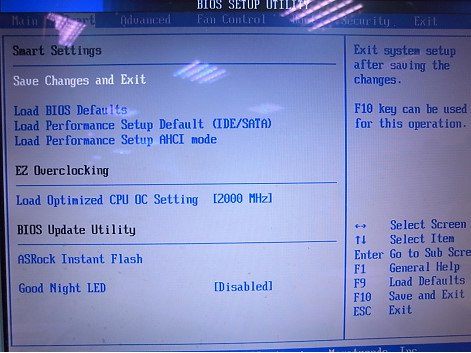
Question: Is there any possibility to disable the LED of ION 330 ?(10/22/2009) Answer: Yes. Please update your BIOS to P1.60 first. After doing so, you may find the "Good Night LED" option in BIOS -> Smart, please refer to the following picture.
If you set "Good Night LED" to [Enabled], the system would turn LED off.
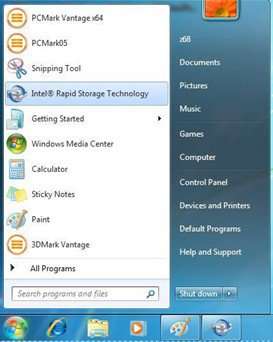
Question: I have installed all the drivers from support CD, but I could not enable the Intel Smart Response Technology on my Z68 motherboard. What should I do?(5/1/2011) Answer: First, please download and update BOTH of your BIOS and Intel Rapid Storage Driver.
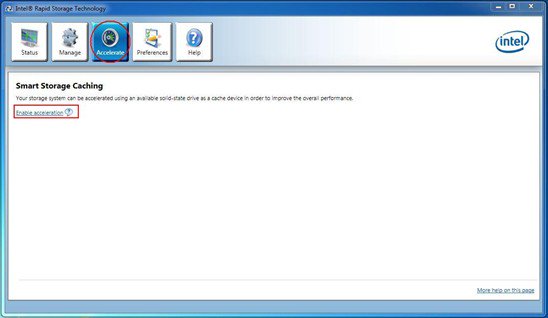
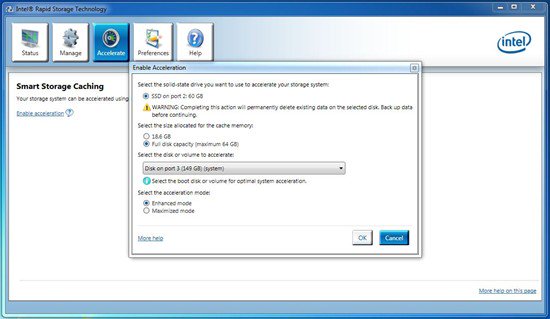
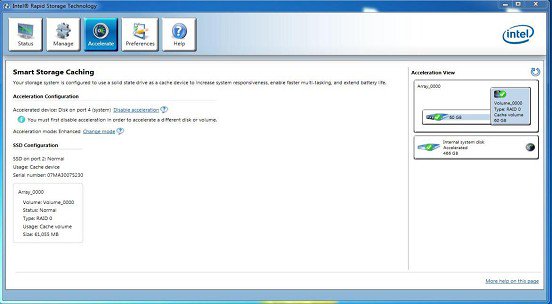
After doing so, please follow the steps below to setup Intel Smart Response:
Step 1. Before booting up the system, please make sure to connect your HDD to supported SATA ports.
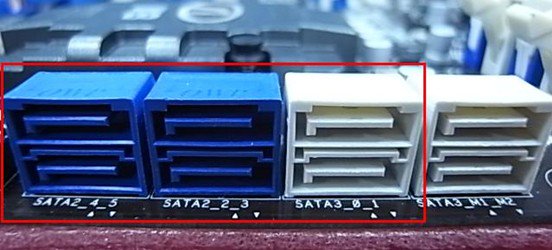
For Z68 Extreme4, please connect to the ports as shown below.
These ports are from Intel PCH chipset, which support Intel Smart Response Technology.
Please note that, for Z68 Pro3 or Z68 Pro3-M, all the SATA ports are supported.
※ Note:
We recommend users to connect your HDD to SATA3 ports if your HDD is SATA3 spec.
Please DO NOT connect SSD to the system at the moment.
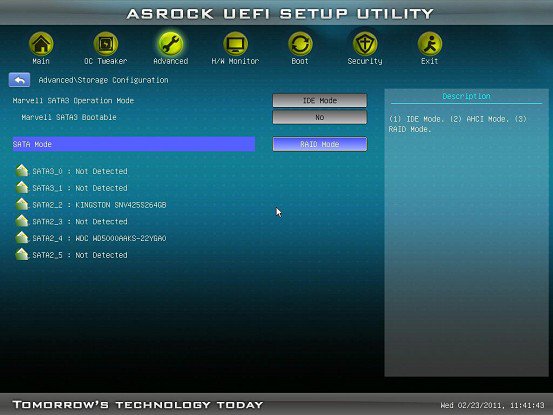
Step 2. Please press F2 or DEL to enter BIOS > Advanced > Storage Configuration.
Step 3. Please set SATA mode to [RAID Mode] as shown below
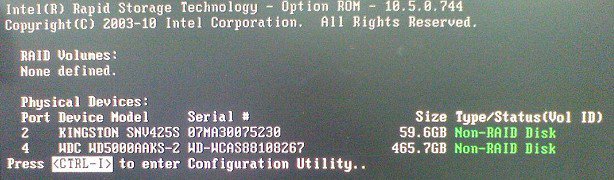
Step 4. In RAID ROM screen, HDD status should be "Non-RAID Disk"
Step 5. Please install OS in SATA HDD, after installation, please shut down your system and connect SSD to SATA ports listed above.
Question: How could I enabled "Data Execution Protection (DEP)" supported from CPU?(9/1/2011) Answer: Please enter BIOS, and set [No execute Memory Protection] to [Enabled].
You could find the option by BIOS-> Advanced-> CPU Configuration-> Set [No execute Memory Protection] to [Enabled.]
Question: How to enabled AMD Dual Graphics feature on AMD Platform?(3/1/2014) Answer: Step 1:
Please make sure that you have installed the latest BIOS and two 1866MHz or higher frequency memory modules in dual channel.
Also keep the default UEFI setting of "Dual Graphics" option on [Auto].
BIOS download link: https://www.asrock.com/support/download.asp
Step 2:
Install one AMD RADEON PCI Express graphics card to the PCIE slot.
Step 3:
Connect the monitor cable to the onboard VGA port. Please note that the current VGA driver / VBIOS allows Dual Graphics output from the onboard display only.
For any future update, please refer to our website for further information.
Step 4:
Boot into the OS.
Then please remove the AMD driver if you have any VGA driver installed in your system.
Step 5:
Install the onboard VGA driver from our support CD to your system for both the onboard VGA and the discrete graphics card.
Step 6:
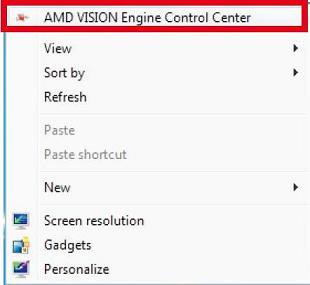
Restart your computer. Right-click the desktop. Click "AMD VISION Engine Control Center" to enter AMD VISION Engine Control Center.
Step 7:
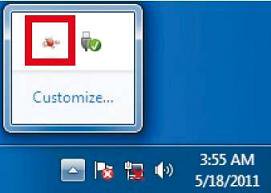
You can also click "AMD VISION Engine Control Center" on your Windows taskbar to enter AMD VISION Engine Control Center.
Step 8:
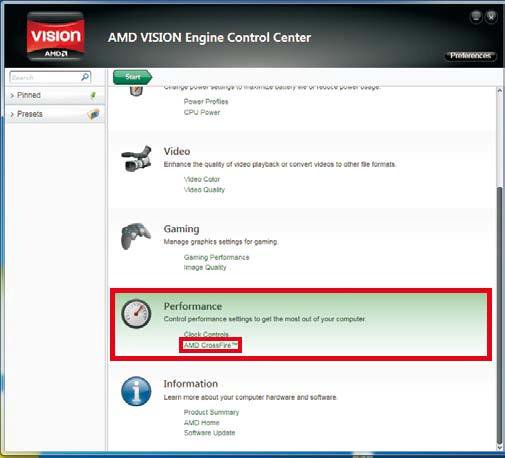
In AMD VISION Engine Control Center, please choose "Performance". Click "AMD CrossFire™".
Step 9:
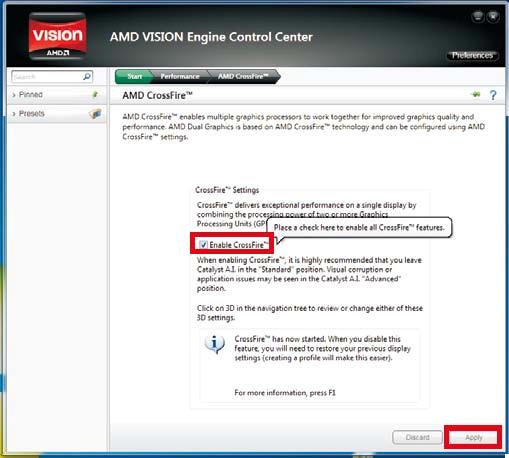
Click "Enable CrossFire™" and click "Apply" to save your change.
Step 10:
Reboot your system. Then you can freely enjoy the benefit of Dual Graphics feature.
Question: My system (AM1/ FM2/ FM2+) won't boot up after 5 long beeps when only a CPU is installed. How do I resolve this problem?(3/1/2015) Answer: 5 long beeps mean that the system couldn't recognize the graphics.
Some AMD CPUs (i.e AMD Athlon/Sempron family CPU) don't have integrated graphics processors. When these kinds of CPUs are installed, a discrete VGA card is required. Please visit AMD's official website to check whether your CPU has integrated graphics or not: http://products.amd.com/en-gb/DesktopCPUResult.aspx
Question: When I try to use 64-bit guest operating systems with VMware, the system pops up "This host supports Intel VT-X, but Intel VT-X is disabled".(12/1/2015) Answer: Please configure "Intel Virtualization Technology" in the BIOS to enable VT-x.
(BIOS -> Advanced -> CPU Configuration -> Set "Intel Virtualization Technology" to "Enabled")
Question: How do I control ASRock RGB LED on AM4 motherboard?(3/1/2017) Answer: Please download ASRock RGB LED Utility from the following link, and the LED can be controlled under OS. Link: https://download.asrock.com/Utility/Others/RGBLED(v1.0.12).zip
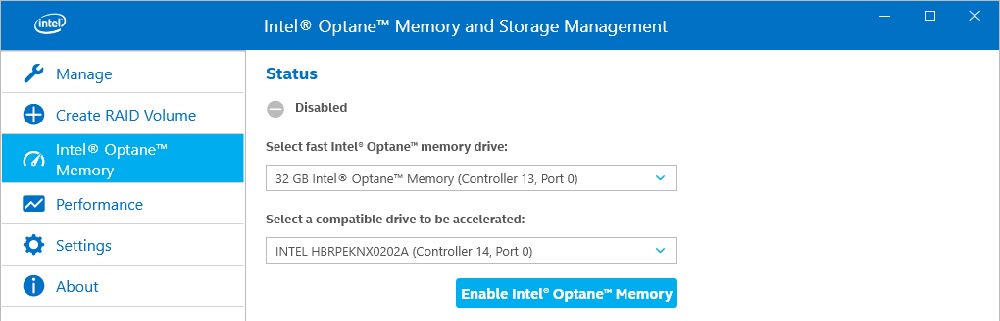
Question: How do I enable Optane H10 when another Intel M.2 SSD is installed on Intel 300/400 series platform?(9/1/2020) Answer: To enable an Optane H10 while another Intel M.2 SSD is installed, please refer to the following steps:
Step 1. Make sure that H10 Optane memory is installed in the Optane supporting M.2 socket by checking the storage section of the motherboard web page.
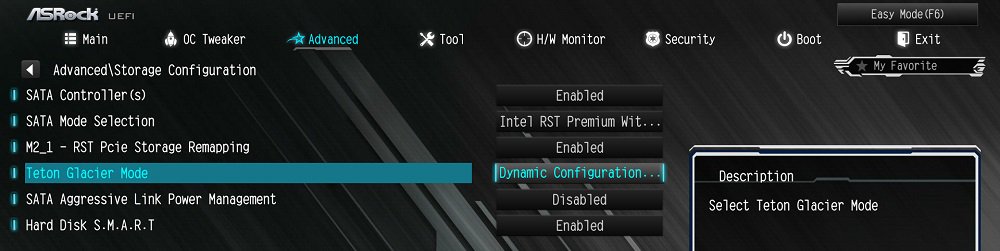
Step 4. Enable the Teton Glacier Mode in BIOS and press F10 to save the settings.
Advanced\Storage Configuration\Teton Glacier Mode\Dynamic Configuration for Hybrid Storage Device Enable
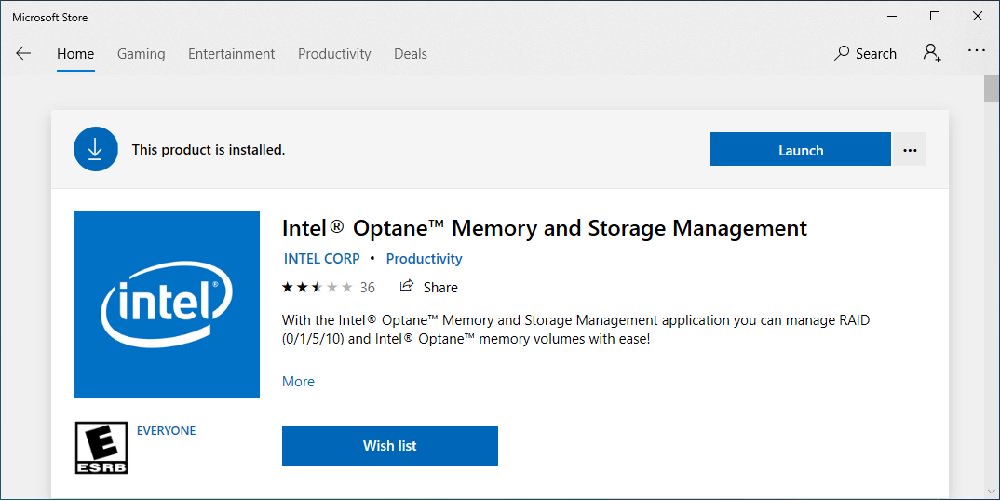
Step 5. Launch the Intel Optane Memory and Storage Management tool from the Microsoft store.
Step 6. Enable Optane memory. (One restart is required)
Step 7. After the system has restarted, the Optane Management tool will show Optane memory is enabled.
Question: I want to turn off the LED while the system is off. Where can I find the setting?(7/1/2021) Answer: Please follow the steps below and set the "Turn on Onboard LED in S5” setting to disabled under the BIOS.
Step 1.
While the system is starting, press hotkey "F2” or "Del” repeatedly to enter BIOS setup.
Step 2.
Disable the "Turn On Onboard LED in S5” under the BIOS.
AMD platform: Advanced\Onboard Devices Configuration\Turn On Onboard LED in S5\Disabled
Intel platform: Advanced\Chipset Configuraiton\Turn on Onboard LED in S5\Disabled
Question: My software requires Secure Boot to be enabled. How can I set it up?(8/16/2023) Answer: Please follow the steps below to enable Secure Boot.
Step 1.
Please press the "F2” key during POST to enter BIOS setup.
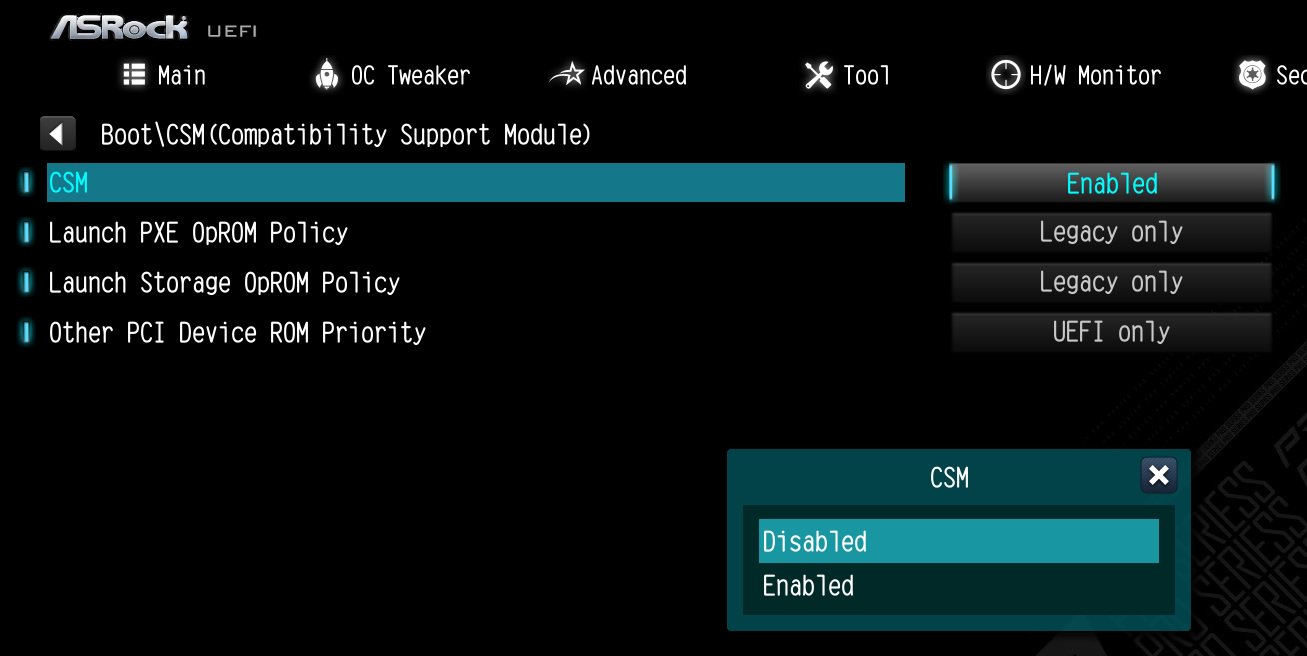
Go to Boot\CSM (Compatibility Support Module) and set "CSM" to "Disabled".
Press the "F10” key to save configuration changes.
Step 2.
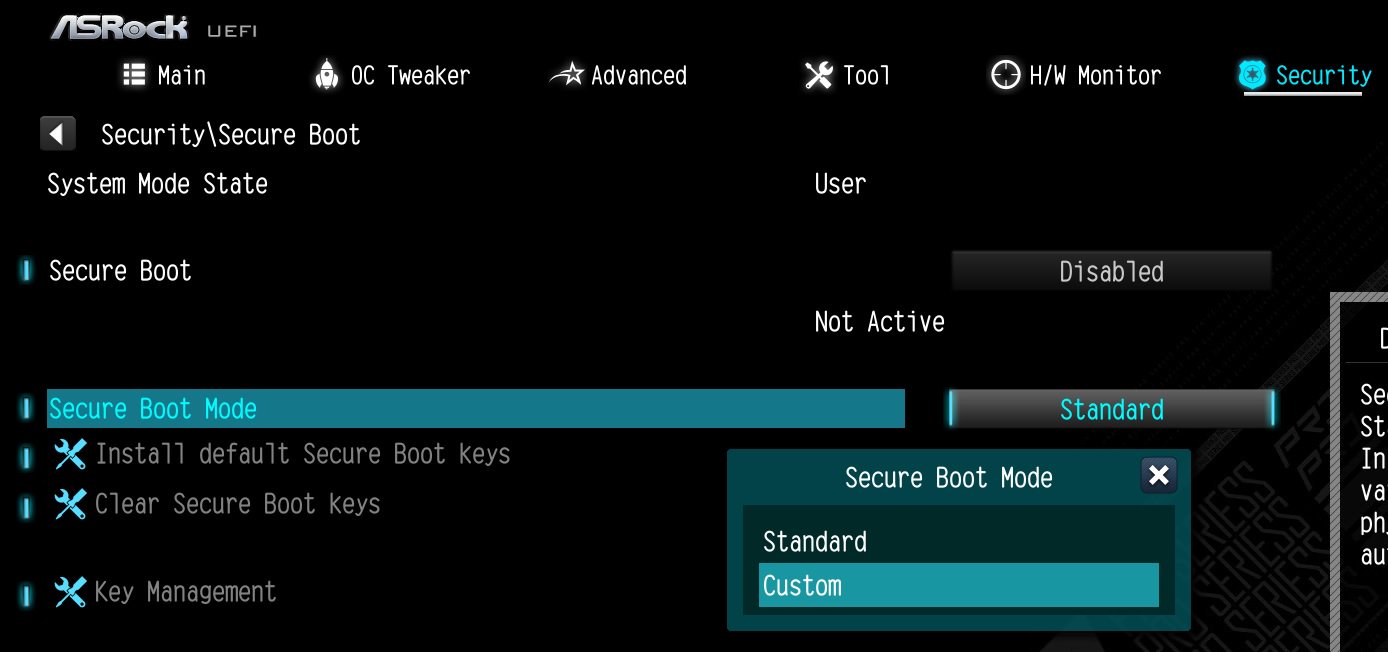
Go to Security\Secure Boot and set "Secure Boot Mode" to "Custom".
Step 3.
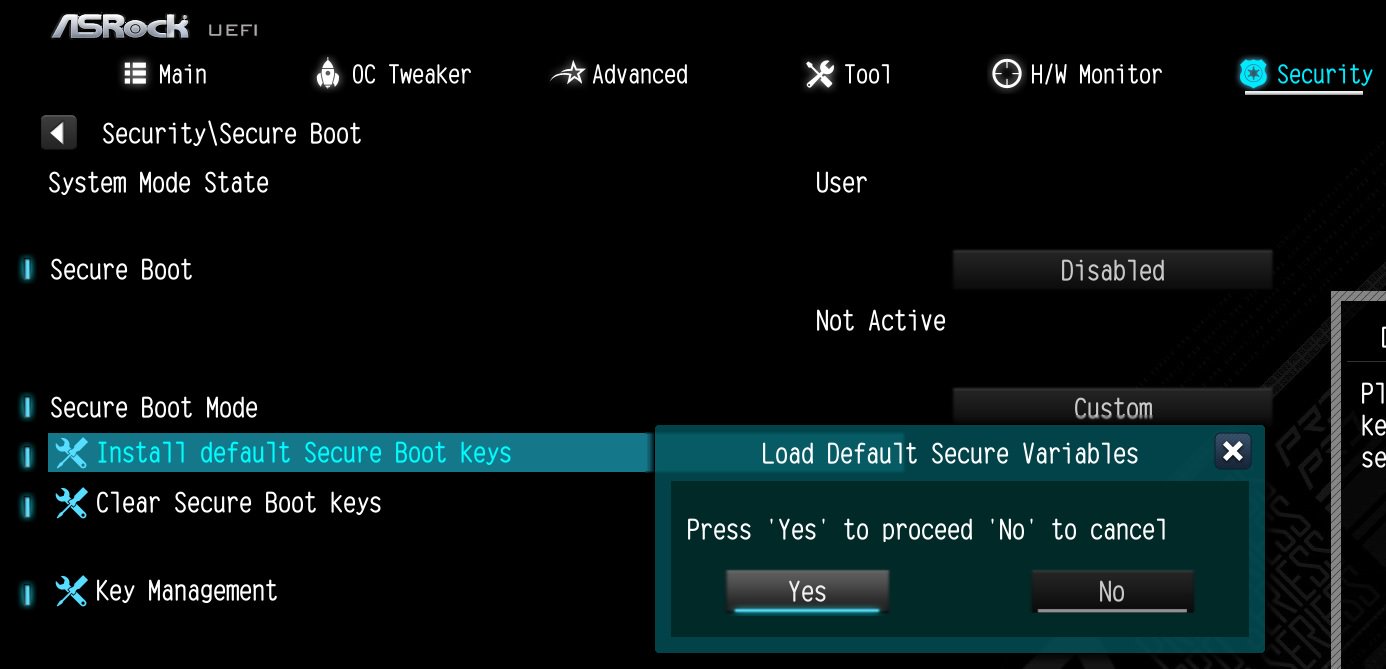
Please press "Install default Secure Boot keys" and select "Yes" to install Secure Boot keys.
Step 4.
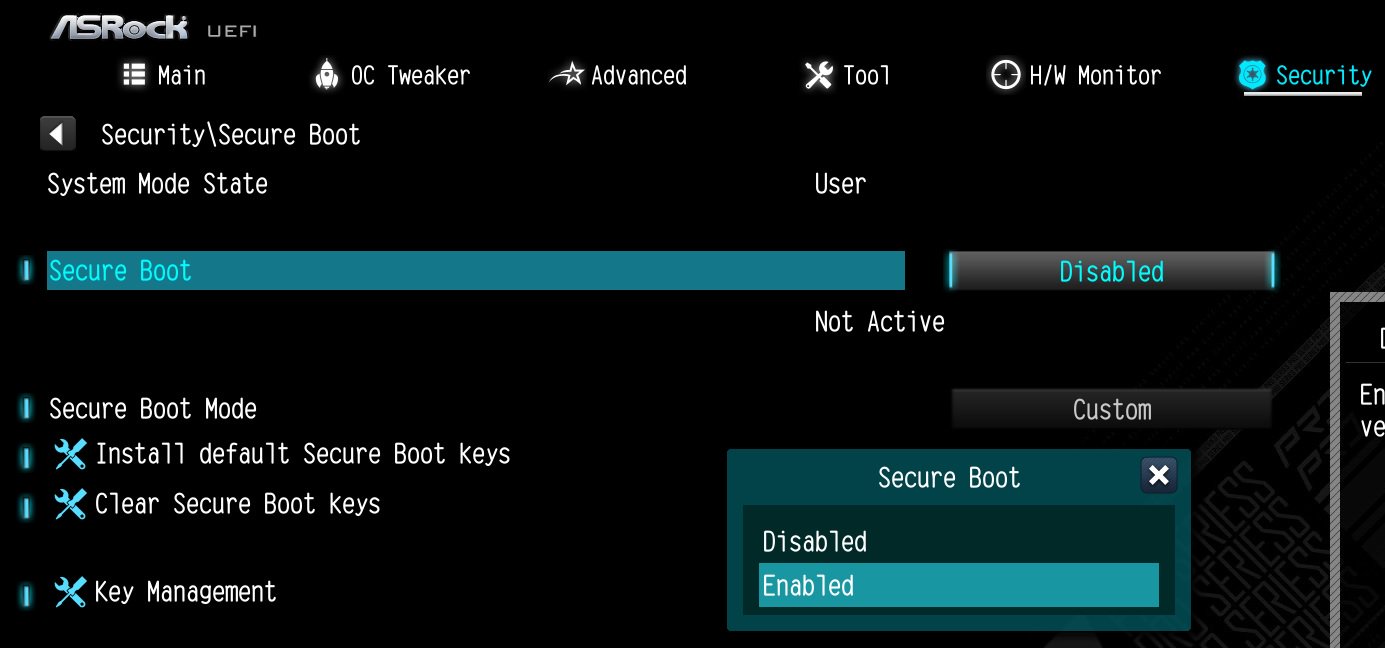
Set "Secure Boot" to "Enabled". Then press the "F10" key to save configuration changes.
Step 5.
After the system restarts, go to Security\Secure Boot, and make sure that Secure Boot is showing "Active".
*AM5 platform
If a prompt "Discard Changes and Exit" appears after clicking "Install default Secure Boot keys" and selecting "Yes", please select "No" and continue to step 4.
Question: If I encounter an issue with LED lighting not working on the Intel Z890 series and adjusting ASRock Polychrome RGB in the BIOS has no effect, what should I do?(11/29/2024) Answer: If you notice that the LED lighting on your Intel Z890 series is not functioning, please visit ASRock's official website and download ASRock Polychrome RGB version 2.0.190 or a newer version for your operating system.
Question: My system has hardware monitoring software installed, such as HWiNFO64. My computer fails to boot after restarting. What should I do?(5/14/2025) Answer: On the AMD AM5 platform, restarting the system while hardware monitoring software is running may cause a reboot to fail.
If your system can boot normally but encounters issues during a restart, please close all hardware monitoring software and try restarting the system again.
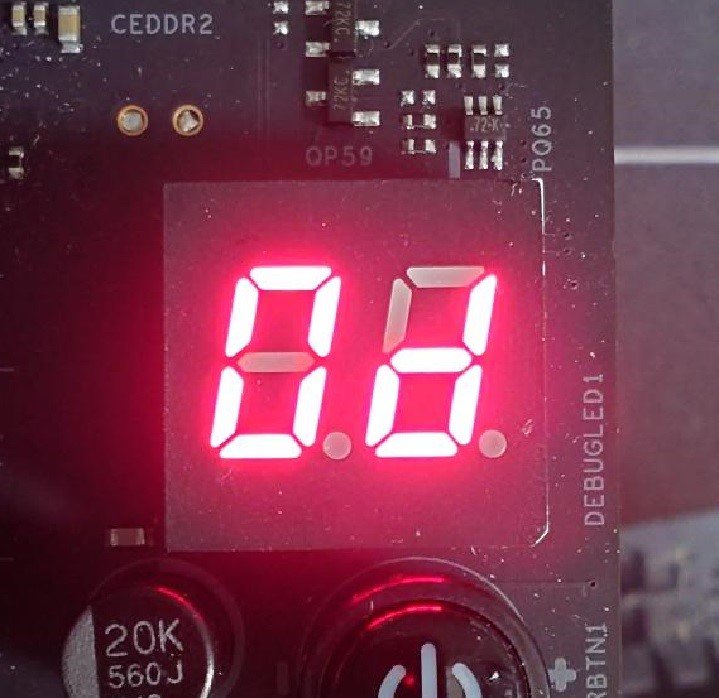
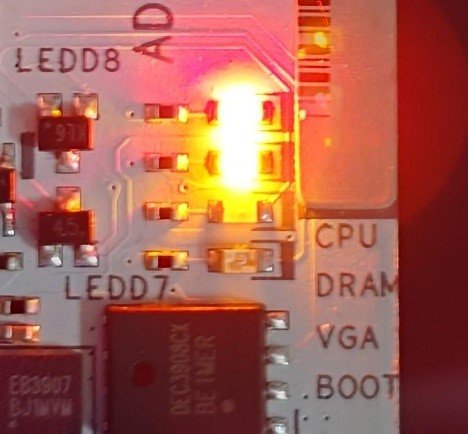
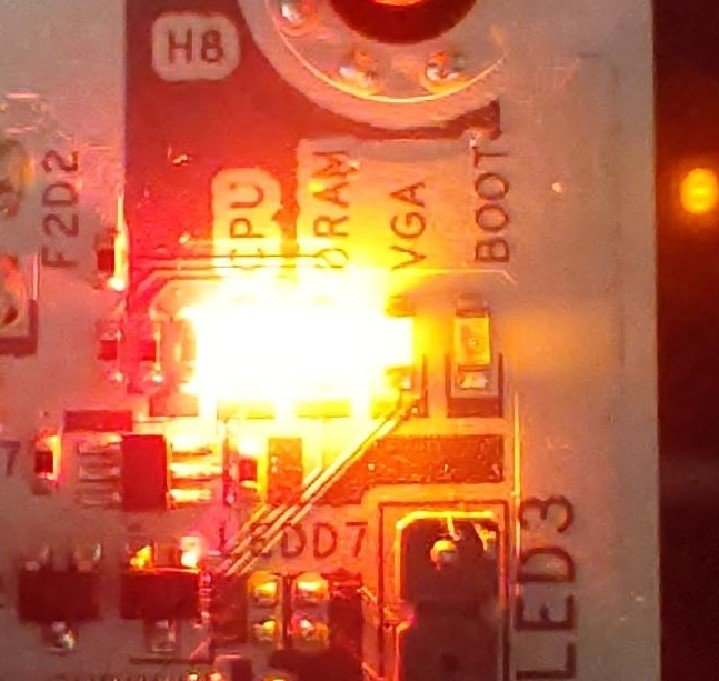
When the system fails to reboot properly, the motherboard's "Dr. Debug” display and "Post Status Checker (PSC)” may show the following statuses:
X870E Nova WiFi
X870 Pro RS
X870 Steel Legend WiFi
Dr. Debug display "0d”.
The CPU and DRAM LEDs will remain solidly lit.
The CPU LED will remain solidly lit, and the DRAM LED will blink.