We use cookies to offer you a more personalized and smoother experience. By visiting this website, you agree to our use of cookies. If you prefer not to accept cookies or require more information, please visit our Privacy Policy.

Question: I am installing the Windows® 98SE on my P4i65GV/ 775i65GV motherboard. After I installed the "Intel® VGA Drivers" from the support CD and restarted the system, the system shows that it cannot find the "ikch8xx.cat" and "isb8xx.cat" files. What should I do?(3/20/2006) Answer: Actually, the "ikch8xx.cat" and "isb8xx.cat" files are not necessary under Windows® 98SE. So you can skip it to continue the installation of motherboard drivers. It will not influence the functions of your system. If you want to install the two files completely, please put the support CD into your CD/DVD ROM and refer to the path:
\drivers\VGA\win98_me\Win9X.
Question: My motherboard is ALiveNF6P-VSTA / ALiveNF6G-VSTA (MCP61 chipset). I'm encountering some problems with SATA HDD when installing the drivers of the motherboard under Windows® Vista™. What should I do?(4/28/2008) Answer: Please refer to below suggestions.
If you want to install the Windows® Vista™ with non-RAID mode:
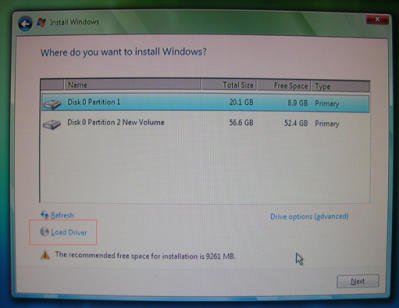
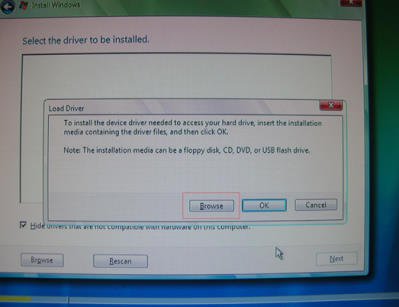
Install the SATA driver v998 from support CD during the installation of Windows® Vista™.
The driver path in support CD is
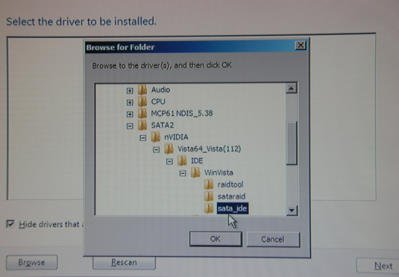
Support CD/Drivers/ SATA2/ nVIDIA/ Vista64_Vista(112)/ IDE/ WinVista/ sata_ide.
Step1:
Step2:
Step3:
You can also download the SATA driver v998 from ASRock website and save it to a floppy diskette, USB flash drive or CD/DVD disk.
Then install the SATA driver v998 from floppy diskette, USB flash drive or CD/DVD disk during the installation of Windows® Vista™.
If you want to install the Windows® Vista™ with RAID mode:
Please refer to the NVIDIA RAID installation guide.
https://download.asrock.com/Manual/raid/ALiveNF6P-VSTA/English.pdf
Question: I install ATI 2xxx, 3xxx, 4xxx series PCIE VGA card on the motherboard. After installing all Windows® XP drivers from the motherboard, it still shows an unknown "audio device on the high definition audio bus." message under device manager. What could I try?(1/12/2009) Answer: There is an integrated audio chip in the ATI 2xxx, 3xxx, 4xxxx series graphics cards.
Please install ATI HDMI audio driver.
http://ati.amd.com/support/drivers/xp/hdmiaudio-xp.html
Question: After I've installed all of the drivers for Z87 OC Formula with Windows 7 64bit OS on a GPT format drive the system cannot be shut down. What should I do?(9/1/2013) Answer: Please enter Windows safe mode to uninstall Etron USB3.0 driver and update the latest Etron USB3.0 driver. Etron USB3.0 driver x64 download link
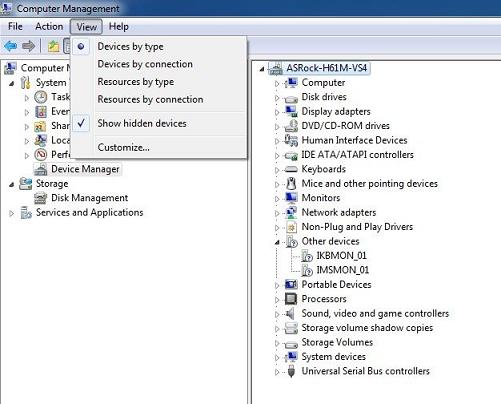
Question: There still have two unknown devices "IKBMON_01" and "IMSMON_01" in device manager on H61 series motherboards, after install all drivers from support CD, what driver should I install for them? (2/1/2014) Answer: Please update Intel Smart Connect Technology driver for these devices.
Intel Smart Connect Technology driver download link: https://download.asrock.com/Drivers/Intel/SATA/SmartConnect(v4.1.40.2143_PV).zip
Question: I would like to update the WiFi and Bluetooth drivers, but I found multiple versions on the download page. How can I identify the correct one?(8/20/2025) Answer: If there are multiple WiFi and Bluetooth drivers available on the product's download page and you are not sure which one corresponds to the module used on your motherboard, you can run the Auto Driver Downloader to automatically detect the correct module and download the appropriate drivers: https://download.asrock.com/TSD/Desktop/FAQ/CheckDeviceAndDownload_0.0.0.5.zip
Please follow the steps below to run the Auto Driver Downloader.
1. Ensure the system is connected to the internet via Ethernet.
2. Unzip the downloaded file and run the Auto Driver Downloader as system administrator.
3. The application will detect the device IDs and automatically search for the corresponding drivers for the module installed on the motherboard.
4. Press Y key to download the drivers
5. The drivers will be saved in the Downloads folder of your Windows system.
6. Unzip and install the downloaded WiFi and Bluetooth driver.
7. Check whether the WiFi and Bluetooth devices are properly detected in Windows Device Manager and that no yellow exclamation marks are shown.
8. Test the functionality of WiFi and Bluetooth devices to ensure they are working correctly.