We use cookies to offer you a more personalized and smoother experience. By visiting this website, you agree to our use of cookies. If you prefer not to accept cookies or require more information, please visit our Privacy Policy.

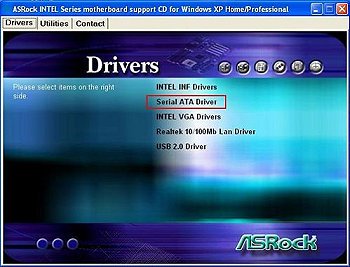
Question: I want to install onboard audio driver on my P4i45GV. However, when I executed the "Autorun" program of the support CD, I couldn't find the C-Media audio driver item in the menu. What should I do?(3/21/2005) Answer: Due to the wrong description of "AUTORUN" program of support CD for P4i45GV, you will not see "C-Media audio driver and application" item on "AUTORUN" menu under Windows XP. Although you cannot see the item, you still can install audio driver by clicking the "Serial ATA Driver" item. The wrong versions of support CD are II33c and II33d. Please refer the following picture to install the driver from support CD.
Please click "Serial ATA Driver" item to install C-Media audio diver.
Question: My system is based on 775Dual-VSTA / ALiveSATA2-GLAN / AM2V890-VSTA with Windows® XP / Windows® 2000 operating system. After updating to the latest BIOS, I found two issues.
1.I can't find the "HD Audio Driver and Application" link in the menu of support CD.
2.There is a yellow exclamation mark in Device Manager.
What could I do?(9/19/2006) Answer: 1.If your CD is IVD12/ IVD12b (775Dual-VSTA), AV890-10 (ALiveSATA2-GLAN) or AV31/ AV31b (AM2V890-VSTA), you will get the issue.
Please execute the "Setup.exe" file from following directory of support CD.
775Dual-VISTA-> IVD12
CD\Drivers\Audio\REALTEK\MCE_XP_2K (R1.36)\
775Dual-VISTA->IVD12b
CD\Drivers\Audio/ REALTEK\MCE_XP_2K (R1.41)\
ALiveSATA2-GLAN -> AV890-10
CD\Drivers\Audio\REALTEK\MCE_XP_2K (R1.39)\
AM2V890-VSTA -> AV31/ AV31b
CD\Drivers\Audio\REALTEK\MCE_XP_2K (R1.39)\
2:The yellow exclamation mark in Device Manager is unnecessary. It will not affect the system at all. Please follow below steps to remove it.
Right-click "My Computer" on your desktop, and click "Properties".
Select "Hardware", and click "Device Manager".
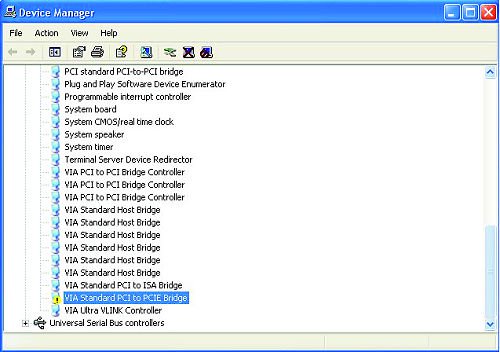
In "Device Manager", double-click the option "System Devices". You will find "VIA® Standard PCI to PCIE Bridge" item with a yellow exclamation mark.
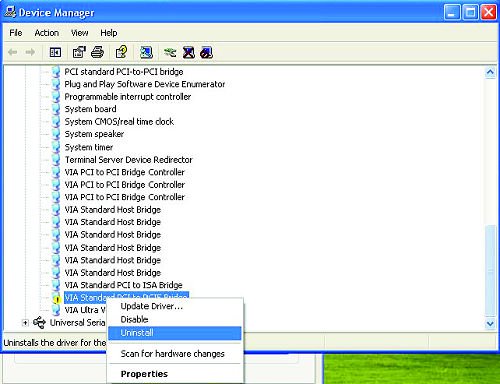
Right-click "VIA® Standard PCI to PCIE Bridge", and select "Uninstall". Confirm your choice by clicking "OK".
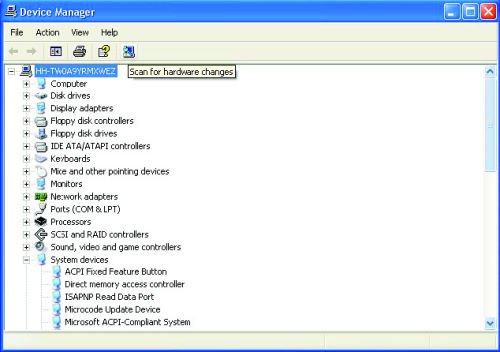
After a few seconds, click "Scan for hardware changes" icon on the top.
Question: I am a 939Dual-VSTA user. At first, my onboard audio works fine with integrated audio driver under Vista™. After updating to Vista service pack 1, my onboard audio does not work anymore. Can you help me?(9/5/2008) Answer: Please update the C-Media audio driver 8.18.07_SPDIF to fix the problem. The audio driver is available at https://www.asrock.com/mb/download.asp?Model=ALiveDual-eSATA2&s=AM2
Question: Why I cannot hear audio playback under Windows® XP when I connect HDMI cable with ION330?(9/3/2009) Answer: Some suggestions as below may solve the issue,
1. Please re-install your Windows® XP and install required driver in such order :
a. HD Audio Driver and Application(VIA® HD Audio driver)
b. Onboard HDMI HD driver (NVIDIA® HDMI driver)
c. All in 1 driver.
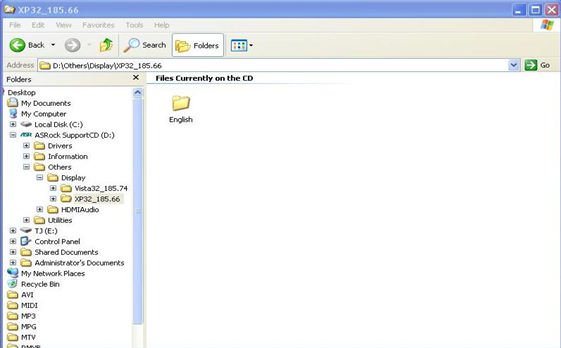
2. Refering to the attached picture, please install a display driver in support CD -> Others -> Display -> XP32_185.66 -> Setup.exe
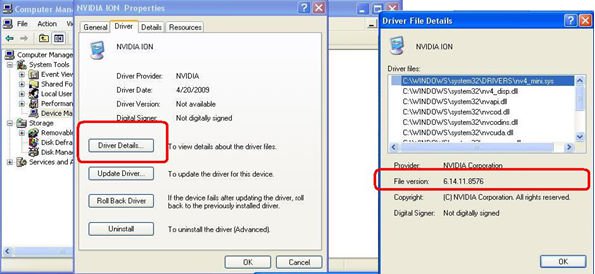
3. Please check your VGA driver version has been update to 6.14.11.8576 by device management.
4. Since when ever you plugged the rear speaker to ION330, the sound playback would AUTOMATICALLY set to "HD Audio Rear Output", therefore, during the test, please ONLY connect HDMI to the TV, and make sure the sound playback is set to "NVIDIA® HD Audio"
Question: The integrated speakers of my monitor provide no audio output. What can I do?(8/9/2022) Answer: Please try the followings:
1. Make sure the monitor cable (HDMI/DisplayPort) is properly connected to both the monitor and the output on the graphics card, motherboard or notebook.
2. Install the latest graphics driver for your graphics card or for the integrated graphics of your CPU and test.
3. In the OS, check which audio device is set as default output device. Check all the volume settings as well in the OS and on the monitor.
4. If possible, please test the monitor audio with another motherboard or notebook.