We use cookies to offer you a more personalized and smoother experience. By visiting this website, you agree to our use of cookies. If you prefer not to accept cookies or require more information, please visit our Privacy Policy.

Necessary cookies These cookies are essential for the proper functioning of the website and cannot be turned off.
Analytics cookies These cookies help us understand how visitors use our website.
Marketing cookies These cookies are used to track visitors and display relevant advertisements.
Social media cookies These cookies allow you to share pages and content on social media.
Question: There is no display output after starting the system. What can I do?(8/9/2022) Answer: Please try the followings:
1. First of all, check if the monitor cable (HDMI/DisplayPort) is connected properly to both the monitor and the motherboard or notebook.
2. Please try other monitor cables.
3. Monitor settings
-Press the icon above to select the specific monitor input that you are using, e.g. HDMI.
-Try another monitor input.
Other troubleshooting
-Test the monitor with another motherboard or notebook to check if the monitor is working.
- Please try the output of the other GPUs, as you might have multiple GPUs in your system. (One or more PCIe graphics cards and/or integrated graphics)
4. Check Power cord connection.
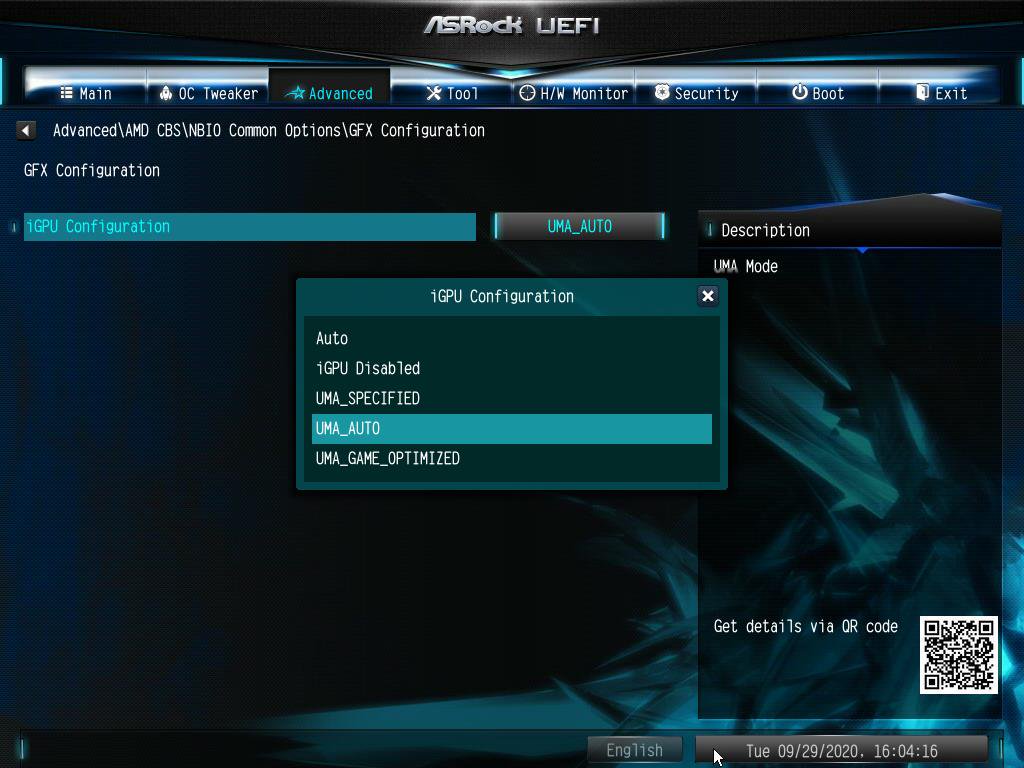
Question: How do I enable IGPU Multi-Monitor on B550/A520 series motherboard?(10/1/2020) Answer: To enable IGPU Multi Monitor, please refer to the following path and set the [iGPU Configuration] to [UMA_AUTO].
Advanced\AMD CBS\NBIO Common Options\GFX Configuration
Question: I'd like to use the Windows Mixed Reality Headset on on-board HDMI, what should I do?(12/1/2017) Answer: Please follow the steps below
1. Refer to the "Microsoft Windows Mixed Reality PC hardware guidelines” to check the system hardware requirement. https://support.microsoft.com/en-us/help/4039260/windows-10-mixed-reality-pc-hardware-guidelines
*The Windows Mixed Reality requires Integrated Intel HD Graphics 620 or greater DX12-capable integrated GPU.
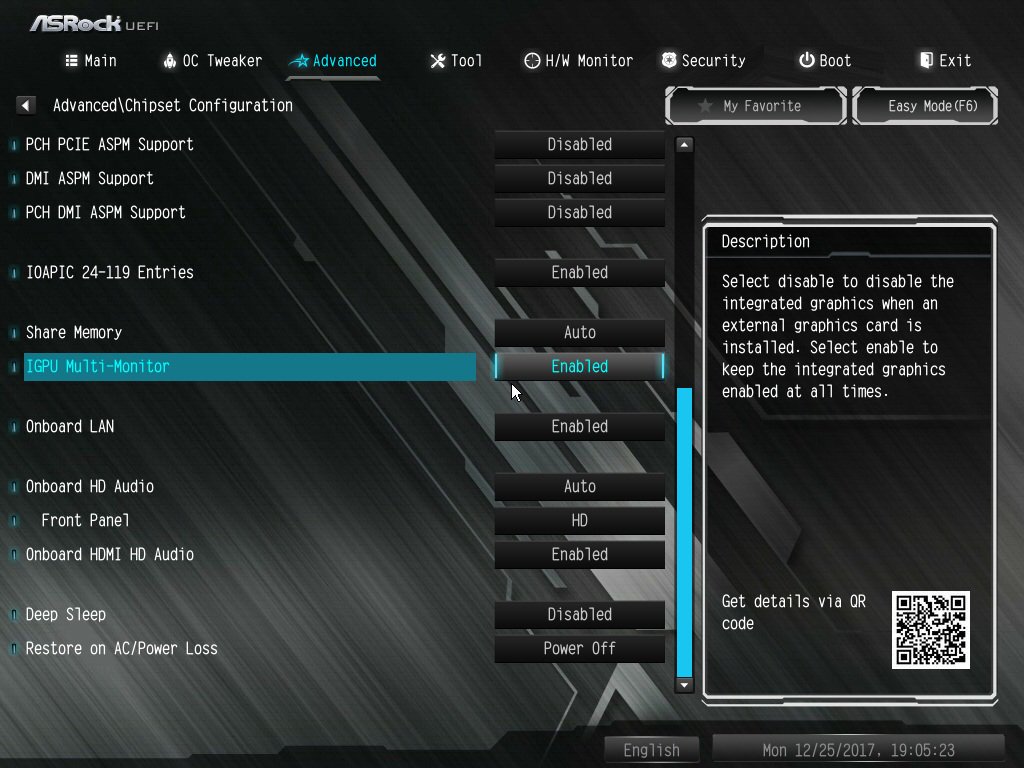
2. If an external graphics card is installed, please enable "IGPU Multi-Monitor” under BIOS.
BIOS Path: Advanced > Chipset Configuration > IGPU Multi-Monitor
3. Download the VGA driver version 15.60.01.4877 from the Intel download center and Install it on your system.
Download Link: https://downloadcenter.intel.com/product/128199/Graphics-for-8th-Generation-Intel-Processors
4. Install the "Windows Mixed Reality Headset” USB 3.0 connector to the on-board USB3.0 port.
5. Install the "Windows Mixed Reality Headset” HDMI connector to the on-board HDMI port
The Windows Mixed Reality Headset should work now.
Question: My monitor and DisplayPort cable supports DP1.2. However, the AMD VGA driver still shows "A display capable of DisplayPort v1.2 data rates and multi-streaming is currently connected to a connector that does not support DisplayPort v1.2" on AMD FM2+ platform. How to fix this issue?(6/1/2015) Answer: Please download and install AMD VGA driver v14.9 to solve this issue.
AMD VGA driver V14.9 download link: http://support.amd.com/en-us/download/desktop/previous/detail?os=Windows%207%20-%2064&rev=14.9
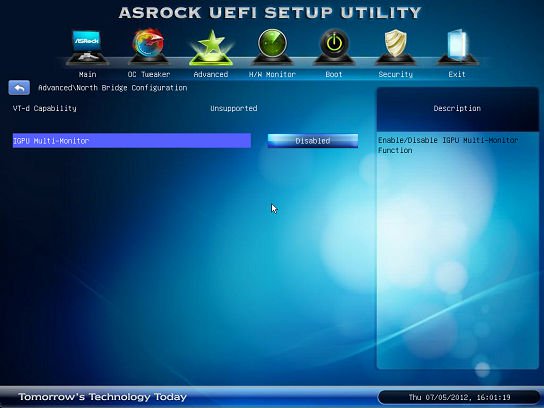
Question: I get an error message whenever I'm installing the Intel VGA driver downloaded from ASRock's website. How can I install it properly on VisionX series?(12/1/2012) Answer: Please enter the UEFI SETUP UTILITY to enable IGPU Multi-monitor in Advanced/North Bridge configuration (refer to the picture) before installing the Intel VGA driver.